Every automated workflow ever built in any tool, on any platform, follows the same basic logic: something happens, and then something else happens as a result.
That's it. That's automation. When a new lead fills out your form, send them a welcome email. When a payment clears, update your CRM. When a support ticket sits unanswered for 24 hours, ping the manager on Slack. The chain of cause and effect is what makes a workflow a workflow.
Revo makes this logic visual, configurable, and powerful enough to handle real business complexity. This article breaks down exactly how triggers and actions work in Revo, what they are, how they connect, and how to use them to automate practically anything your team does repeatedly.
No developer required. No prior automation experience needed. Just the logic you already use every day, finally working for you automatically.
The Core Concept: "When This Happens, Do That"
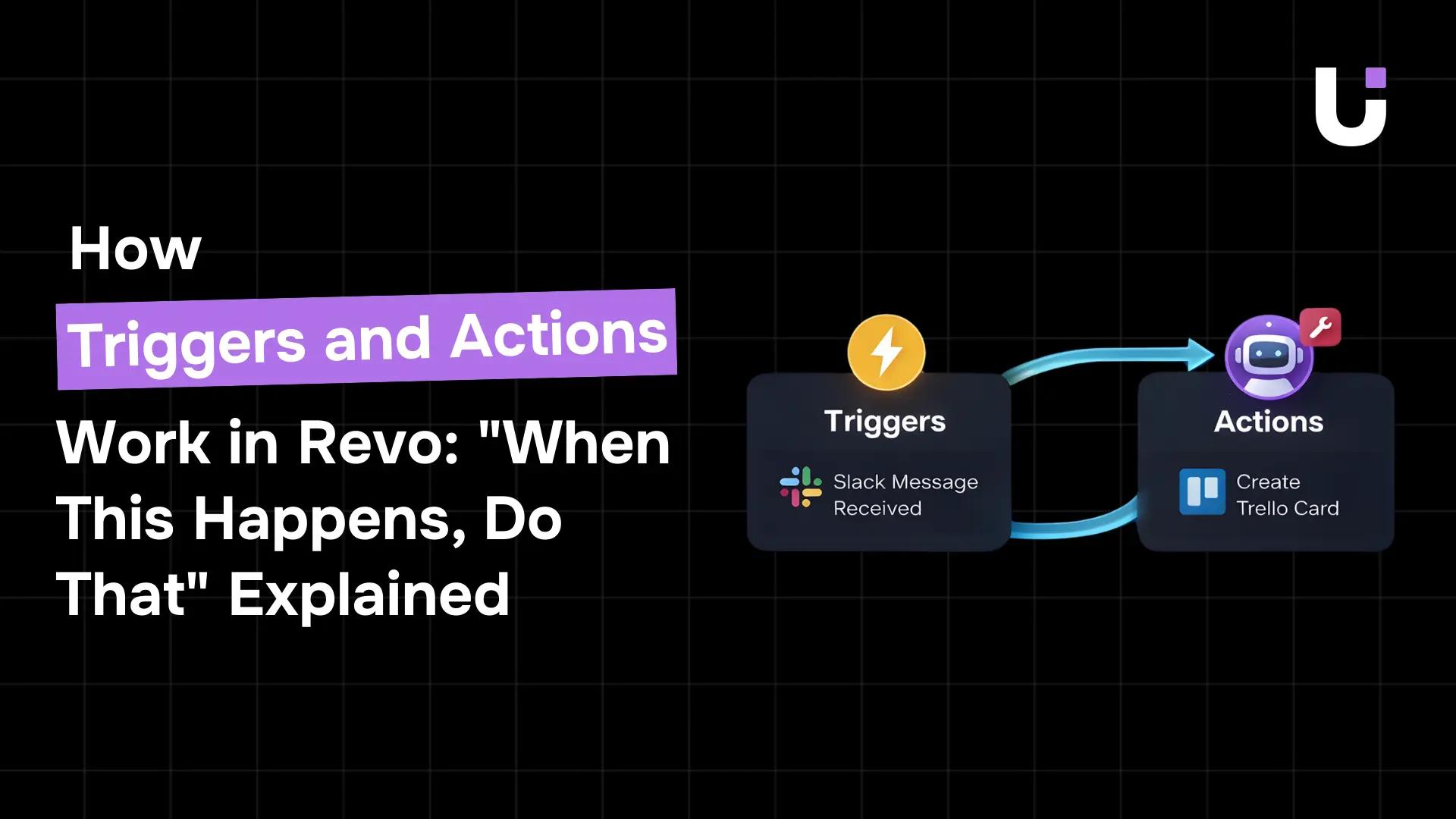
Every single workflow in Revo starts with the same question: what has to happen before your automation kicks in? That starting point is called a trigger. Everything that follows the tasks your workflow actually performs those are actions.
Think of it like a domino chain. The trigger tips the first domino. Every action that follows is another domino falling in sequence. The trigger never falls on its own; something in the real world causes it. And once it falls, every action connected to it executes automatically.
This "when this happens, do that" model is simple enough to explain in seconds but flexible enough to handle workflows with dozens of steps, conditional branches, and integrations across ten different apps. Understanding the model well is what separates teams that build automation that actually works from teams that build automation that breaks in edge cases.
What Is a Trigger?
A trigger is the event that starts your workflow. It is always the first node you place on the Revo canvas. Nothing in your workflow happens until the trigger fires, and once it fires, the rest of the workflow executes automatically.
Triggers are not things you schedule manually or click to run. They listen for specific events across your connected apps and tools, and they respond the moment those events occur. In practice, this means your workflows can run in the middle of the night, on weekends, and during holidays without anyone touching anything.
The Four Types of Triggers in Revo
Revo organises triggers into four categories, each designed for a different kind of initiating event:
-
Event-Based Triggers Fire when something happens in a connected app. A form is submitted. A new row is added to a spreadsheet. A deal moves to a new stage in your CRM. A file is uploaded to Google Drive. These are the most common triggers in everyday business workflows.
-
Schedule-Based Triggers Fire at a specific time or on a recurring schedule. Every Monday at 9am. On the first of every month. Every 15 minutes. Schedule triggers are ideal for reports, reminders, and recurring data syncs that need to happen on a predictable cadence.
-
Webhook Triggers Fire when Revo receives an incoming signal from an external system. If your app, website, or tool can send an HTTP request, it can trigger a Revo workflow. This is how you connect systems that don't have a native Revo integration.
-
Manual Triggers Fire when a team member intentionally clicks a button inside Revo to start a workflow. Useful for processes that need a human judgment call before automation takes over, like escalating a customer complaint or generating an on-demand report.
Every workflow needs exactly one trigger. You cannot build a workflow without one, and you cannot have two competing triggers in the same workflow. This keeps your automations clean, predictable, and easy to debug.
Quick Tip: Not sure which trigger type to use? Ask yourself: "What is the real-world event that should start this process?" If it's something that happens in an app, use an event trigger. If it happens at a set time, use a schedule trigger. If it requires a human decision, use a manual trigger.
What Is an Action?
An action is a task your workflow performs. Once a trigger fires, Revo moves through your action nodes in sequence or follows branches based on conditions and executes each task automatically.
Unlike triggers, you can have as many actions in a workflow as you need. A simple workflow might have one action. A complex onboarding or invoice approval workflow might have fifteen. Each action node does exactly one specific thing: send an email, create a record, post a Slack message, update a field, generate a document, or call an API.
Common Action Types in Revo
-
Communication Actions: Send an email, post a Slack or Teams message, send a WhatsApp message, or trigger an SMS via Twilio. These are the most frequently used actions in almost every workflow.
-
Data Actions: Create, update, or delete records in a connected app. Add a row to Google Sheets. Create a contact in HubSpot. Update a deal stage in Salesforce. Log an event in Airtable.
-
File & Document Actions: Upload a file to Google Drive or Dropbox. Generate a PDF or document from a template. Attach files to records in your CRM or project management tool.
-
Task & Project Actions: Create a task in Asana, ClickUp, Monday.com, or Trello. Assign it to a team member. Set a due date. Move it to a specific board or list.
-
Finance Actions: Create an invoice in QuickBooks or Xero. Log a payment in Stripe. Tag an expense. Update a budget tracker in a connected spreadsheet.
-
Logic Actions: Wait for a specified time before continuing. Loop through a list of items. Call another workflow as a sub-process. These meta-actions control the flow of your automation, not just the tasks it performs.
Every action in Revo can pass data forward to the next action. The email address captured by your form trigger flows into your "Send Email" action. The deal ID created in Salesforce flows into your Slack notification, so your team knows exactly which deal was updated. This data flow is what makes workflows feel intelligent rather than mechanical.
How Triggers and Actions Connect
In Revo, connecting a trigger to an action is as literal as it sounds. On the canvas, you drag a line from the output of your trigger node to the input of your first action node. Revo draws the connection automatically; you just pull the arrow from one node to the next.
From that connection point, data begins to flow. Every piece of information your trigger captures, the form field values, the record IDs, the timestamps, and the user details become available to every action that follows. When you configure an action, you pull from this data by inserting dynamic variables into your fields.
For example, your trigger captures a form submission containing a first name, email address, and selected plan. When you set up your "Send Email" action, you click into the recipient field and select Form: Email. You write your subject line: "Hi {Form: First Name}, welcome to Revo." Revo replaces those variables with the actual submitted values every time the workflow runs. Every lead gets a personalised email automatically, instantly, and without anyone lifting a finger.
This dynamic data flow is what turns a simple two-step workflow into something that feels genuinely intelligent. The trigger doesn't just start the process, it fills in the blanks that make every automated task relevant and personalised.
Trigger vs. Action: At a Glance
| Feature |
Trigger |
Action |
| Role |
Starts the workflow |
Does the work |
| Count per workflow |
Exactly one |
Unlimited |
| When it runs |
When the real-world event occurs |
Immediately after the trigger (or condition) |
| Example |
Form submitted, payment received, file uploaded |
Send email, create record, post Slack message |
| Passes data? |
✔ Yes, all captured fields flow to actions |
✔ Yes, can pass results to subsequent actions |
Adding Conditions: When "Do That" Becomes "Do This or That"
Simple workflows follow a straight line: trigger fires, actions execute, and are done. But real business processes rarely work in straight lines. The same trigger, a new form submission, might need to produce completely different outcomes depending on what the form said.
This is where Condition Nodes come in. A condition is a decision point you place between a trigger and an action. It evaluates a piece of data and routes the workflow down one of two or more paths based on whether that condition is true or false.
The logic looks like this: If the plan selected equals 'Enterprise,' route to Path A. Otherwise, route to Path B. Path A might notify your enterprise sales team and create a high-priority deal in Salesforce. Path B might trigger an automated welcome sequence and create a standard lead. Both paths share the same trigger, but conditions make sure each lead gets handled appropriately.
Conditions transform the "when this happens, do that" model into something more powerful: "when this happens, if X is true, do this; otherwise, do that." This is the logic that makes Revo capable of handling genuinely complex business processes, not just simple two-step automations.
Stat: McKinsey estimates that 60% of all occupations have at least 30% of their activities that current technology could already automate. The bottleneck isn't technology it's access and setup time. Revo removes both. (Source: McKinsey Global Institute)
Real Examples: Triggers and Actions Working Together
The theory is straightforward. Here's what it looks like in practice: three real workflow patterns that teams in Revo build on day one:
1. New Lead → Personalised Welcome Email
-
Trigger: Form submitted on your website (via Typeform, HubSpot Forms, or webhook)
-
Action 1: Send personalised email using {Form: First Name} and {Form: Email}
-
Action 2: Create a contact record in HubSpot CRM with all submitted fields
-
Action 3: Notify the sales team on Slack with lead details and company name
Time from form submission to CRM entry to Slack notification: under 10 seconds. No human involvement required at any step.
2. Invoice Received → Routed for Approval
-
Trigger: Email received with attachment matching invoice pattern
-
Action 1: Extract invoice amount and vendor name using Revo's data parsing tools
-
Condition: If the amount exceeds the department threshold, route to the senior approver. Otherwise, route to the direct manager.
-
Action 2: Send approval request via Slack with invoice details and a one-click approve/reject button
-
Action 3: If no response in 48 hours, send an automated reminder
-
Action 4: Once approved, create a payment record in QuickBooks and log in to Google Sheets
This workflow alone eliminates the most common invoice processing delay: the email that sits unread for three days.
3. Candidate Hired → Onboarding Sequence Launched
-
Trigger: Candidate status changed to "Hired" in your ATS
-
Action 1: Send offer letter template via DocuSign or email
-
Action 2: Create a Google Workspace account with the correct name and team assignment
-
Action 3: Add the new hire to the correct Slack channels based on the department
-
Action 4: Create an onboarding task list in Asana and assign it to the HR coordinator
-
Action 5: Schedule 30-day and 90-day check-in meetings in Google Calendar
HR teams using this workflow save 4 to 6 hours per new hire on administrative setup before the new employee even walks through the door.
Time Reality Check: Most teams build their first Revo workflow in under 15 minutes. Complex multi-branch workflows with 10+ integrations typically take 1 to 2 hours to build and test.
Trigger Types vs. Use Cases: Quick Reference
| Trigger Type |
Best For |
Example Event |
Common Actions |
| Event-Based |
App-driven workflows |
Form submitted, row added, deal updated |
Send email, create record, post message |
| Schedule-Based |
Recurring tasks & reports |
Every Monday at 9am, 1st of the month |
Generate report, send digest, sync data |
| Webhook |
Custom app integrations |
HTTP POST from your website or app |
Any action fully flexible |
| Manual |
Human-in-the-loop processes |
Team member clicks "Run" in Revo |
Escalate the issue, generate an on-demand report |
Key Takeaways About Triggers and Actions in Revo
Before you build your first workflow, here are the seven things most worth remembering:
-
Every workflow starts with one trigger. It's the event that fires your automation. No trigger, no workflow.
-
Actions do the actual work. Each action node performs one specific task. Stack as many as your process needs.
-
Data flows from trigger to action automatically. Every field your trigger captures becomes available to every action that follows no manual copying required.
-
Conditions turn straight lines into intelligent branches. Add a condition node whenever different inputs should produce different outcomes.
-
Revo connects over 200 apps natively. Your trigger can listen to any of them. Your actions can write to any of them. No API documentation needed.
-
Error handling is built in, not bolted on. Define exactly what happens when an action fails so your automation is reliable, not fragile.
-
Your first workflow takes about 15 minutes. Pick the most painful repetitive task your team does. Identify the trigger. Map the actions. Build it today.
The Bottom Line
Triggers and actions are not a complex concept. They're the same logic you already apply every day when you think: "When this happens, I need to do that." Revo just removes the "I" from that sentence and replaces it with an automated system that never forgets, never gets tired, and never takes a sick day.
The HR manager who knows exactly where the process breaks. The sales lead who tracks down the same data from three different places every morning. The finance team that chases the same invoice approvals by email every week. These are the people Revo was built for, not developers, not IT teams. The people who actually do the work.
Understanding triggers and actions is the first step to giving that work back to automation. From here, everything else in Revo is just a matter of connecting the right nodes in the right order.
Common Questions About Triggers and Actions
Q. Can a workflow have more than one trigger?
A. No. Each Revo workflow has exactly one trigger to keep it clean and predictable. If you need multiple starting points, create separate workflows and connect them using workflow-to-workflow calls.
Q. Can an action trigger another workflow?
A. Yes. Using the “Call Workflow” action, you can trigger another workflow as a sub-process. This allows you to build reusable, modular automation systems.
Q. What happens if an action fails?
A. Every action includes an “on failure” path. You can retry, send alerts, log the error, and continue, or stop the workflow completely.
Q. How do I pass data from a trigger to an action?
A. Use the variable picker inside action fields. Select trigger data like form inputs, IDs, or timestamps, and Revo automatically replaces them with real values during execution.
Q. Can I test a workflow before publishing it?
A. Yes. Test mode lets you run a sample event and watch the workflow execute live. Each node shows real-time data, and errors are clearly highlighted.


 Elena Petrova15 September 2026


