TL;DR: Most daily planner app roundups focus on solo users managing personal to-do lists. This guide covers what a daily planner app actually is, why digital beats paper, what features matter, and how seven leading tools compare, so you can pick the right one for how you actually work.
What is a daily planner app?
A daily planner app gives you a structured place to capture tasks, set priorities, and move through your day without losing track of what's next. At its core: task entry, due dates, reminders, and a view (list, calendar, or board) so you can see your day at a glance.
Most daily planner applications are built for one person managing their own to-do list. That scope works well for a freelancer, a student, or someone tracking personal goals. It starts to show cracks the moment your work involves other people, shared deadlines, or sprint cycles.
Newer AI task tracking software pushes the category further, auto-prioritizing tasks based on deadlines, dependencies, and team capacity rather than waiting for a manager to reorder a list manually. That shift from "capture and remind" to "predict and adjust" is worth understanding before you compare any specific tool.
Why digital planners beat paper planners
Paper planners have real fans, and the reasons are understandable: no notifications, tactile focus, zero setup. But for anyone managing more than their own workload, the gaps add up fast.
Here is where digital wins on outcomes that matter at work:
Real-time updates : When a deadline shifts or a task gets reassigned, a digital planner reflects that instantly. A paper planner requires you to cross things out, rewrite, and hope everyone has the latest version.
Search and retrieval : Finding a task you logged three weeks ago takes seconds digitally. On paper, it means flipping through pages.
Reminders and alerts : Digital planners surface what's due before it's overdue. Paper relies entirely on you remembering to check.
Team visibility : A shared digital workspace lets your whole team see who owns what. A paper planner is, by definition, private.
Integration with your stack : Digital planners connect to calendars, communication tools, and project boards. Paper doesn't talk to anything.
Reporting : Digital tools can show you where your time went last week. Paper cannot.
The tradeoff is real: digital planners require setup, can generate notifications, and carry a learning curve. But for teams managing client work, sprint cycles, or any shared accountability, digital is the only practical choice.
What to look for in a daily planner app
Most app roundups list features the way a spec sheet does: bullet points, no context for when a feature actually matters. Here are five criteria that separate a daily planner app worth paying for from one that looks good in a demo.
AI prioritization that responds to change : Static to-do lists don't account for a blocked ticket, a shifted deadline, or a team member who just went out sick. A good AI daily planner should re-rank your queue automatically when inputs change, not just when you manually drag cards around. If the AI only suggests tasks at setup and goes quiet after that, it's a label, not a feature.
Dependency tracking : If Task B can't start until Task A ships, your planner needs to know that and surface it before the blocker becomes a missed deadline. Without dependency visibility, you're managing a list. With it, you're managing a workflow.
Team-level status visibility : A daily planner that only shows your own tasks is a personal tool. A planner for a team needs to show who owns what, what's overdue, and where work is piling up, without requiring a standup to find out.
Time logging built in : Separate time-tracking tools create a second system to maintain. When time logging lives inside the same app where tasks are assigned and completed, you get accurate data on where hours actually go, useful for billing, retrospectives, and capacity planning.
Integrations that close the loop : The best daily planner apps don't exist in isolation. Look for native connections to your calendar, communication stack, and any billing or CRM tool your team uses. A planner that can't talk to the rest of your workflow creates the same context-switching problem it was supposed to solve.
Best daily planner apps at a glance
App | Best for | Free tier | Starting paid price | AI features | Time logging | Dependency tracking |
|---|
WorksBuddy Taro | IT teams, sprint + daily planning | Yes | Contact for pricing | Yes, auto-prioritization | Yes | Yes |
Todoist | Solo users, small teams | Yes (5 projects) | $4/month | Basic suggestions | No | No |
TickTick | Individual contributors | Yes (99 tasks/list) | $2.79/month | Limited | No | No |
Notion | Flexible knowledge + task work | Yes (unlimited pages) | $10/user/month | Limited | No | No |
Any.do | Personal task + calendar management | Yes | $2.99/month | Basic | No | No |
Microsoft To Do | Microsoft 365 users | Yes | Included in M365 | No | No | No |
Google Tasks | Google Workspace users | Yes | Included in Workspace | No | No | No |
Best app 1: WorksBuddy Taro
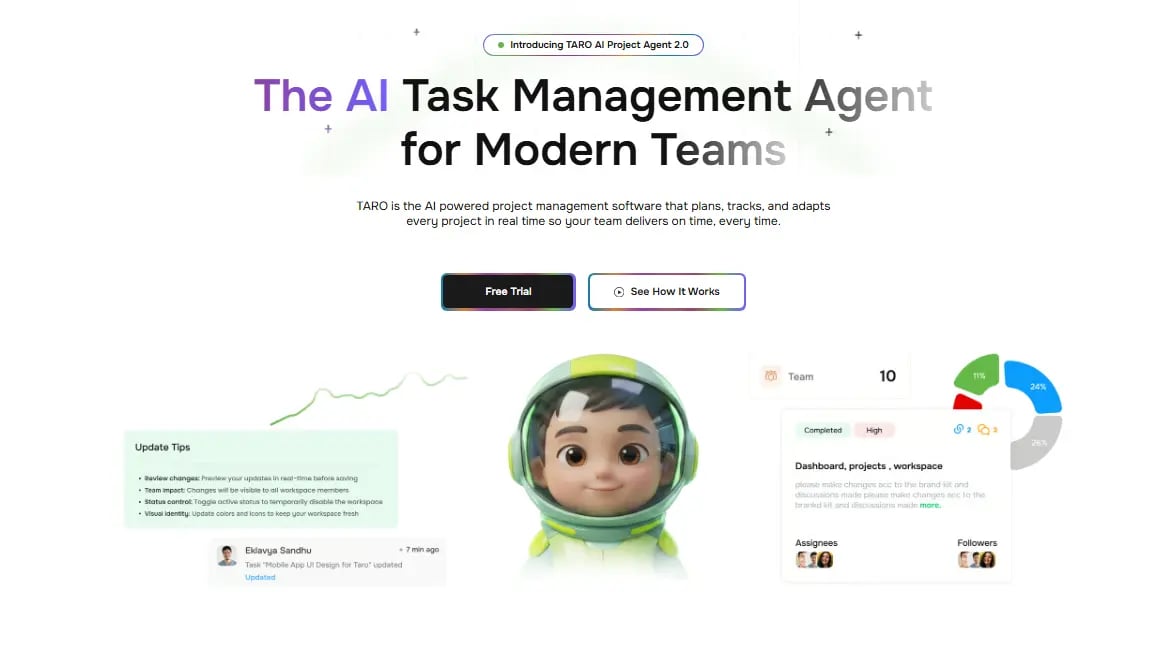
Taro is built specifically for IT teams running projects alongside daily task work. It combines sprint planning, dependency tracking, time logging, and AI-driven prioritization in one workspace, covering features that other tools split across two or three separate products.
The AI layer doesn't just surface overdue tasks. It flags when a dependency chain puts a deadline at risk before the deadline arrives. That's a meaningful distinction from tools that only remind you what's late after it's already late.
For teams that also use Revo (CRM) or Inzo (billing), Taro connects those workflows directly rather than requiring a third-party bridge. The AI task tracking software breakdown covers the prioritization logic in detail if you want to go deeper.
Best for: IT teams managing client projects, sprint cycles, and daily task work in one place.
Limitations: Designed for teams rather than solo personal planning. May be more than a solo freelancer needs.
Best app 2: Todoist
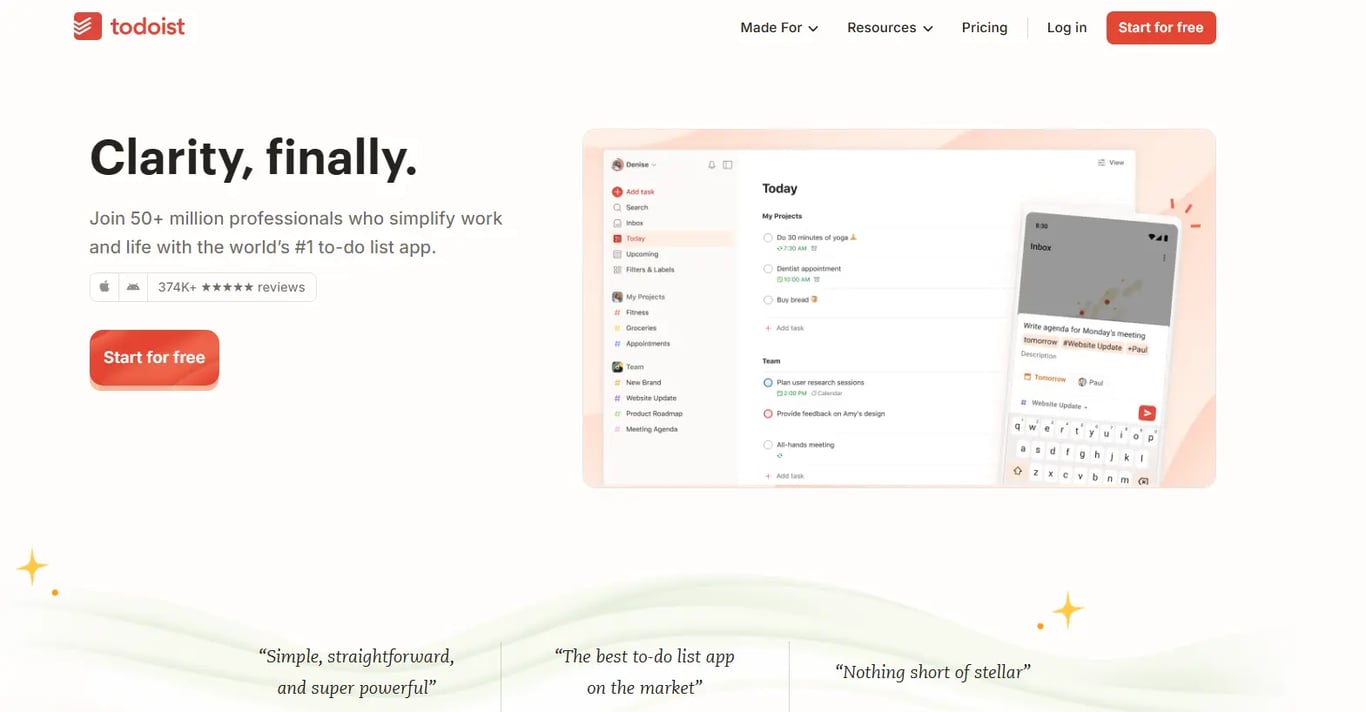
Todoist is the easiest daily planner app to start with. The free tier handles up to 5 active projects and 5 collaborators, which works for a solo developer or a very small team. The paid Pro plan ($4/month billed annually) adds reminders, filters, and unlimited projects.
The interface is clean, the mobile app is reliable, and the learning curve is close to zero. Natural language input ("submit report every Friday") is one of its strongest features.
The gaps show up when your team grows. There is no dependency tracking, no sprint view, and no time logging. Once you have more than three people handing work back and forth, Todoist starts to show its limits as a daily planner application.
Best for: Solo users and very small teams who want a clean, fast personal task manager.
Limitations: No dependency tracking, no workload view, no time logging.
Best app 3: TickTick
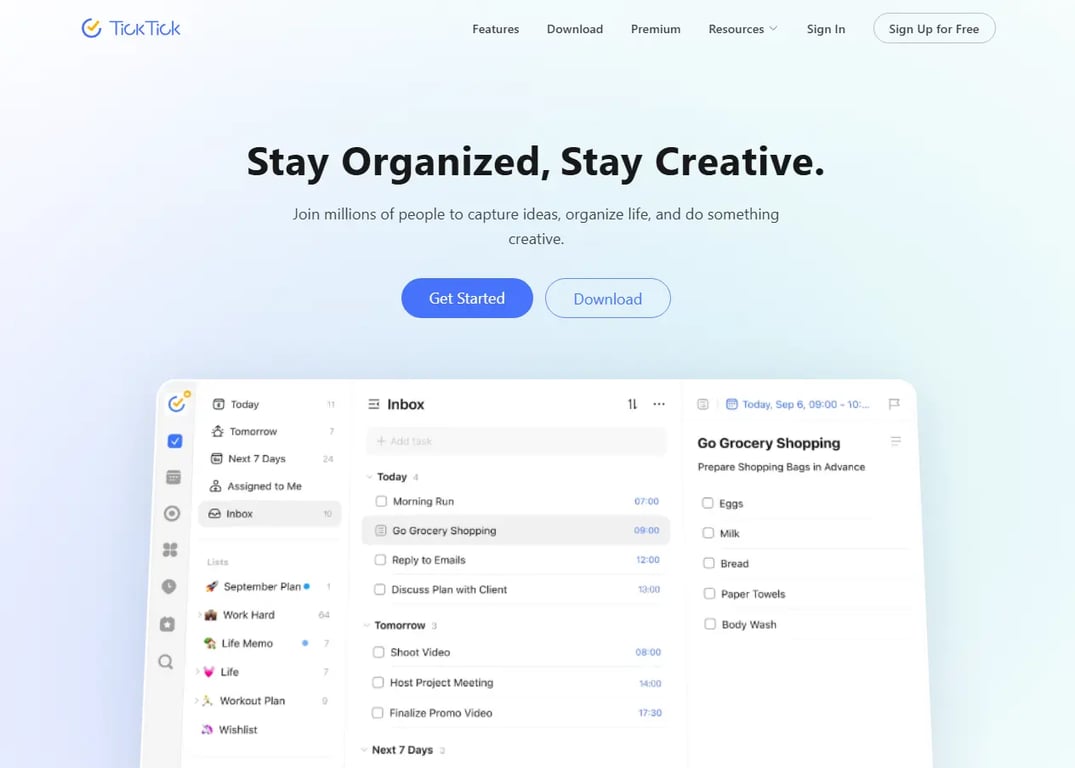
TickTick adds a built-in Pomodoro timer and calendar view, which individual contributors tend to like. The free tier caps you at 99 tasks per list and one calendar subscription. Premium runs $2.79/month and adds unlimited tasks, calendar sync, and habit tracking.
The calendar integration is genuinely useful for time-blocking your day. The habit tracker is a nice addition for personal productivity goals. The app is polished and the mobile experience is strong.
Like Todoist, it's built for personal planning. There is no workload distribution view, and status visibility across a team requires manual check-ins. If you need to see what three other people are working on today, TickTick won't show you.
Best for: Individual contributors who want a personal planner with time-blocking and habit tracking.
Limitations: No team workload view, no dependency tracking.
Best app 4: Notion
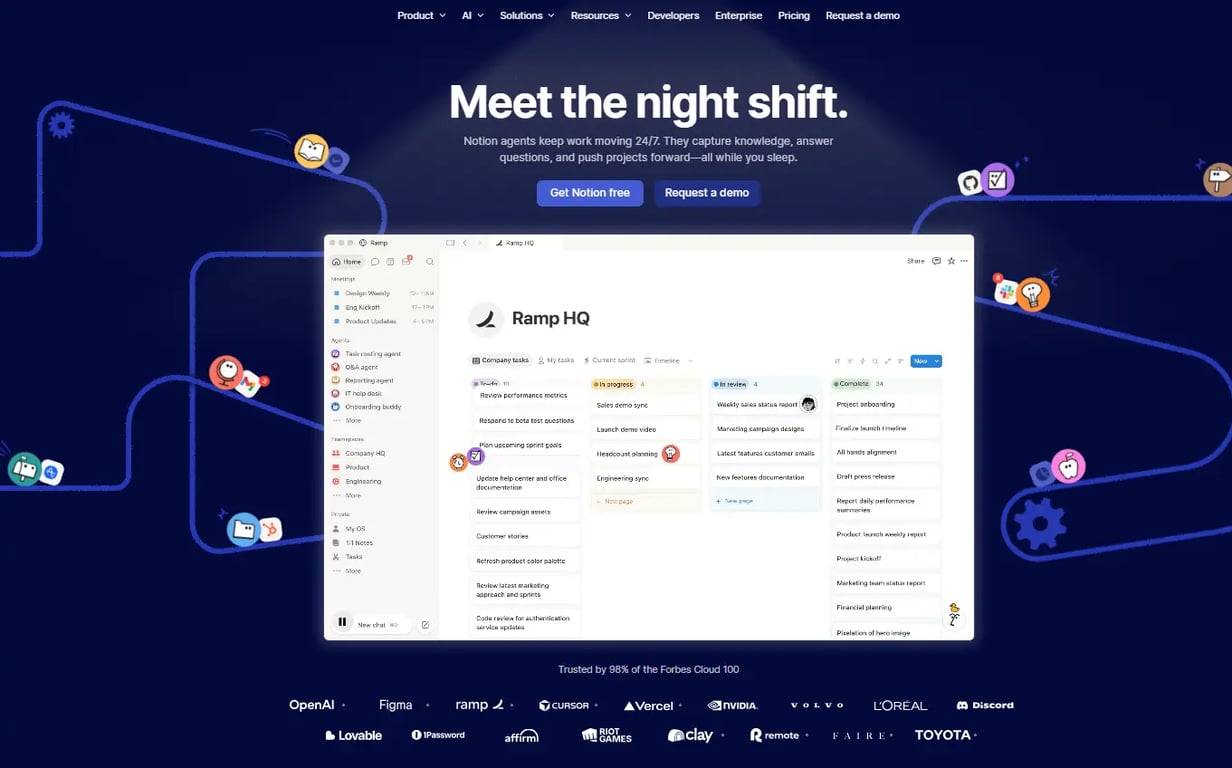
Notion is the most flexible option in this list, but flexibility has a cost. You can build almost any planning system inside Notion, but you have to build it. Teams routinely spend two to four weeks setting up a usable task structure before they get any planning value out of it.
The free tier is generous (unlimited pages, up to 10 guests). Timeline views and reminders require the Plus plan at $10/user/month. The AI add-on ($8/user/month) helps with writing and summarizing but doesn't auto-prioritize tasks based on deadlines or dependencies.
Notion works best as a knowledge base that also holds tasks, rather than as a dedicated daily planner application. If your team already lives in Notion for documentation, adding a task database there makes sense. If you're starting from scratch and need a planner, the setup overhead is real.
Best for: Teams that already use Notion for documentation and want to keep tasks in the same workspace.
Limitations: No native time logging, no dependency tracking, high setup cost.
Best app 5: Any.do
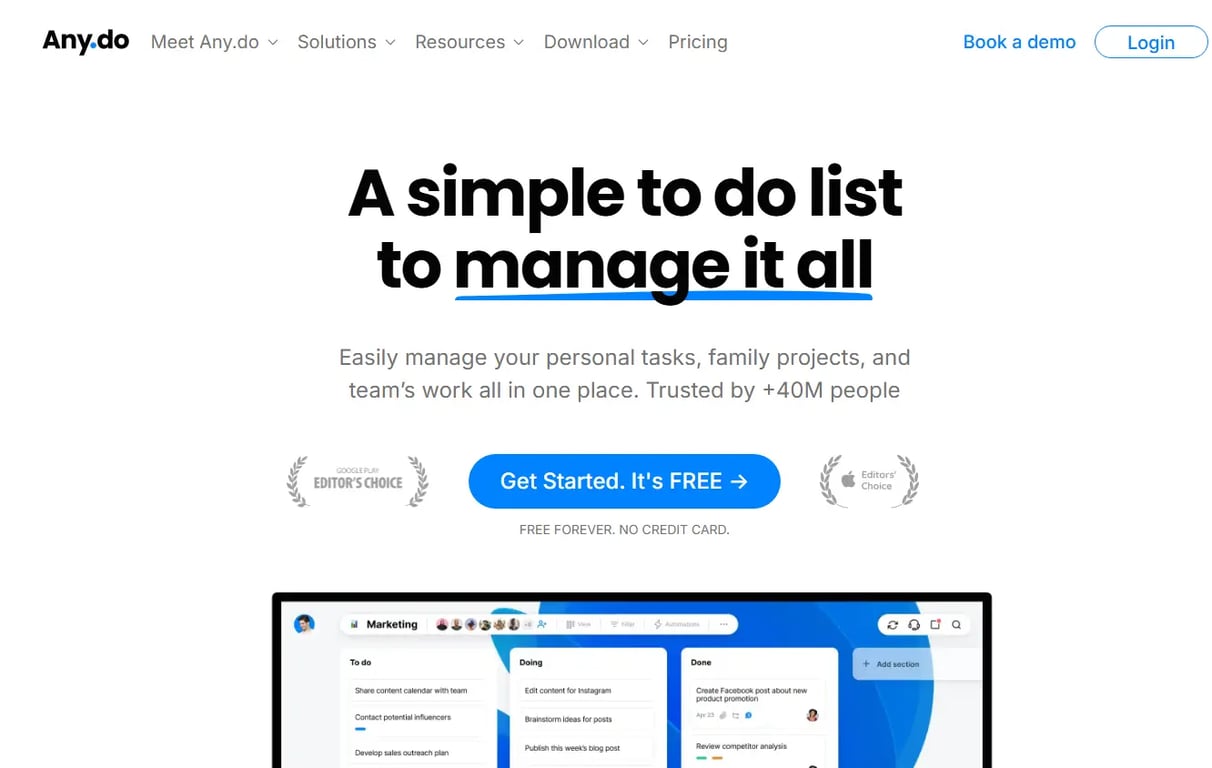
Any.do positions itself as a personal task manager with a clean calendar view and daily planning prompts. The free tier covers basic task management. The Premium plan starts at $2.99/month and adds recurring tasks, location-based reminders, and calendar sync.
The daily planning feature, which prompts you each morning to review and schedule your tasks, is one of its more distinctive touches. The interface is minimal and the mobile app is well-designed.
Any.do is a solid personal planner for someone who wants a lightweight daily routine without a lot of configuration. It doesn't offer team workload views, dependency tracking, or time logging, so it shares the same ceiling as Todoist and TickTick for team use.
Best for: Individuals who want a simple, guided daily planning routine.
Limitations: Limited team features, no dependency tracking, no time logging.
Best app 6: Microsoft To Do
Microsoft To Do is a free task manager included with any Microsoft 365 account. It integrates natively with Outlook tasks, Teams, and Planner, which makes it a natural fit for organizations already running on the Microsoft stack.
The "My Day" feature lets you manually curate a daily task list each morning. Shared lists allow basic collaboration. The interface is clean and the mobile app works well.
The tradeoffs are significant for teams with complex workflows. There is no AI prioritization, no dependency tracking, no time logging, and no sprint view. It functions as a personal to-do list with light sharing, not a team planning tool. If your organization uses Microsoft 365 and needs a simple personal planner at no extra cost, it covers that job well.
Best for: Microsoft 365 users who want a free, simple personal task manager that connects to Outlook.
Limitations: No AI features, no dependency tracking, no workload view, limited for team planning.
Best app 7: Google Tasks
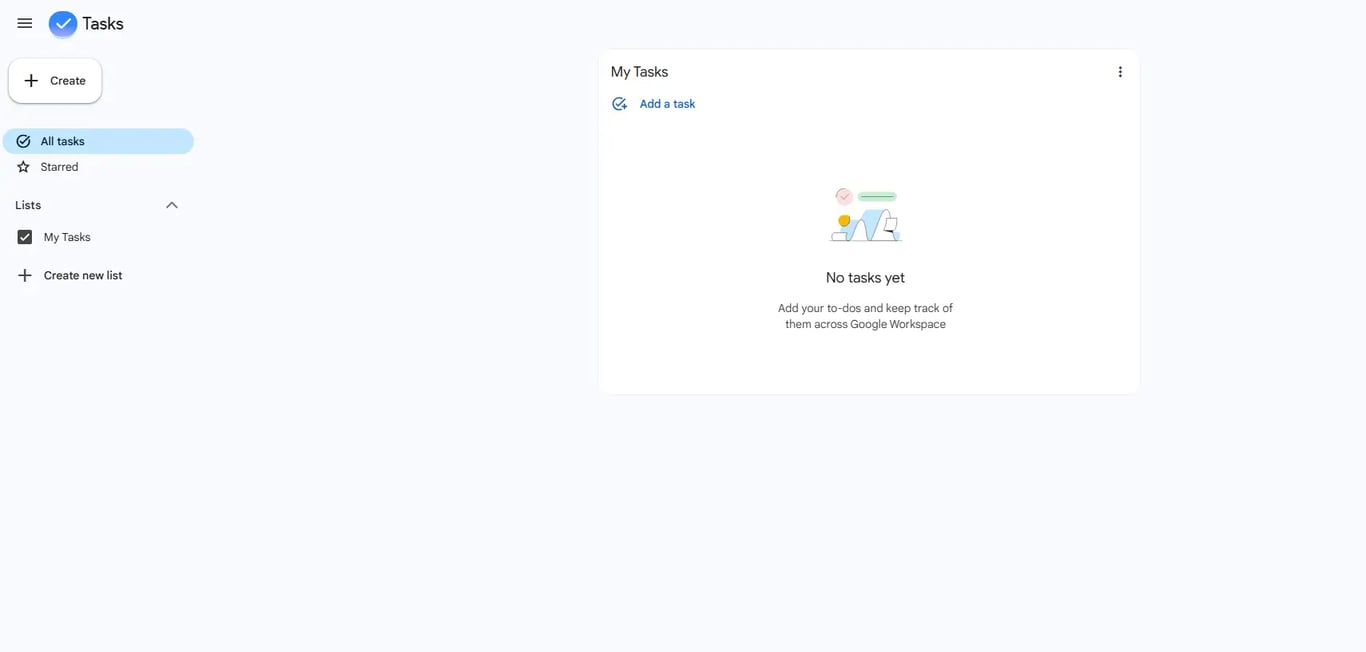
Google Tasks is the most minimal option on this list. It's free, built into Gmail and Google Calendar, and requires almost no setup. Tasks appear alongside your calendar, which makes it easy to see what's due alongside your scheduled meetings.
There are no subtasks beyond one level, no reminders beyond due dates, no collaboration features, and no integrations beyond the Google Workspace suite. It's a lightweight checklist that lives inside tools you're already using.
For someone who lives in Google Workspace and needs a simple way to capture tasks without switching apps, Google Tasks does that job without friction. For anyone managing team work, sprint cycles, or anything with dependencies, it runs out of capability almost immediately.
Best for: Google Workspace users who want a zero-setup personal checklist inside Gmail or Calendar.
Limitations: Extremely limited features, no team collaboration, no reminders, no AI, no integrations outside Google.
Which daily planner app is right for you?
Three questions cut through the noise faster than any feature checklist.
Start with team size
If you're planning solo or managing one or two people informally, a personal daily planner app like Todoist or TickTick covers the basics. Once your team hits five or more people, those tools start showing cracks: no shared workload view, no dependency tracking, no way to see who's overloaded before a sprint collapses. At that threshold, you need something built for task management for IT teams, not a souped-up to-do list.
Then check your planning cadence
Daily task lists and sprint cycles are different planning shapes. If your team runs two-week sprints, reviews a backlog weekly, and does daily standups, your daily planner app needs to hold all three layers without forcing you to sync them manually. Apps that only handle the daily list create a second job: keeping your sprint board and your task list from drifting apart.
Finally, map your integrations
The apps that look cheapest at signup often cost the most in manual work. Before committing, list the three tools your team touches every day, your calendar, your billing system, your communication tool, and check whether the planner connects to them natively. If you're evaluating AI task tracking software, also check whether the AI prioritization reads live data from those integrations or just reorders a static list.
For a deeper look at how these criteria play out across the broader category, the best AI project management tools comparison covers the functional gaps worth knowing before you decide.
Conclusion
A personal daily planner app will take you far: blocked time, prioritized tasks, a clearer morning. For solo users and very small teams, Todoist, TickTick, or Any.do cover the basics without much setup. If you're inside the Microsoft or Google ecosystem, To Do and Tasks are already there and free.
The picture changes when you're managing a team. The planning problem shifts from personal focus to shared visibility: knowing whether the right work is moving, who's blocked, and what's about to miss a deadline before it actually does. That's where solo planning tools hit a ceiling.
If your team has outgrown the stack of tabs and disconnected apps, Taro is worth a look. It brings sprint planning, task ownership, dependency tracking, and time logging into one workspace, with AI that flags priority shifts before they become problems. For the best AI project management tools comparison across the broader category, that guide covers what to evaluate beyond daily planning.
Frequently asked questions
Q. What is a daily planner app?
A. A daily planner app is a digital tool that helps you capture tasks, set priorities, and organize your day. It typically includes due dates, reminders, and a view (list, calendar, or board) so you can see what needs to happen and when.
Q. Why do digital planners beat paper planners?
A. Digital planners update in real time, send reminders, support team sharing, and connect to other tools in your workflow. Paper planners require manual updates and can't be shared or searched.
Q. What features should I look for in a daily planner app?
A. Start with task prioritization, calendar sync, and reminders. For teams, add shared workload views, dependency tracking, and time logging. For IT teams running sprints, look for sprint planning and AI prioritization built in.
Q. Which daily planner app is best for solo use?
A. Todoist and TickTick are the strongest options for solo users. Both have clean interfaces, reliable mobile apps, and free tiers that cover personal task management well.
Q. Which daily planner app works best for teams?
A. Taro is built for teams managing projects, sprints, and daily tasks together. For teams already on Microsoft 365 or Google Workspace with simple needs, Microsoft To Do or Google Tasks cover basic shared lists at no extra cost.
Q. Is Notion a good daily planner app?
A. Notion is flexible enough to build a daily planning system, but it requires significant setup time. It works best for teams that already use it for documentation and want to keep tasks in the same workspace.
Q. Are daily planner app subscriptions worth the cost?
A. For solo users, free tiers usually cover enough. For teams, paid plans add the integrations, automation, and reporting that make planning actually useful. The real question is whether the tool connects to how your team works, not just whether it holds a to-do list.
Q. What is the difference between a daily planner app and a project management tool?
A. A daily planner app focuses on individual task scheduling and personal productivity. A project management tool adds team collaboration, dependency tracking, sprint planning, and reporting. Some tools, like Taro, combine both in one workspace.


 Elena Petrova15 September 2026


