TL;DR: Most blank invoice template guides hand you a file and move on. This one covers every field that affects whether a client pays on time, flags the gaps that static templates can't close, and shows IT business owners exactly when a template stops being enough.
What a blank invoice template actually is
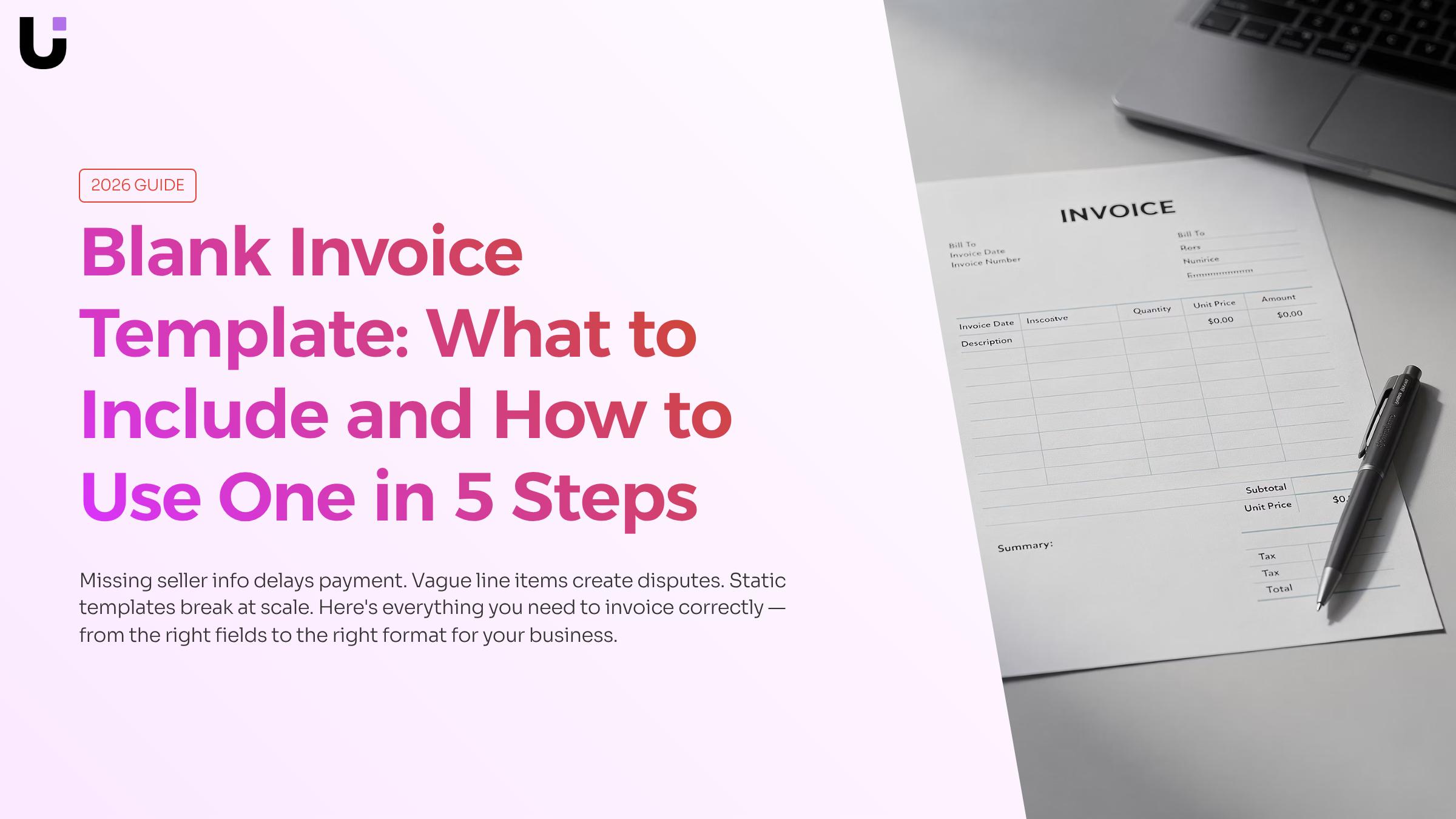
A blank invoice template is a pre-structured document with labeled fields but no transaction data filled in. Think of it as the form before the form gets used: your business name goes here, line items go there, payment terms at the bottom. Every time you issue an invoice, you start from the same layout.
That's different from a filled invoice, which records one specific transaction, or an output from invoicing software, which generates the document automatically from stored data. A blank template is manual by design. You own the file, you control the format, and you fill it in yourself each time.
The value of a consistent professional invoice format is practical, not cosmetic. When clients see the same layout every time, they find the total and payment terms faster, which means fewer "where do I send the check?" emails. If you want to see every field a professional invoice needs before building your own, that's a good place to start.
Templates also work well as a starting point if you later decide to build your template in Word or migrate to dedicated software.
What to include in a blank invoice template
A blank invoice template works as a reusable shell, so every field you leave out becomes a question your client has to ask before paying. Getting the structure right once means fewer back-and-forth emails and faster payment on every invoice after.
Here are the core invoice fields to include, and why each one earns its place:
Seller information (your business name, address, email, and phone number) tells the client exactly who to pay and how to reach you if something is unclear. Missing this is the single fastest way to delay payment.
Client information (the recipient's name, company, and billing address) ensures the invoice routes to the right person inside the client's accounts payable process. For B2B work, this often needs to match the name on the purchase order.
Invoice number gives both sides a reference point for every follow-up conversation. A consistent numbering system also matters at tax time, when you need to reconcile what was sent against what was paid.
Invoice date and payment due date remove ambiguity. "Net 30" means nothing if the client doesn't know what day the clock started. State both explicitly.
Line items are where most disputes begin. Each line should include a description of the service or product, quantity, unit price, and line total. Vague descriptions like "consulting" generate questions; "Brand strategy session, 3 hours at $150/hr" does not.
Subtotal, taxes, and total due should appear as separate rows. If you apply sales tax or VAT, show the rate and the calculated amount. Clients in regulated industries often need this for their own records.
Payment terms and accepted methods tell the client how to actually pay you. Specify whether you accept ACH, credit card, check, or wire transfer. If you charge a late fee, state the percentage and the trigger date here.
Notes or reference fields are optional but useful for purchase order numbers, project codes, or any instructions the client's finance team needs to process the payment.
For a deeper look at every field a professional invoice needs, including fields specific to international work, that guide covers the full picture. If you want to start building immediately, build your template in Word walks through the layout step by step.
An invoice template for small business use doesn't need to be complex. It needs to be complete.
The format you choose affects how quickly a client opens, reads, and pays your invoice.
| Format |
Editability |
Professionalism |
Client experience |
Reuse speed |
| PDF |
Low (locked after export) |
High |
Clean, print-ready |
Slow without source file |
| Word |
High |
Medium-high |
Familiar, easy to open |
Fast with a saved template |
| Excel |
High (formula-ready) |
Medium |
Fine for itemized work |
Fast once formulas are set |
| Google Docs |
High |
Medium-high |
Opens in any browser |
Fast with Drive sharing |
PDF works best for the final send. It preserves your layout across every device and looks like a professional invoice format regardless of what the client uses to open it. The catch: you need an editable source file to update it each time.
Word is the most practical starting point for a free blank invoice template. You draft once, save as a master, duplicate per client, and export to PDF before sending. If you want a step-by-step build, build your template in Word covers the exact process.
Excel earns its place when you bill hourly or have variable line items. Formulas calculate totals automatically, which cuts manual errors.
Google Docs suits distributed teams. Anyone with the link can fill it in without installing software.
When volume grows past 10 to 15 invoices
How to create a blank invoice template in 5 steps
Building a blank invoice template takes less than an hour if you work through it in order. Here's how to do it.
1. Choose your format and open a blank file.
Pick the format that matches how you work. Word or Google Docs works well if you want full layout control. Excel or Google Sheets fits better when you bill by line item and want totals to calculate automatically. If you need to know every field a professional invoice needs before you start, review that first so nothing gets left out.
2. Build your header block.
Add your business name, logo, address, phone, and email at the top. Below that, add a dedicated block for client information: company name, contact name, and billing address. Include two labeled fields here invoice number and invoice date — and a separate "payment due" field. These three fields directly affect how fast you get paid and how quickly disputes get resolved.
3. Create the line-item table.
This is the core of the template. Build a table with at least five columns: description, quantity, unit, rate, and amount. Add a subtotal row, a tax row, and a total row at the bottom. If you bill for services with variable scope, add a notes column so clients can match each line to the work they approved. You can build your template in Word using a simple table structure if you want a walkthrough of that specific format.
4. Add payment terms and instructions.
State your net terms clearly — Net 15, Net 30, or due on receipt. Add accepted payment methods and any late fee policy. Clients who see payment instructions on the invoice itself pay faster than those who have to ask.
5. Save a master copy, then customize invoice template per client.
Save your finished file as a locked master. Each time you invoice, duplicate it and fill in the client-specific fields. Never edit the master directly. If you find yourself adding the same custom rows every cycle, that's the signal to update the master rather than patch each copy.
Once your template is running smoothly, tools that go beyond a static template can automate the repetitive parts — like Inzo, which handles invoice creation and follow-up without manual re-entry.
How to customize a blank invoice template for your business
Customization is where a generic layout becomes a tool that actually fits how your business bills.
Start with your branding: add your logo, set your brand colors, and confirm your business name matches your legal entity exactly. This matters for dispute resolution and tax records. Then check that every field a professional invoice needs is present before you save your master copy.
For IT service businesses specifically, three adjustments make a real difference:
- Milestone rows: Add a line-item section that maps deliverables to payment triggers. "Phase 1 complete: discovery and scoping" is clearer than a lump sum, and it reduces the back-and-forth that delays payment.
- Retainer terms: If you bill monthly retainers, include a dedicated row with the billing period, the flat fee, and a note on what's covered. Clients who see this consistently pay faster.
- Tax line items: Add separate rows for applicable sales tax or VAT rather than burying them in totals. This keeps you aligned with IRS guidance on itemized billing and simplifies your own reconciliation.
If you prefer a visual starting point, build your template in Word and then layer in these rows before saving.
Once your customize invoice template is set, the next question is whether a static file can keep up with your invoice volume.
When a blank template stops working for your team
A free blank invoice template works well when your billing is simple and consistent. Once your engagements get more complex, the template starts creating problems rather than solving them.
The most common friction point is manual data entry. Every invoice you build from scratch means re-typing client names, addresses, service descriptions, and tax rates. One transposed number in a tax line or a missing payment term can delay collection by weeks. For IT service businesses billing across multiple projects simultaneously, that risk compounds fast.
Static templates also break down when your work doesn't fit their default structure. If you've added milestone rows or retainer terms (as covered in the previous section), you're already customizing heavily. But customization has a ceiling: a Word or Excel file can't pull in hours logged, apply the right tax rate by client location, or flag when a payment term conflicts with your contract. Those gaps mean someone on your team is cross-checking manually every time.
A third issue is version control. Teams sharing a build your template in Word file over email or a shared drive inevitably end up with multiple versions in circulation. The wrong one gets sent. A field gets deleted. A formula breaks.
When these patterns start showing up regularly, the problem isn't the template design. It's that invoice creation has outgrown a static document. Tools that go beyond a static template handle the data-entry, version, and validation problems at the source.
Closing
A blank invoice template gives you consistency, but only if every field is filled in correctly and sent on time—every single cycle. The moment you're duplicating files, manually calculating totals, or chasing clients for clarification on payment terms, you've crossed the line where a static template creates more work than it saves.
Inzo automates what templates can't: generating invoices from your data, sending them on schedule, and tracking whether clients have opened and paid them. Your IT team stops rebuilding the same document each billing cycle and starts focusing on actual work. Ready to move past manual invoicing?
FAQ
Q. How do I create a blank invoice template?
A. Choose your format (Word, Excel, or Google Docs), build a header with your business and client info, create a line-item table with description, quantity, rate, and amount columns, add payment terms and methods, then save as a locked master and duplicate per invoice.
Q. What should be included in a blank invoice template?
A. Include seller and client information, invoice number, invoice date, payment due date, line items with descriptions and rates, subtotal/tax/total rows, payment terms, accepted methods, and optional reference fields for PO numbers or project codes.
Q. Can I download a free blank invoice template?
A. Yes, most office software (Word, Google Docs, Excel) includes built-in templates, or you can build one in under an hour following the five-step process. For automated generation and tracking, dedicated invoicing software is more scalable than static files.
Q. What is the best format for a blank invoice template?
A. Word is best for quick setup and PDF export. Excel works well for hourly billing with automatic totals. Google Docs suits distributed teams. PDF is ideal for final sends because it preserves layout across devices.
Q. How can I customize a blank invoice template for my business?
A. Add your logo, branding colors, and business name in the header. Adjust line-item columns to match your billing model (hourly, project-based, or product). Include your specific payment methods and late-fee policy in the terms section.
Q. Is a blank invoice template legally valid?
A. Yes, if it includes all required fields: your business info, client info, invoice number, date, description of work, amount, and payment terms. Consult a local accountant for tax or VAT requirements specific to your jurisdiction.
Q. How do I number invoices consistently when using a template?
A. Reserve a dedicated invoice number field in your template and increment it manually each time, or use Excel formulas to auto-generate sequential numbers. Never reuse numbers, and keep a log for tax reconciliation.


 Elena Petrova15 September 2026


