TL;DR: Most guides walk you through saving a template in Outlook and leave it there. This one covers the full picture: how to create and use Outlook email templates in five steps, where native functionality breaks down for sales and IT teams sending at volume, and what to do when you hit that ceiling.
What Outlook email templates are and why they save time
An Outlook email template is a pre-written message you save once and reuse whenever you need it. Instead of typing the same intro, context, or closing from scratch, you pull the template, adjust a few details, and send.
Outlook gives you two distinct formats to work with. The My Templates add-in stores short, text-based snippets directly in the reading pane, accessible in both Outlook 365 desktop and Outlook on the web. It's fast, but capped at 32 KB per template, so it suits concise messages rather than long proposals. The .oft file format saves a full message, including formatting, attachments, and layout, via File > Save As. These live locally on your machine, which means they don't sync across devices and have limited support in Outlook for Mac and Outlook on the web.
The practical difference matters for email template personalization. My Templates handles quick variable swaps well. .oft files handle richer formatting but require manual opens each time.
Neither format supports automated sending on its own. If your team sends high-volume sequences, like sales follow-up email templates or cold email templates with proven subject lines, you'll need a layer on top of Outlook to trigger and personalize them at scale.
Where to find email templates in Outlook
Templates in Outlook live in two distinct places, and which one you're looking for depends on how you saved it.
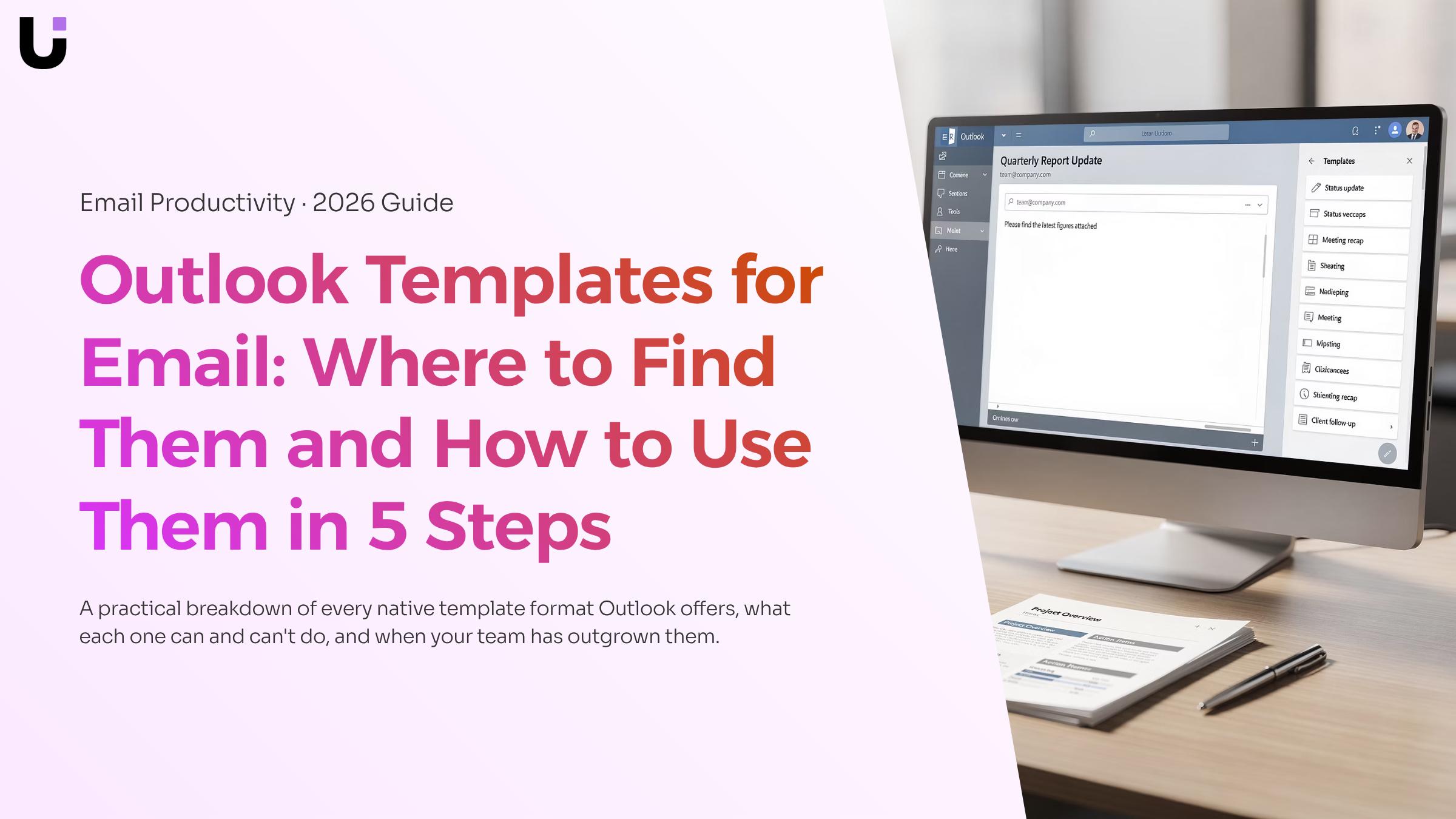
My Templates add-in is the faster option for most people. Open a new message, click the three-dot menu ("More options") in the compose toolbar, and select "My Templates." A panel slides out on the right side of the compose window. This works the same way in Outlook 365 desktop and Outlook on the web as of early 2026. The trade-off: My Templates caps each template at 32 KB, so long, heavily formatted messages may get cut off. For shorter, text-based templates — sales follow-up email templates or quick check-ins — this add-in is the right tool.
.oft files live on your local file system, not inside Outlook's interface. To find them, go to New Email, then File > Save As, and choose Outlook Template (.oft) as the file type. Windows saves these to C:\Users\[YourName]\AppData\Roaming\Microsoft\Templates by default. To reuse one, go to New Items > More Items > Choose Form, then select "User Templates in File System." Note: .oft files are not supported in Outlook on the web or Outlook for Mac's current version, so this method only works on Windows desktop.
If you're building templates for cold email outreach with tested subject lines, .oft files give you more formatting flexibility. For everyday replies, My Templates is quicker to access.
The next section walks through creating and saving both types from scratch.
How to create a custom email template in Outlook in 5 steps
Two methods exist for creating reusable templates in Outlook, and they serve different needs. My Templates works best for short, frequently reused snippets (think acknowledgment replies or quick follow-ups). The .oft file method suits longer, formatted emails where you need full layout control. Here is how to set up both.
Method 1: My Templates add-in
Open a new email in Outlook 365 desktop or Outlook on the web.
In the message toolbar, select the My Templates icon (it looks like a document with a small star). If you do not see it, go to Get Add-ins and search "My Templates" to install it.
In the My Templates pane, click the "+" button, give the template a clear name (for example, "IT Support — Ticket Received"), paste your message body, and save.
One practical limit: My Templates caps each template at roughly 32KB of text. That is enough for most standard replies, but not for heavily formatted HTML emails with inline images.
Method 2: Save as .oft file
Compose your email exactly as you want it, including subject line, formatting, and any standard attachments. If you regularly send files with a template, attaching files in Outlook before saving the .oft will include them by default.
Go to File > Save As, then choose Outlook Template (*.oft) from the file type dropdown. Name the file descriptively and save it somewhere you will find it, such as a dedicated Templates folder on your desktop.
To use it: go to New Items > More Items > Choose Form, select "User Templates in File System," and open your saved file.
One note on Mac and web: .oft files are a Windows-native format. Outlook for Mac and Outlook on the web do not support opening .oft files directly, so My Templates is the better choice for those environments.
Which method to use
Use My Templates when you need quick access across devices and your template is text-heavy. Use .oft when formatting matters, the email is long, or you want to include a pre-set subject line and attachments.
Neither method supports automated sending on its own. If your goal is to trigger templates based on lead activity or schedule follow-up sequences, you will need a layer on top of Outlook. For teams building out sales follow-up email templates that need to fire automatically, that gap is worth planning for before you invest time in formatting.
Popular email template examples for Outlook
Three templates cover the most common situations where Outlook users reach for a saved draft.
Sales follow-up after no response. Send this 3–5 days after an initial outreach with no reply. The structure: one sentence referencing your previous email, one sentence restating the specific value you offered, and a single low-friction ask ("15 minutes this week?"). For email template personalization, swap in the prospect's company name and the specific pain point you discussed. If you're building a library of outreach messages, cold email templates with proven subject lines are worth reviewing alongside this one.
IT support ticket acknowledgment. Confirm receipt, set a response window ("we aim to respond within 4 business hours"), and include a ticket reference placeholder like [TICKET-ID]. This template works well as a My Templates insert because IT staff can fill in the ticket number before sending. Keep it under 80 words so it reads as a quick confirmation, not a wall of text.
Meeting request to a new contact. Open with context ("I work with IT teams on X"), state the purpose of the meeting in one line, and offer two specific time slots. Attaching a calendar invite is a separate step — see attaching files in Outlook if that step trips you up.
All three follow the same principle: short, scannable, and built around one action. For teams sending higher volumes, Lio includes an HTML email template builder that handles personalization fields at scale without manual find-and-replace.
Can you use Outlook email templates for automated responses
Outlook's native templates don't send themselves. That's the honest answer to this question, and most guides skip it entirely.
When you save a message as an .oft file or store it in the My Templates add-in, Outlook holds it as a draft you retrieve manually. You open a new message, insert the template, edit as needed, and hit send. There's no trigger, no condition, no automation behind it. According to Microsoft's support documentation, templates are designed for reuse on demand, not for automatic dispatch.
Quick Steps get you partway there. You can configure a Quick Step to reply to a message with pre-filled text and even mark it as read in one click. That's useful for repetitive acknowledgments, but you still have to click it manually for each email.
Outlook rules go one step further. A rule can fire an automatic reply when an incoming message matches a condition, such as a subject line containing "support request." But that reply sends the same static text every time, with no personalization, no tracking, and no follow-up sequencing. It's closer to an out-of-office message than a real automated email response workflow.
For IT owners managing a handful of recurring request types, rules plus Quick Steps cover the basics. If you're running sales follow-up sequences or need replies that adapt to the recipient, Outlook's built-in tools hit a ceiling fast.
The next section names exactly where that ceiling sits.
When Outlook templates are not enough for your team
Outlook's native templates handle repetition well. They break down when your sales process needs to scale.
Three limits come up consistently for IT company owners managing active pipelines:
No personalization tokens: The My Templates add-in inserts static text. You cannot pull in a contact's company name, job title, or deal stage automatically. Every variable gets typed by hand.
No send sequencing: Outlook has no native way to schedule a follow-up template to send three days after the first one. Quick Steps can apply a template to a reply, but they don't queue outbound sequences. If you want structured sales follow-up email templates running on a cadence, Outlook won't do it.
No reply tracking per template: You can see whether an email was opened (with read receipts), but Outlook gives you no data on which template version drives responses.
This is where Evox fits without displacing Outlook. Evox handles email template personalization, sequences, and reply tracking as a layer on top of your existing workflow. Your team keeps composing in Outlook; Evox manages the logic behind when templates send and what happens when a prospect responds.
If you're also building cold email templates with proven subject lines, Evox is where those subject line tests actually produce measurable data rather than gut feel.
Closing
Outlook templates cut down repetitive typing, but they hit a wall fast. My Templates handles quick snippets across devices; .oft files give you formatting control on Windows desktop. The real friction kicks in when your team moves beyond a handful of templated emails per day—manual insertion and lack of automation drain time that could go elsewhere.
Once you're sending templated sequences regularly, Evox layers personalization tokens and automated triggering on top of what Outlook already does, so your team spends time on strategy, not template mechanics. Ready to see how it works? Start your free trial with Evox today.
FAQ
Q. Where can I find email templates in Outlook?
A. My Templates add-in appears in the compose toolbar (three-dot menu > My Templates) and works in Outlook 365 desktop and web. .oft files live in your local file system under File > Save As and are accessed via New Items > More Items > Choose Form (Windows desktop only).
Q. How do I create a custom email template in Outlook?
A. For My Templates: open a new email, click the My Templates icon, hit the "+" button, name it, paste your message, and save. For .oft files: compose your email with subject and formatting, go to File > Save As, choose Outlook Template (.oft), and save to your Templates folder.
Q. How do I save an email as a template in Outlook?
A. Go to File > Save As, select Outlook Template (*.oft) from the file type dropdown, name it descriptively, and save. Windows stores these in C:\Users[YourName]\AppData\Roaming\Microsoft\Templates by default.
Q. What are some popular email template examples for Outlook?
A. Sales follow-up (reference previous email + restate value + single ask), IT support acknowledgment (confirm receipt + response window + ticket reference), and meeting request (context + purpose + two time slots). All three are short, scannable, and action-focused.
Q. Can I use Outlook email templates for automated responses?
A. No. Outlook's native templates don't send themselves—you must manually insert and send each one. For automated sequences, you need a layer on top of Outlook that triggers templates based on conditions or schedules.
Q. Do Outlook templates work on Outlook for Mac and Outlook on the web?
A. My Templates works on both. .oft files are Windows-only; Outlook for Mac and Outlook on the web don't support the .oft format, so use My Templates for cross-device compatibility.
Q. Can I share an Outlook email template with my whole team?
A. My Templates don't sync across users. For team-wide sharing, save .oft files to a shared network folder (Windows only) or use a platform like Evox that centralizes templates with personalization and automation for entire teams.


 Elena Petrova15 September 2026


