TL;DR: Most guides on email signature design hand you a field checklist and stop there. This one gives IT company owners the decision logic behind each choice: what to include, what to cut, how to format for mobile without losing credibility, and where a professional email signature ends and a legally binding electronic signature begins.
What an email signature actually is
An email signature is the block of contact information that appears at the bottom of a business email — your name, title, company, and a way to reach you. It is not a legal signature.
That distinction matters. An /s signature (typed as "/s/ Jane Smith" in legal filings) and an electronic signature are both mechanisms for legally binding consent. An email signature block is neither. If you need to know what an electronic signature is and how it works legally, that question has its own answer.
The "does a signature have to be cursive" question also belongs in the legal category. For email, the answer is simply no — a formatted text block is the standard.
This article covers the design side: what to include, how to format it for mobile, and best practices for creating a signature that looks professional. If your goal is collecting legally binding approvals, Sigi handles that separately with a tracked, auditable workflow.
Think of your email signature as a business card with a hierarchy. Not everything deserves equal space.
Must-have elements:
Full name (not initials — an initials signature works for internal memos but not external email)
Job title and company name
One primary phone number
Company website URL
Professional email address (yes, even though it's already in the header — recipients forward emails)
Optional, depending on your role:
LinkedIn profile URL, if you actively maintain it
Company logo (keep the file under 50KB; larger images trigger rendering delays or get blocked entirely)
A one-line value statement or tagline, if your company uses one consistently
Scheduling link, if you're in a client-facing role
Leave these out:
Inspirational quotes — they read as filler and age poorly
Multiple phone numbers unless each serves a distinct purpose
Social icons for every platform your company touches
Animated GIFs or background images (both break on many mobile clients)
Legal disclaimers longer than two lines, unless your legal team requires them
One thing worth separating clearly: the "/s signature" or s signature meaning in legal documents refers to a typed representation of a handwritten signature, not an email sign-off block. If you're working on contracts, what an electronic signature is and how it works legally covers that distinction.
For the sign-off block itself, less is more. A signature with five well-chosen fields looks more credible than one with twelve. Readers scan the bottom of an email in under two seconds — give them the one or two details they actually need to act.
For a deeper look at the visual and structural side, how to create professional email signatures that build trust covers formatting choices in more detail.
7 best practices for designing a professional email signature
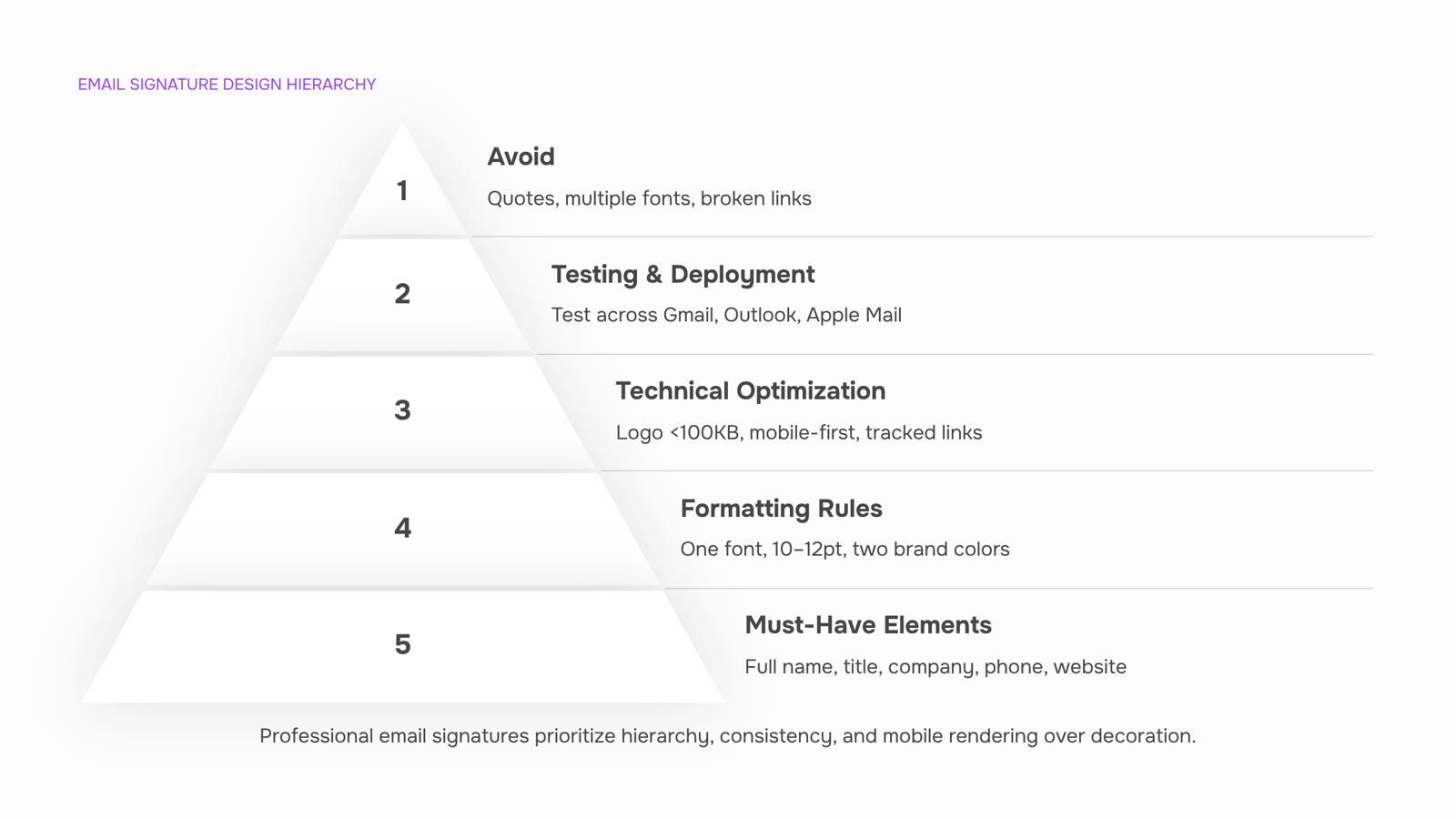
One principle covers most of the failures you'll see in professional email signatures: too much information, too little structure, and no thought given to how it renders outside a desktop inbox. Follow these seven steps in order and you'll avoid all three.
1. Lock in your hierarchy before you touch formatting
Decide which four to six elements belong in your signature before you open any editor. Name and title go first. Company, phone, and one link follow. Everything else is optional. A signature that tries to carry eight lines of contact detail reads as noise, not professionalism.
2. Use one font, one size, and your brand's two primary colors
Consistency signals credibility. Pick a web-safe font (Arial, Georgia, or Verdana) at 10–12pt so it renders correctly across Gmail, Outlook, and Apple Mail without substitution. Limit color to your brand's primary and one accent. A signature that looks like a ransom note because it uses five typefaces undermines the email it sits beneath.
3. Keep your logo under 100 KB and host it externally
A logo adds visual recognition, but only if it loads. Gmail and Outlook both block externally hosted images by default unless the recipient has previously interacted with the sender, so embed the image as a base64 string or use a hosted link recipients can whitelist. Keep the file under 100 KB to avoid rendering delays on slow connections. A 600px-wide logo is the practical maximum for desktop; 300px works better on mobile.
4. Make every link trackable and purposeful
One call-to-action link is enough: a calendar booking link, a case study, or your company's homepage. Add UTM parameters so you can measure clicks in Google Analytics. A signature with four hyperlinks (LinkedIn, Twitter, website, and a banner ad) competes with itself.
5. Design for mobile first, then desktop
More than 40% of business emails are opened on a mobile device, which means a two-column signature layout that looks clean in Outlook will collapse into unreadable stacked text on iOS Mail or Gmail on Android. Single-column, left-aligned, with no table-based layouts is the safer default. You can always add visual complexity for desktop later; you cannot easily fix a broken mobile render after the email is sent.
6. Skip the inspirational quote
This is a best practice for designing an email signature that most guides skip: remove the motivational quote. It adds length, ages quickly, and reads as filler to anyone receiving your third email of the week. The same applies to legal disclaimers longer than two lines. If your legal team requires a disclaimer, keep it in plain text at 8pt below the signature block.
7. Test across at least three clients before rolling out
Send a test to Gmail, Outlook, and Apple Mail before pushing a signature to your full team. What looks polished in a Google Docs signature preview or a browser-based editor may break in Outlook 2019, which uses Microsoft Word's rendering engine rather than a standard HTML engine. Tools like Litmus or Email on Acid let you preview across 90+ clients in minutes.
For a broader look at how these principles apply beyond email, the best practices for creating a signature covers document and contract sign-offs using the same consistency-first logic.
How to add your signature on mobile
Mobile is where signatures break most often, and most guides ignore it entirely.
On iOS Mail, go to Settings > Mail > Signature. You can set a different signature per account. The editor is plain text by default, so any HTML formatting you paste in will likely render as raw code. Keep it to two or three lines of plain text, or use a signature generator that outputs mobile-safe HTML and test it before sending.
On Gmail for Android, open the Gmail app, tap your profile icon, select Settings, choose your account, then tap "Mobile Signature." Same constraint applies: the in-app editor strips most HTML. If your desktop signature includes a logo or banner, that image will not appear here unless you're sending through a client that injects the signature server-side.
The formatting pitfalls specific to mobile are worth flagging:
Long lines wrap unpredictably on small screens. Keep each line under 60 characters
Multi-column layouts collapse into a single unreadable column
Font sizes below 14px become illegible on high-density displays
Linked images often block by default in mobile Gmail
A signature that looks professional on desktop can look broken on a 390px screen. The fix is to design mobile-first, then scale up, not the other way around. A plain-text fallback is not a downgrade; for mobile clients, it is often the cleaner result.
Should you use an image in your email signature
Yes, you can use an image — but only if it behaves well when blocked.
Gmail and Outlook both disable externally hosted images by default, which means your logo arrives as a broken placeholder unless the recipient has enabled image loading. Embed the image directly (base64 or inline attachment) rather than linking to a hosted URL. Keep the file under 50KB; anything larger slows rendering on mobile clients, where a significant share of business emails are opened.
Always add descriptive alt text. When images are blocked, alt text carries your branding — "Acme IT | acme.com" beats a blank box.
A quick decision check before adding any image:
Is it under 50KB and embedded, not hosted?
Does it have alt text that identifies your company?
Does the signature still read clearly with images off?
If all three are yes, add it. If not, a well-formatted text signature following best practices for creating a signature that looks professional will outperform a broken image every time.
Email signature vs. electronic signature: know the difference
An email signature is a sign-off block: your name, title, contact details, maybe a logo. It carries no legal weight. An electronic signature, including a typed /s signature, is a recorded expression of intent that can bind a contract under laws like ESIGN and eIDAS.
Confusing the two creates real problems. A client who "signs" a proposal by replying with their email signature has not signed anything legally enforceable. Conversely, using a full electronic signature workflow for a routine cold email is unnecessary friction.
The line is simple: decorative sign-off goes in your email client settings; anything that needs to hold up in a dispute needs a tracked, auditable process. That includes NDAs, service agreements, and any document where an under duress signature claim could surface later.
If you want to understand what an electronic signature is and how it works legally, that distinction matters before you choose your tooling. For the sign-off block itself, best practices for creating a signature that looks professional covers the formatting side.
Common email signature mistakes to fix today
Most email signatures fail one of five tests. Run this audit now:
Too long: Cut anything beyond name, title, phone, and one link. A five-line block reads as clutter on mobile.
Broken images: Gmail and Outlook block externally hosted images by default. Embed logos inline or expect a blank box.
No mobile test: Signatures that look clean on desktop often collapse on phones — test in both before deploying.
No plain-text fallback: Some clients strip HTML entirely. Your initials signature should still identify you.
Inconsistent team signatures: One rogue format across ten reps undermines every best practice for designing an email signature you've set.
Closing
A professional email signature is your business card at the bottom of every message — it builds credibility in seconds and ensures recipients can reach you without hunting through headers. The seven practices above (hierarchy first, one font, mobile-first design, trackable links, clean formatting, no filler, and cross-client testing) will get you there. Start by auditing your current signature against the must-have elements list, then test it on your phone before you roll it out to your team. Once you've nailed the signature block, ask yourself: are there moments when a sign-off block isn't enough — when you need a legally binding approval tracked and auditable? That's where Sigi steps in. Explore Sigi's electronic signature features to see how it handles the approvals your email signature can't.
FAQ
How do I create a professional email signature?
Start with hierarchy: lock in your four to six must-have elements (name, title, company, phone, website) before formatting. Use one web-safe font at 10–12pt, limit color to two brand colors, keep your logo under 100 KB, and test across Gmail, Outlook, and Apple Mail before rolling out.
What information should I include in my email signature?
Must-haves: full name, job title, company, one phone number, and website. Optional: LinkedIn URL (if active) and a scheduling link for client-facing roles. Skip inspirational quotes, multiple phone numbers, and social icons — they clutter and undermine credibility.
Can I use an image as my email signature?
Yes, but keep it under 100 KB and host it externally so it loads reliably. Gmail and Outlook block external images by default unless the recipient has whitelisted the sender, so embed as base64 or use a hosted link. A 300px-wide logo works best on mobile.
How do I add a signature to my emails on my phone?
On iOS Mail, go to Settings > Mail > Signature. On Gmail for Android, tap your profile icon, select Settings, choose your account, then tap 'Mobile Signature.' Both strip HTML, so keep signatures to plain text or test mobile-safe HTML before sending.
What are the best practices for designing an email signature?
Lock hierarchy first, use one font and two brand colors, keep logos under 100 KB, make links trackable, design mobile-first, skip quotes, and test across three clients (Gmail, Outlook, Apple Mail) before rollout.


 Elena Petrova15 September 2026


