TL;DR: Most auto invoicing guides stop at "automate your billing." This one shows IT business owners how the trigger-to-payment cycle works mechanically, then walks through setup in numbered steps you can act on today, including how to connect invoicing to the project management and CRM tools your team already runs.
What auto invoicing actually means
Auto invoicing is the process of generating and sending an invoice automatically when a defined trigger fires, with no one manually opening a template, filling in line items, or hitting send.
That distinction matters. Billing software stores your rates and client records. An auto invoice program uses that data to act: a project closes, a subscription renews, or a time-tracking threshold is hit, and an invoice goes out without anyone touching it.
Manual invoicing breaks down in predictable ways for IT businesses. You finish a project on Friday, invoice on Monday, and the client's accounts payable cycle resets. Research consistently shows that late payment rates drop significantly when invoices go out immediately at trigger points rather than in batches.
The difference between auto invoices and a standard billing tool is timing and ownership. Billing software waits for you. An auto invoice generator acts on rules you set once.
For IT service businesses specifically, those rules map to three trigger types: project completion, recurring retainer dates, and CRM deal closure. Understanding which triggers apply to your billing model is the first decision you make before you configure anything. The mechanics behind each trigger are covered in how invoice automation works step by step.
How the trigger-to-payment cycle works
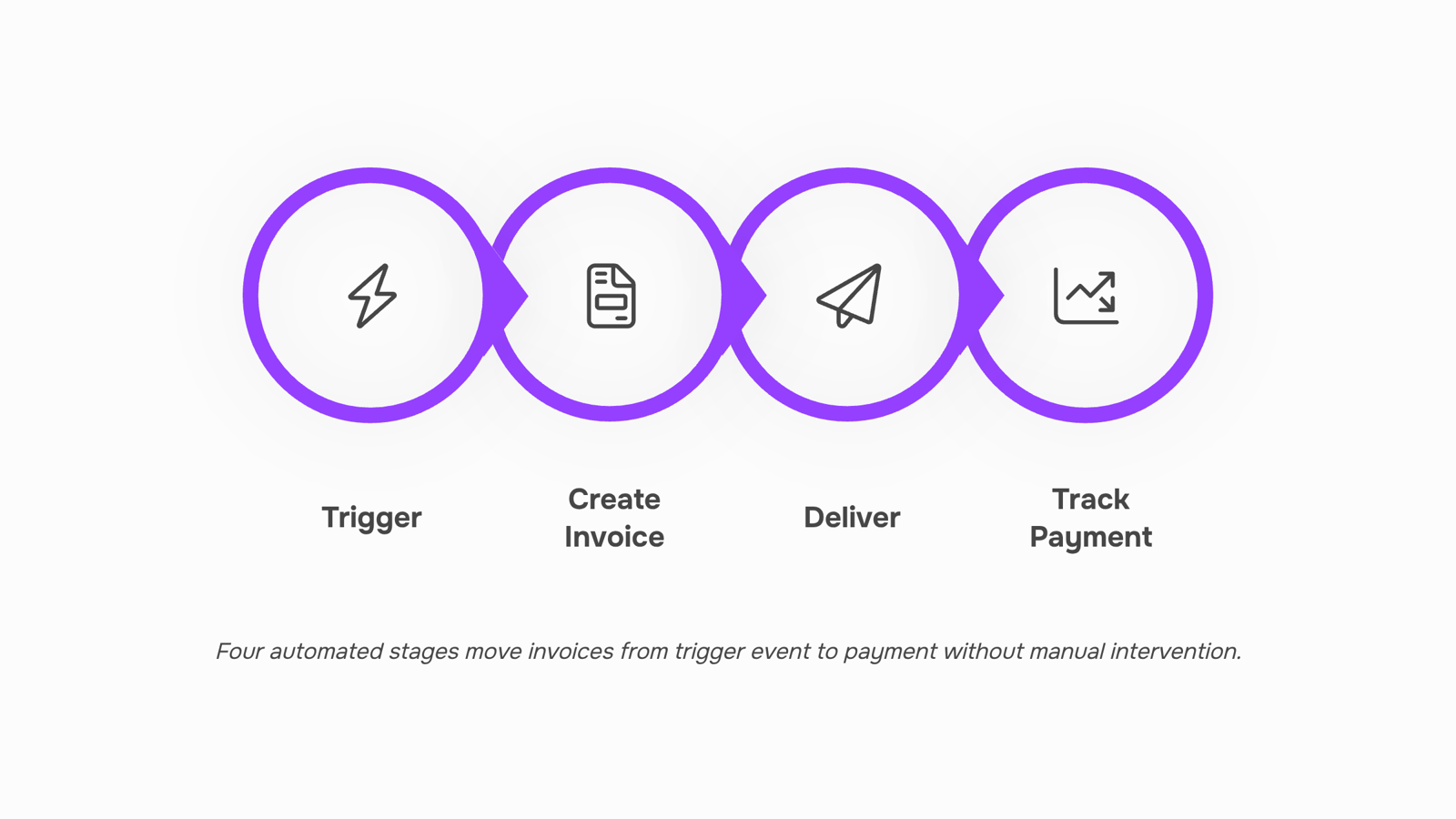
The cycle has four stages, and each one hands off to the next automatically.
Stage 1: Trigger: Something happens in your system — a project status flips to "complete," a CRM deal closes, a subscription renewal date hits, or a time-tracking entry crosses a billing threshold. That event fires a signal to your auto invoice generator.
Stage 2: Invoice creation: The software pulls the relevant data — client name, line items, hours logged, agreed rate, payment terms — and assembles the invoice. No one types anything. A good auto invoice software applies your template, calculates tax, and assigns an invoice number in seconds.
Stage 3: Delivery: The invoice goes to the client automatically, by email or through a client portal, at the moment it's ready. For IT businesses, this matters because project completion and client billing often happen at odd hours. The invoice doesn't wait for someone to log in on Monday morning.
Stage 4: Payment tracking: Once sent, the system monitors status: viewed, overdue, partially paid, settled. If payment hasn't arrived by the due date, a follow-up goes out without manual prompting. Automated invoice processing closes the loop here — you're not chasing down status in a spreadsheet.
The chain is only as reliable as the triggers you configure. For IT businesses, the three most useful triggers are project completion events, CRM deal-close signals, and fixed billing cycles. Understanding how invoice automation works step by step helps you map those triggers before you touch any settings.
Five reasons IT businesses switch to auto invoicing
Manual invoicing costs more than the time it takes. Here is why IT businesses are moving to auto invoices in volume.
Faster payment cycles: Auto invoice software sends the invoice the moment a trigger fires, whether that is project sign-off or a recurring billing date. Invoices that arrive immediately get paid faster than ones queued in someone's outbox.
Fewer billing errors: Manual entry introduces typos, wrong rates, and missed line items. Automated invoicing pulls data directly from your project management or CRM records, so the numbers match what was actually delivered.
Less admin time: Billing coordination across a 10-person IT services team can consume several hours per week. Removing that work frees your team for billable tasks.
Better cash flow visibility: Auto invoice software ties each invoice to a payment status in real time. You can see outstanding balances, overdue accounts, and projected inflows without building a separate spreadsheet.
Compatibility with the tools you already use: Most auto invoicing platforms connect to common CRMs, project trackers, and accounting software via API or native integration. You are not replacing your stack; you are wiring it together.
The advantages of automatic invoicing compound quickly once the system is running. The next section walks through the exact setup sequence so you can configure your first automated billing workflow today.
Set up auto invoicing in 5 steps
Most setup guides tell you to "connect your tools and configure your settings." That's not a setup guide. Here's one that actually is.
Step 1: Choose a tool that fits your billing model: IT businesses bill in at least three ways: project milestones, recurring retainers, and time-and-materials. Pick a tool that handles all three, not just one. If you're already using a CRM or project management platform, check whether it has native invoicing or a direct integration before adding a standalone product. Choosing the right auto invoice software for your business covers the key criteria in detail.
Step 2: Map your triggers before you touch any settings: A trigger is the event that fires an invoice automatically: a project marked complete, a CRM deal moved to "closed-won," a monthly renewal date, or a time-log threshold crossed. Write these down before you open any configuration screen. Most IT owners have three to five distinct triggers once they list them out. Getting this wrong means invoices fire at the wrong time or not at all.
Step 3: Build your auto invoice template: Your template controls what the client sees: line items, payment terms, due dates, and your branding. Most platforms offer an auto invoice template free as a starting point, but you'll need to customize it for your service structure. If you bill by phase, each phase should be a separate line item with its own amount. If you bill by hours, the template should pull from your time-tracking data automatically. Test the output on a dummy client record before going live. For a closer look at how invoice automation works step by step, that walkthrough covers the data-flow logic behind template population.
Step 4: Configure your auto invoice forms for client data: Auto invoice forms are the intake layer: they capture the client name, billing address, tax ID, and payment method that populate every invoice downstream. If this data lives in your CRM, map the fields directly. If clients submit it manually, build a form with required fields so nothing arrives blank. Bad input data is the most common reason automated invoices fail or get disputed.
Step 5: Run a full test cycle before switching off manual billing: Send a test invoice through every trigger you mapped in Step 2. Check that line items are correct, amounts match the contract, and the payment link works. Only disable your manual process once you've confirmed the automated flow is clean. Revo handles trigger configuration, template logic, and CRM field mapping in one place, which cuts the setup time compared to wiring separate tools together.
Once your test cycle passes, you're running. The advantages automatic invoicing delivers compound quickly once the system is live.
Auto invoicing vs. manual invoicing: what actually changes
The difference between the two approaches shows up fast once you put them side by side.
Dimension | Manual invoicing | Auto invoicing |
|---|
Time per invoice | 15–30 minutes (data entry, formatting, sending) | Under 2 minutes once triggers are configured |
Error rate | High — copy-paste mistakes, wrong rates, missed line items | Near-zero when templates and CRM data are mapped correctly |
Payment speed | Slower — invoices sent late, reminders forgotten | Faster — an auto invoice generator sends on time, every time |
Scalability | Breaks down past 20–30 active clients | Handles hundreds of billing cycles without adding headcount |
For IT businesses specifically, the error rate column matters most. A wrong rate on a managed services contract or a missed line item on a project completion invoice creates a client conversation you don't want. An auto invoice program eliminates that by pulling rates directly from your CRM or project record.
Payment speed compounds over time. Research from Xero shows that late payment is consistently linked to delayed or irregular invoice delivery — automated sending removes that variable entirely.
For a broader look at billing discipline, invoicing best practices for B2B businesses covers the policy layer that sits above the tooling.
Common mistakes that break auto invoice setups
Four mistakes show up repeatedly when IT owners configure an auto invoice setup, and each one is avoidable.
Triggering invoices from the wrong event: Most teams fire invoices on a calendar date rather than a project milestone. If a deliverable slips, the invoice arrives before the work does, which creates client disputes immediately.
Leaving auto invoice forms with incomplete default fields: Tax codes, payment terms, and line-item descriptions often default to blank or generic values. A client receiving "Service - 001" instead of "Monthly managed support - 50 seats" will delay payment while asking for clarification.
Skipping a test run before going live: Good auto invoice software includes a sandbox or preview mode. Skipping it means your first real invoice is also your first quality check.
Disconnecting the system after setup: Auto invoicing breaks quietly. If your CRM deal stage stops syncing, invoices still generate, but against stale data. Build a weekly audit into your process, or use a tool with built-in sync alerts.
Run auto invoicing from one place
The real payoff from an auto invoice program comes when invoicing connects directly to the tools where work actually lives: your project tracker and your CRM.
When a project closes in your tracker, Inzo fires the invoice automatically. When a deal moves to "won" in your CRM, the same trigger runs. No one has to remember. No handoff falls through a gap between departments.
Recurring billing works the same way. Set the schedule once, map it to the right client record, and the auto invoice goes out on the same date every cycle without anyone touching it.
This is where most setups either click or stall. Teams that connect their tools correctly see billing run in the background. Teams that keep invoicing isolated from project data end up with the same manual handoffs they were trying to eliminate.
If you want to compare options before committing, choosing the right auto invoice software breaks down what to look for by business type.
Closing
Auto invoicing removes the friction between project completion and payment. Once you've mapped your three to five triggers, built your template, and run a test cycle, the system runs itself—invoices fire on schedule, clients pay faster, and your team stops chasing billing admin. The setup takes a few hours. The payoff compounds every month. Start by listing the triggers that actually fire in your business this week, then move to Step 1 of the setup sequence.
FAQ
How does auto invoicing work?
Auto invoicing fires an invoice automatically when a trigger occurs—project completion, CRM deal close, or subscription renewal. The system pulls client and billing data, applies your template, and sends the invoice without manual intervention.
What are the benefits of using auto invoice software?
Faster payment cycles, fewer billing errors, less admin time, real-time cash flow visibility, and seamless integration with tools you already use. Invoices sent immediately get paid faster than batched ones.
Can I customize auto invoice templates?
Yes. Your template controls line items, payment terms, due dates, and branding. Customize it to match your service structure—phases as separate line items for project billing, or pull hours directly from time tracking for T&M work.
How do I set up auto invoicing for my business?
Choose a tool, map your triggers, build your template, configure client data forms, and run a full test cycle before going live. The five-step sequence in the article walks through each stage with no guesswork.
Is auto invoicing compatible with my accounting software?
Most auto invoicing platforms connect via API or native integration to common accounting tools. Check your platform's integration library, or ask whether it syncs with your specific software before signing up.


 Elena Petrova15 September 2026


