TL;DR: Most guides hand you a download and stop there. This one walks IT company owners through exactly what a Word invoice template needs, how to build one that holds up under client scrutiny, and where Word-based invoicing quietly starts costing you more time than it saves. You also get a clear point where switching to automated invoicing makes financial sense.
What a Word invoice template actually is
Professional invoice template layout on modern desk with organized sections and blue accents
A Microsoft Word invoice template is a pre-formatted .docx file with fixed layout elements — your logo, contact block, line-item table, tax row, and payment terms — that you fill in once per client engagement rather than rebuilding from scratch each billing cycle.
The distinction matters operationally. Starting from a blank document means repositioning tables, reformatting fonts, and re-entering your business details every time. A template eliminates that entirely. You open it, update the client name, dates, and line items, and send.
For IT company owners billing across multiple projects and retainers, that repetition compounds fast. Most small business owners spend several hours per week on manual invoicing tasks — time that scales directly with client volume.
Word is a practical starting point because most IT teams already have it. Before you decide whether a blank invoice template format suits your workflow, understand what fields a complete invoice template for Word actually needs — which the next section covers field by field.
Essential elements every invoice template needs
A complete professional invoice template covers eight fields. Miss one, and you either delay payment or create a dispute you have to resolve manually.
Here is what each field does:
Your business name and contact details: Establishes who is billing. Clients with multiple vendors need this to route the invoice to the right approver.
Client name and billing address: Directs the invoice to the correct entity. Billing the wrong legal name is the most common reason an accounts payable team rejects an invoice outright.
Invoice number: A unique identifier that connects this document to your records, the client's purchase order, and any follow-up emails. Sequential numbering (INV-2026-001) works for most IT service firms.
Invoice date and due date: The date sets the clock; the due date removes ambiguity. Invoices without a stated due date are treated as net-30 by default in most jurisdictions, whether you intended that or not.
Itemized services or deliverables: Each line should name the service, quantity, rate, and line total. For IT companies, this means listing hours, project phases, or license counts separately, not bundled into one lump sum.
Subtotal, taxes, and total due: Separating these prevents disputes over tax treatment and makes your invoice easier to process in the client's accounting system.
Payment instructions: Bank details, accepted payment methods, or a payment link. Clients should not have to email you to find out how to pay.
Late payment terms: A short note ("1.5% per month after due date") reduces slow payment without a follow-up call.
For a deeper look at how these fields connect to getting paid faster, see the step-by-step guide to building an invoice in Word.
Benefits of using a pre-designed Word template
A pre-designed professional invoice template removes four real friction points that a blank document creates.
Faster payment: A structured layout puts your payment terms, bank details, and due date where clients expect them. Clients who can find that information in under 10 seconds pay faster than those who have to hunt for it or email you to ask.
Fewer errors on the first send: When every field has a labeled placeholder, you're less likely to ship an invoice missing a PO number or tax line. One missing field is often enough to delay approval by a full billing cycle.
Consistent branding across every client: A free invoice template for Word locks in your logo, fonts, and color once. Every invoice you send after that looks like it came from the same company.
Reusability without rework: Save the file as a .dotx template and Word opens a fresh copy each time, leaving the original untouched. The step-by-step guide to building an invoice in Word covers exactly how to do that.
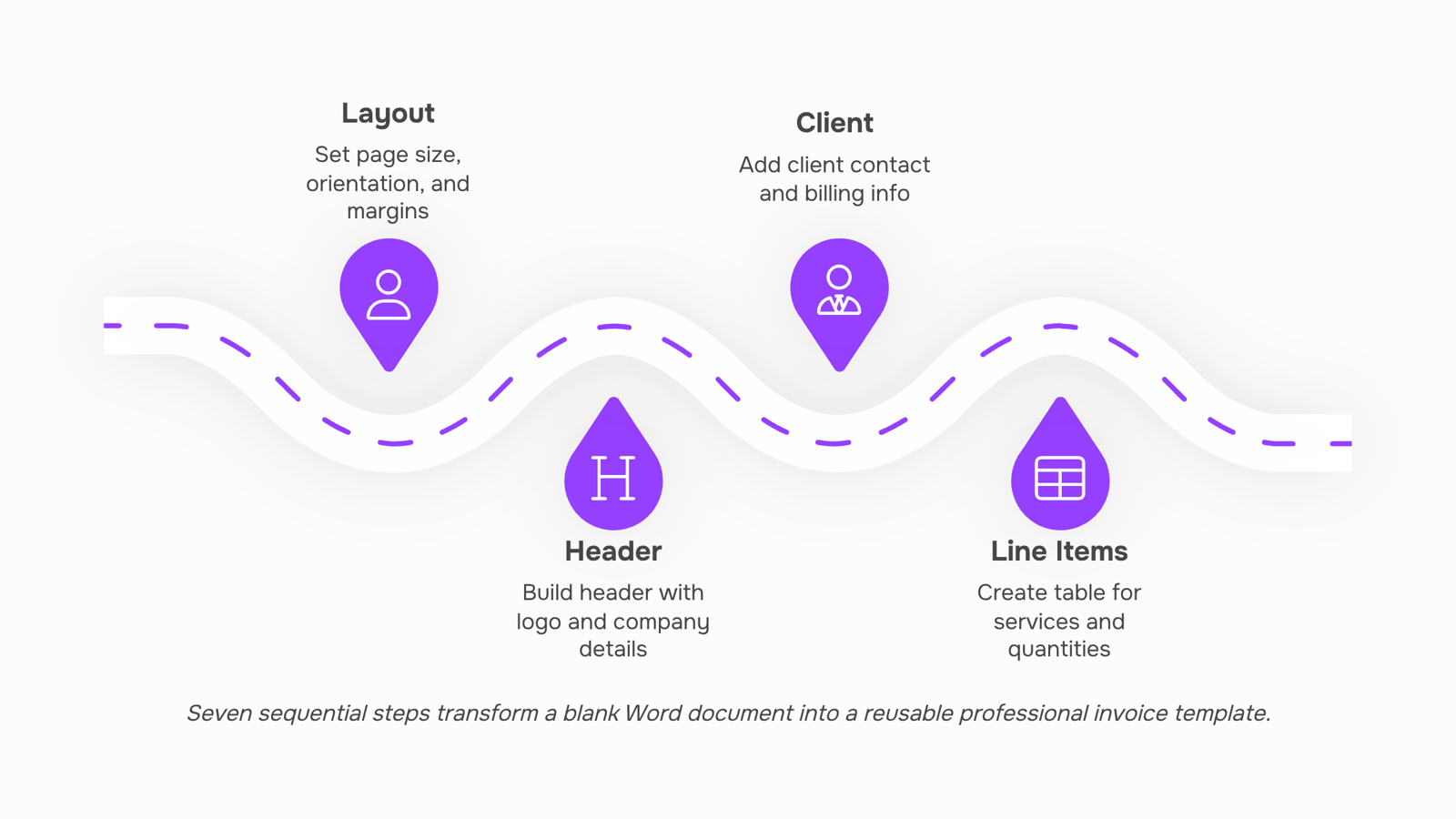
How to create a professional invoice template in Word in 7 steps
Seven steps, one sitting, a reusable file at the end. Here's the exact build sequence.
Step 1: Open a blank document and set your page layout
Open Word and choose a blank document, not a pre-built template. Go to Layout > Margins and set all four margins to 1 inch. This gives you clean white space without wasting printable area. Set the font to Calibri 11pt as your document default — it reads well on screen and prints cleanly.
Step 2: Build the header block
Insert a two-column table at the top of the page (no borders). Left column: your company name in bold 16pt, your address, phone, and email below it. Right column: the word "INVOICE" in bold 20pt, right-aligned. Below that, add Invoice Number, Invoice Date, and Due Date as labeled fields. This layout mirrors what clients expect and reduces the back-and-forth that delays payment.
Step 3: Add a client information block
Two lines below the header, add a "Bill To" section. Include fields for client company name, contact name, address, and email. If you regularly bill the same clients for ongoing projects, this block is where you'll swap details each cycle. Keep it simple — four to five fields is enough for most IT service invoices.
Step 4: Build the line-item table
This is the core of your professional invoice template. Insert a table with five columns: Description, Quantity, Unit, Rate, and Amount. Set the header row to a light gray fill so it reads as a table header, not a data row. Right-align the Rate and Amount columns. For IT services, "Unit" will usually be hours or a fixed project milestone — label it clearly so clients don't question the math.
Step 5: Add totals, tax, and payment terms
Below the line-item table, right-align three rows: Subtotal, Tax (with a percentage field), and Total Due. If you're unsure which fields to include here, the guide on choosing the right format for a blank invoice template covers the structural options in detail. Add a "Payment Terms" line directly below the total — "Net 30" or "Due on receipt" — because invoices without visible payment terms get paid later, consistently.
Step 6: Add a notes and payment instructions section
Reserve two to three lines at the bottom for bank details, a payment link, or a short note. This is also where you'd add late fee language if your contracts include it. Keep it brief. One short paragraph is enough.
Step 7: Save as a Word template file (.dotx)
Go to File > Save As, then change the file type to "Word Template (.dotx)." Save it to a dedicated folder, not your desktop. Every time you need a new invoice, open this file and Word creates a fresh copy automatically — your master template stays untouched. This is the step most guides skip, and it's the one that makes the whole build worth the time.
For a more detailed walkthrough of any individual step, the step-by-step guide to building an invoice in Word goes deeper on formatting edge cases. Once your template is built, the next decision is what to customize for IT-specific billing — project references, service tax handling, and payment terms that match how your contracts actually work.
How to customize your Word template for your business
Once the structure is in place, the real work is making it yours. A free invoice template for Word gives you a starting point, not a finished billing document.
Four decisions matter most when you customize invoice template in Word for an IT business:
Add a project reference field: Clients paying for a website migration or a 3-month support retainer need a way to match your invoice to their purchase order. Add a "Project Ref" or "PO Number" line directly below the invoice number. Without it, their accounts payable team will email you before they approve payment.
Set explicit payment terms: "Net 30" is not enough. Write the exact due date on the invoice face. Invoices with a printed due date get paid faster than those that leave the client to calculate it.
Handle tax correctly for services: IT services are taxable in some US states and exempt in others. Check your state's rules, then add a dedicated tax line that shows the rate and the calculated amount separately. Combining tax into the total creates reconciliation problems for both sides.
Lock your brand elements: Set your logo, colors, and font once, then save the file as a .dotx template so every new invoice inherits them automatically.
For a full list of what belongs on every invoice, see the essential elements every invoice should include before you finalize your layout.
When Word stops being enough
A Word template works well up to about 10–15 clients and a handful of project types. Past that threshold, the cracks show fast.
You start copying last month's invoice, updating the date, and forgetting to change the project reference. Tax calculations on service retainers get done manually every time. If a client wants a different payment term, you edit the template directly and risk overwriting your master file. Each of those small fixes adds 20–30 minutes per billing cycle — time that compounds across a growing client roster.
The deeper problem is that Word has no memory. It doesn't track which invoices are outstanding, flag overdue payments, or connect billing to the project work behind it. You can review the essential elements every invoice should include and build a clean template, but the file itself stays static.
That's the gap Inzo closes. It handles invoice creation and tracks payment status automatically, so your billing process scales without adding manual steps.
Frequently asked questions
Can I use a free invoice template for Word without buying anything? Yes. Microsoft Word includes basic invoice templates under File > New. Dozens of free options also exist on sites like Microsoft's template gallery and Vertex42.
How do I customize an invoice template in Word? Click any text block and replace the placeholder. For your logo, go to Insert > Picture. Lock the layout with a table structure so columns don't shift when you edit.
When should I stop using Word? Once you're sending more than 10 to 15 invoices monthly, or managing retainers across multiple clients, a dedicated invoicing tool tracks payment status and automates reminders in ways Word simply can't.
Closing
A Word invoice template saves time on the first few invoices, but the real cost emerges over months. Every client change, every tax rate update, every payment method swap requires you to manually edit the file. As your client roster grows, you're spending hours each month on tasks that should take minutes. That's the moment to ask whether a template is solving the problem or just delaying it. The next step is to map out how many hours per month you're spending on invoice creation and follow-up — then compare that against a tool built to handle invoicing end-to-end, from creation through payment tracking, so your team can focus on delivery instead.
FAQ
Q. How do I create a professional invoice template in Microsoft Word?
A. Build a header block with your business details and invoice number, add a client information section, create a five-column line-item table, include totals and tax rows, add payment instructions, then save as a .dotx template file so Word creates a fresh copy each time you open it.Q. What are the essential elements of a standard invoice template?
A. Your business name and contact details, client name and billing address, invoice number, invoice date and due date, itemized services with quantity and rate, subtotal and tax, total due, and payment instructions. Missing any one of these typically delays approval or payment.Q. Can I download a free invoice template for Microsoft Word?
A. Yes, Microsoft offers built-in templates in Word, but building your own ensures it matches your branding, tax structure, and payment terms exactly. A custom template takes one sitting and stays reusable indefinitely.Q. How do I customize an invoice template in Word to fit my business?
A. Edit the header to include your logo and branding colors, adjust the line-item table columns to match your service types (hours, milestones, licenses), add your specific payment methods and late-fee language, then save as a .dotx file so changes stick across all future invoices.Q. What are the benefits of using a pre-designed invoice template for Word?
A. Faster payment because clients find payment details instantly, fewer errors since every field is labeled, consistent branding across all invoices, and reusability without rework. One template eliminates hours of manual reformatting per billing cycle.


 Elena Petrova15 September 2026


