TL;DR: Most guides stop at "click the filter button." This one covers which rules to build first, why certain filter logic breaks without warning, and where Gmail's native filtering hits a hard limit — so you know when rules are the right fix and when the problem is upstream of your inbox.
What Gmail rules actually do
A Gmail rule (Google's UI calls it a filter) is a two-part instruction you give Gmail: a condition that matches incoming messages, and an action Gmail takes when that condition is true.
The condition can match on sender address, subject line keywords, recipient, attachment presence, or size. The action can archive, label, delete, star, mark as read, or forward the message. Every rule needs both parts. A condition without an action does nothing, and Gmail won't let you save one that way.
A few things worth knowing before you build your first rule:
Rules only apply to messages that arrive after you create them. Existing emails in your inbox are unaffected by default.
Gmail applies every matching filter to a message, not just the first one. Two rules can fire on the same email.
Each Gmail account supports up to 1,000 filters, per Google's current documentation.
That two-part structure is the mental model that makes gmail create rules straightforward once you see it. Gmail filters handle inbound sorting well. They cannot run outbound sequences or track replies, which matters when you get to the limitations section.
Why setting up rules saves you real time
RescueTime data puts the average professional at roughly 2.5 hours per day on email. A well-structured set of Gmail custom rules won't eliminate that entirely, but it removes the low-value work that interrupts focused time.
Four outcomes most IT owners notice within a week:
Fewer context switches. Vendor newsletters and automated alerts land in labeled folders instead of your primary inbox, so you stop triaging noise between client conversations.
Cleaner inbox before calls. Rules archive or label routine threads automatically, meaning your inbox reflects only what genuinely needs a response.
Less manual sorting. Organize inbox Gmail rules handle the repetitive moves — flagging invoices, routing support tickets — that you'd otherwise do by hand, repeatedly.
Faster spam control. Learning how to create rules in Gmail to filter spam means you stop seeing the same senders twice.
Rules handle inbound sorting well. For email workflows that Gmail rules cannot handle — sequences, reply tracking, follow-ups — you need something beyond filters.
How to create a rule in Gmail: 6 steps
Setting up your first Gmail custom rule takes about two minutes once you know where to look. Here are the exact steps.
Open Settings and go to Filters. Click the gear icon in the top-right corner, then select "See all settings." Choose the "Filters and Blocked Addresses" tab. This is where all your existing rules live and where new ones get created.
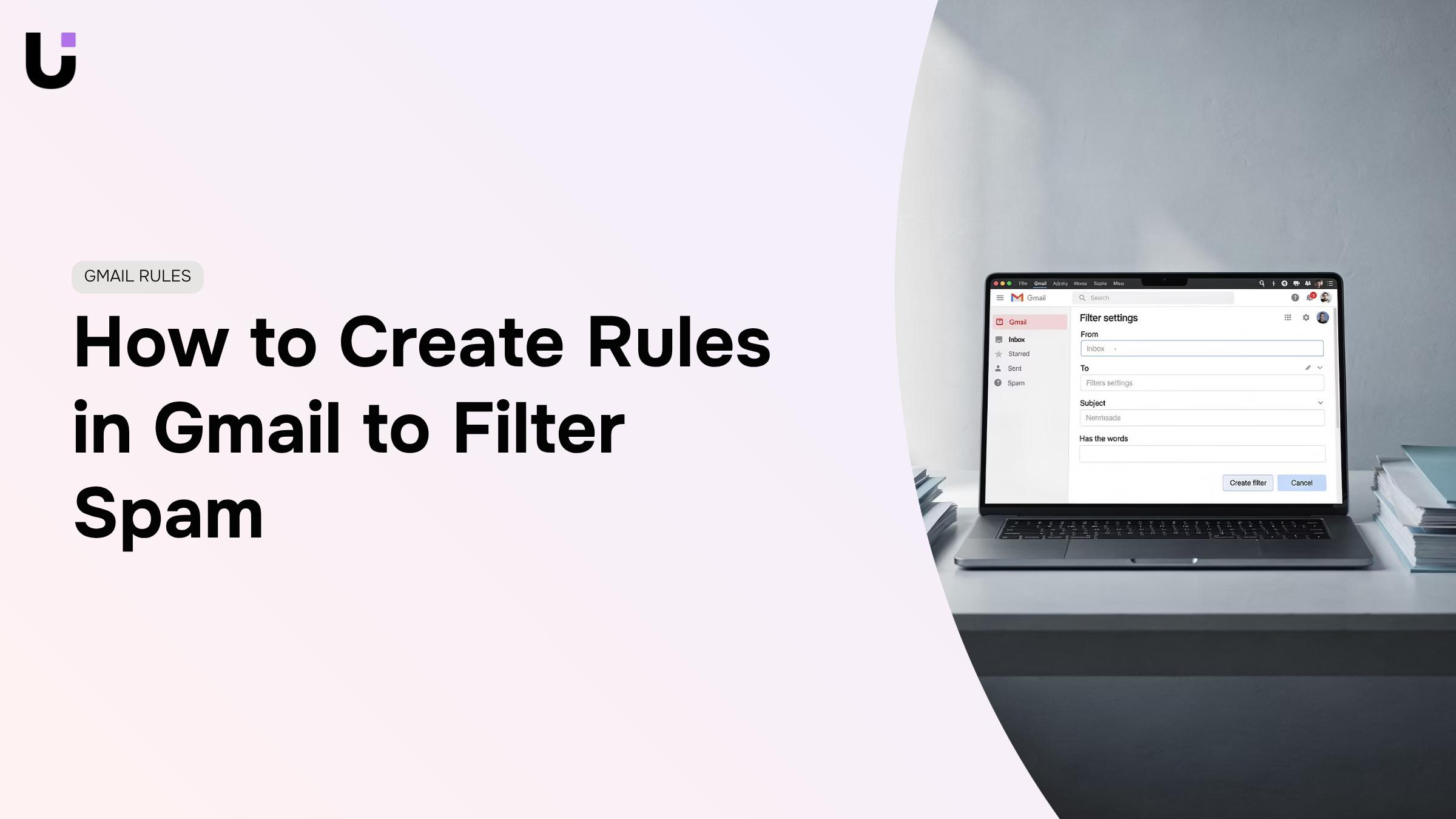
Start the filter wizard. Click "Create a new filter." A dialog box opens with six condition fields: From, To, Subject, Has the words, Doesn't have, and Size. You need to fill in at least one field before Gmail lets you continue.
Set your conditions. This is where most people make the mistake that causes rules to silently fail. Gmail applies AND logic across fields by default — so if you fill in both "From" and "Subject," the rule only fires when both conditions match. If you want OR logic (any vendor newsletter, regardless of subject line), use the "Has the words" field with multiple terms separated by OR in caps. For example: newsletter OR unsubscribe OR "no-reply".
Preview before you commit. Click "Search" before hitting "Create filter." Gmail runs the condition against your existing inbox and shows matching messages. If the results look wrong, adjust your conditions now. Skipping this step is the fastest way to build a rule that catches the wrong emails.
Choose your actions. Click "Create filter with this search." You'll see a checklist of actions: skip the inbox, mark as read, apply a label, forward to an address, delete it, and a few others. You can stack multiple actions on one rule. A common setup for IT owners: skip inbox + apply label "Vendor" + mark as read, so vendor emails are archived automatically but still searchable.
Decide whether to apply the rule retroactively. Before saving, check the box that says "Also apply filter to matching conversations." By default, Gmail rules only apply to new incoming messages. If you have 400 unread vendor emails sitting in your inbox, checking this box cleans them up immediately.
Once saved, the rule runs automatically on every matching message going forward. For a broader look at email habits that keep your inbox manageable, that's worth reading alongside this setup.
One thing to know: Gmail applies all matching filters to a message, not just the first one. So two rules can act on the same email simultaneously — useful for labeling and archiving in one pass, but worth checking if you have overlapping conditions.
Three rules worth building first
Start with the three configurations that solve the problems most IT owners hit first.
Rule 1: Block a repeat spam sender
Condition: "From" contains the sender's domain (e.g., @spammy-vendor.com). Action: Delete it, skip the inbox, and mark as read.
This is the fastest way to create a rule in Gmail to filter out spam from a domain you already know. If the sender rotates addresses but keeps the same domain, this catches every variation. Add "never mark as important" to keep it from surfacing in priority filters.
Rule 2: Auto-label emails from a client
Condition: "From" contains the client's domain (e.g., @clientname.com). Action: Apply label "Clients / ClientName," skip spam, never send to trash.
This is the rule that makes Gmail filters genuinely useful for client-heavy inboxes. Once the label exists, you can star it in the sidebar and see every client thread in one click. Build one version of this rule per active client and you've replaced most of your manual inbox sorting.
Rule 3: Forward critical alerts to a team address
Condition: "From" contains your monitoring tool's sender address AND "Subject" contains "ALERT" or "DOWN." Action: Automatically forward emails in Gmail to your team's shared inbox or Slack-connected address.
One caveat: Gmail's AND logic means both conditions must match. If your monitoring tool sends alerts with inconsistent subject lines, the rule will silently miss some. Test it by sending a manual message that matches both conditions before you rely on it.
These three cover the majority of what IT owners actually need. For email habits that keep your inbox manageable, pair these rules with a consistent labeling convention from the start.
Mistakes that make your rules stop working
Most Gmail custom rules fail silently. No error message, no bounce, just emails landing where you didn't expect them.
Four failure modes cause most of the damage:
Conflicting rule order. Gmail applies all matching filters, not just the first one. If two rules target the same sender with different actions, both fire. A rule that archives and a rule that labels will do both, which may not be what you intended.
AND logic trapping legitimate emails. Gmail filters use AND logic by default. A rule set to match "from: client.com AND has the word invoice" will miss any client email that doesn't include that exact word. Broaden the condition or split it into two separate rules.
Missing the retroactive checkbox. When you create a rule in Gmail to filter out spam, the default applies it to new messages only. If you don't check "Also apply filter to matching conversations," everything already in your inbox stays untouched. This surprises most people the first time.
Rules that don't reach the inbox. Gmail filters run on inbound messages before they're sorted, but they don't scan mail that arrived before the rule existed. Spam already sitting in your inbox needs a manual search-and-delete pass.
Building email habits that keep your inbox manageable alongside your Gmail filters reduces how often these edge cases surface in the first place.
Where Gmail rules hit their limits
Gmail rules are reactive by design. They process inbound messages against criteria you set in advance, which means they do nothing for emails already sitting in your inbox when you create them. If a spammer switches domains or a vendor changes their sending address, your existing filters stop working until you manually update them.
The logic structure compounds this. Gmail applies AND conditions across all criteria in a single filter, so a rule matching "from:vendor.com AND subject:invoice" misses any invoice that arrives with a slightly different subject line. There is no native way to build OR logic inside one rule without creating duplicate filters.
Two gaps matter most for IT company owners trying to organize inbox Gmail rules at scale:
Rules have no read or reply tracking. A filtered email gets labeled and archived, but Gmail cannot tell you whether anyone acted on it.
Gmail filter limitations mean rules cannot trigger outbound actions: no follow-up, no forwarding sequence, no escalation.
If your workflow depends on knowing what happened after an email arrived, automate the email workflows that Gmail rules cannot handle is worth reading next.
Closing
Gmail Rules Handle the Inbox — Evox Handles What Comes Next
Filtering spam is the floor, not the ceiling. Once your Gmail rules are in place, you stop wasting time on noise — but the real work is what happens with the messages that matter: following up on leads, tracking who replied, and making sure no prospect falls through the cracks.
Gmail rules are static. They sort and label; they don't act. Outbound sequences, reply tracking, and lead nurturing require a layer that responds to behavior, not just sender addresses.
That's where Lio's Evox picks up. While your filters keep the inbox clean, Evox manages the conversations that drive revenue — automatically following up, flagging warm replies, and keeping outbound running without manual effort. Teams that pair both stop firefighting their inbox and start working it.
If your filters are set, the next step is booking a 30-minute walkthrough to see what Evox can take off your plate. 📅
FAQ
Q. How do I create a rule in Gmail to filter out spam?
A. Open Gmail, click the search bar dropdown, enter your criteria (sender, subject, keywords), select "Create filter," then choose "Delete it" or "Mark as spam" and save.
Q. What are the steps to create a custom rule in Gmail?
**A.**Click the search bar, open Show search options, define your criteria, hit Create filter, choose an action (label, archive, delete, mark as read), and click Create filter to save.
Q. Can I create rules in Gmail to automatically forward emails?
**A.**Yes. Create a filter, select "Forward it to" as the action, and make sure the destination address is already verified under Settings > Forwarding and POP/IMAP.
Q. How do I use Gmail rules to organize my inbox?
A. Create filters by client domain or project name, then assign labels or skip-inbox actions so messages sort automatically on arrival without manual effort.
Q. Are there any limitations to creating rules in Gmail?
A. Gmail filters can't read email body content, don't support OR logic within a single rule, and can't trigger external actions like CRM updates or Slack notifications.


 Elena Petrova15 September 2026


