TL;DR: Most Gmail forwarding guides stop at the Settings menu. This one covers how forwarding actually works at the server level, where it quietly fails in production, and how to handle the point where a single forwarded inbox stops being enough for your team.
What Gmail forwarding actually does
Professional 3D render of dual monitors showing Gmail forwarding setup between email accounts
Gmail forwarding is a server-side rule that automatically copies every incoming message to a second email address after Gmail's spam filter has processed it. The original message stays in your source inbox untouched. You are not redirecting mail — you are duplicating it.
A few specifics worth knowing before you touch any settings:
Gmail adds an X-Forwarded-To header to forwarded messages. Some receiving mail servers treat this as a spam signal, which means forwarded messages can land in junk at the destination address without any error on your end.
Google still requires verification in 2025: when you add a forwarding address, Gmail sends a confirmation code to the destination account. Forwarding does not activate until that code is entered.
Free Gmail accounts support up to one active forwarding address. Google Workspace accounts allow multiple, though the exact limit varies by plan.
What this means practically: gmail forwarding to another email address is a passive, always-on copy mechanism. It fires on every message that clears spam, with no filtering logic of its own. If you need conditional routing — send only invoices here, support tickets there — you pair forwarding with Gmail filters and rules or look at options to automatically forward emails using rules.
Why teams use Gmail forwarding
Four situations come up repeatedly when teams start using Gmail forwarding.
Consolidated inbox: If you manage multiple client-facing accounts, you can forward multiple Gmail accounts to one inbox and work from a single view instead of logging in and out all day. One address becomes the hub; the rest feed into it automatically.
Backup address: Some teams forward a primary account to a secondary one purely as a safety net. If access to the main account gets disrupted, the backup already has a running copy of every message.
Sales and support routing: A shared sales@ or support@ alias can forward incoming messages to the individual or queue responsible for replies. Pair this with Gmail forwarding rules to route by sender, subject, or label rather than forwarding everything indiscriminately.
Delegation without shared credentials: Forwarding lets a manager or assistant monitor an account without handing over a password. It is read-only by design, which limits the risk.
If your situation involves a whole team collaborating on replies rather than one person monitoring, forwarding alone will not cover it. You would need to automatically forward emails using rules combined with a shared workspace, or skip forwarding entirely in favor of a shared inbox tool.
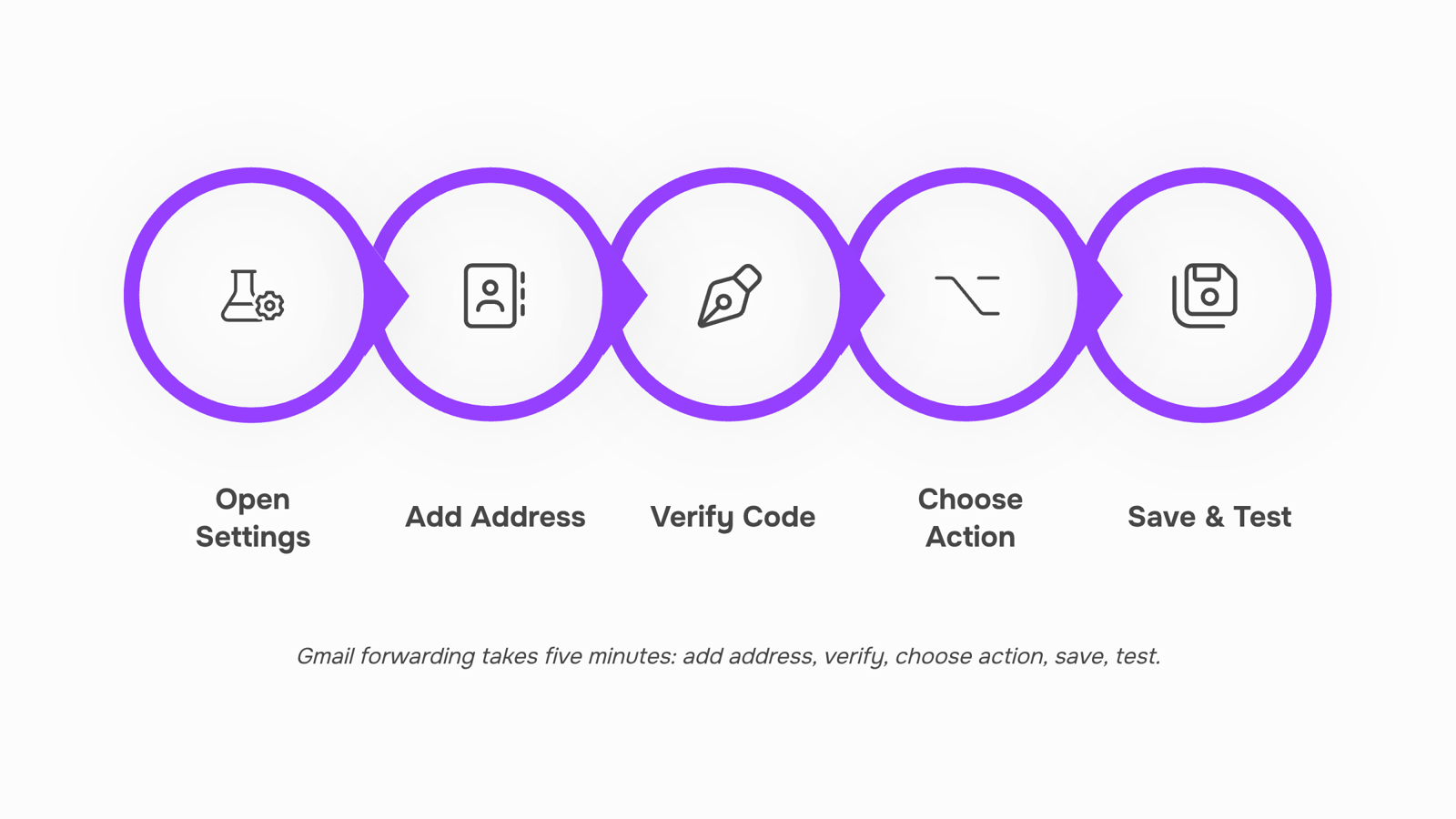
How to set up Gmail forwarding in 5 steps
The whole process takes about five minutes if you have access to both the sending and destination inboxes at the same time.
Step 1: Open Gmail Settings and find Forwarding: In Gmail, click the gear icon (top right), then "See all settings." Go to the "Forwarding and POP/IMAP" tab. This is where all forwarding configuration lives.
Step 2: Add a forwarding address: Click "Add a forwarding address" and enter the destination email. Gmail immediately sends a verification email to that address containing a confirmation code. You cannot activate forwarding until that code is confirmed — so have the destination inbox open before you start.
Step 3: Verify the destination: Open the verification email in the destination inbox, copy the confirmation code, and paste it back into Gmail Settings. Alternatively, click the confirmation link directly from that email. Once verified, the destination address appears as an option in your forwarding settings. If the verification email does not arrive within a few minutes, check the spam folder — this is the most common first stumble.
Step 4: Choose a forwarding action: After verification, select "Forward a copy of incoming mail to [address]" from the dropdown. You then choose what Gmail does with the original: keep it in the inbox, mark it as read, archive it, or delete it. For most IT teams routing support or sales email to a shared account, "archive" keeps the primary inbox clean without losing a copy.
Step 5: Save and send a test message: Click "Save Changes," then send a test message to the Gmail address from an external account. Confirm it arrives at the destination within a minute or two. This confirms the rule is live, not just saved.
One important constraint: free Gmail accounts support up to 20 verified forwarding addresses. Google Workspace accounts have a higher limit, but the exact cap varies by plan — check your Admin console if you are managing forwarding at scale.
For more targeted routing — sending only emails from a specific sender or with a specific subject line to a different address — you will need Gmail forwarding rules built on top of filters. The steps above forward everything; filters let you forward selectively. A full walkthrough of how to automatically forward emails using rules covers that layer in detail.
If your team needs gmail forwarding to another email address to feed a shared workspace rather than a personal inbox, syncing Gmail directly into a shared team workspace handles that more cleanly than chained forwarding rules.
Where Gmail forwarding breaks (and how to fix it)
Four things break Gmail forwarding silently — meaning your setup looks correct, the confirmation email went through, and messages still disappear.
Unverified destination address: Gmail will not forward a single message until you click the confirmation link sent to the destination inbox. If that email landed in spam (common with free inboxes), the forwarding rule sits dormant with no error. Check the destination inbox's spam folder before assuming the setup failed.
Spam filter interference: Forwarded messages carry an X-Forwarded-To header that some receiving servers treat as a spam signal, particularly when the sending domain fails SPF or DKIM alignment. If forwarded emails are arriving in junk rather than the inbox, the issue is at the destination server, not Gmail. This is worth knowing if you're asking is gmail forwarding secure — the forwarding itself is encrypted in transit, but header-based filtering at the destination is outside Gmail's control.
Filter-order conflicts: Gmail applies filters top to bottom. If an earlier filter archives or deletes a message before the forwarding filter runs, that message never gets forwarded. Review your Gmail filters and rules order and move the forwarding filter above any that modify the same messages.
Forwarding loops. If account A forwards to account B, and account B forwards back to account A, Gmail will eventually stop delivery without warning. The fix is straightforward: audit both accounts and make sure forwarding only runs in one direction.
For teams routing messages across multiple inboxes, automatically forwarding emails using rules gives you more control than a single catch-all forward. You can also sync your Gmail inbox directly into a shared team workspace to avoid the loop risk entirely.
How to forward multiple Gmail accounts to one inbox
The process to forward multiple Gmail accounts to one inbox is straightforward: repeat the standard forwarding setup in each source account, pointing all of them to the same destination address. Open Settings in Account A, add your destination under Forwarding and POP/IMAP, verify the confirmation code, then do the same in Account B, Account C, and so on.
Two practical limits are worth knowing before you scale this up. Gmail free accounts allow up to 20 forwarding addresses per account, so the destination-side is not the constraint — the source accounts are. The real constraint is noise. Once you're consolidating three or more accounts, undifferentiated messages pile into one inbox fast. At that point, automatically forward emails using rules from each source account — filtering by sender or subject before forwarding — keeps the destination inbox usable. You can also apply Gmail filters and rules at the destination to sort incoming mail by origin. For teams managing shared communication, it's worth considering whether to sync your Gmail inbox directly into a shared team workspace instead.
How to stop Gmail forwarding
Open Gmail, click the gear icon, and select See all settings. Go to the Forwarding and POP/IMAP tab. You'll see either an active forwarding address or a list of verified addresses.
To stop Gmail forwarding entirely, click "Disable forwarding" and save changes. To remove a specific address without disabling the feature, click the dropdown next to that address and select "Remove."
Either way, Gmail stops copying outbound messages immediately after you save. No confirmation email goes to the destination address.
One thing worth knowing: disabling forwarding does not delete messages already delivered to the destination inbox. Those stay.
If you set up rules that forward based on filters, those need to be removed separately under the Filters and Blocked Addresses tab, or they will keep routing matching messages even after forwarding is off.
When your team needs more than forwarding
Gmail forwarding works fine for one person routing mail to a personal account. It starts breaking when a team tries to share it.
The typical failure looks like this: a support alias (help@yourcompany.com) forwards to three reps. All three see the incoming message. None of them know whether a colleague already replied. A customer gets two responses, or none. Gmail's forwarding layer has no reply visibility and no delivery confirmation built in — it just copies the message and moves on.
A few other limits compound the problem. Gmail free accounts support up to 20 forwarding addresses; Workspace accounts cap at the same number per account. Once you're routing mail across multiple reps with automatically forward emails using rules, you're managing filter logic manually, and any rule misconfiguration fails silently in production.
The right fix at the team level is inbox sync, not forwarding. Evox's Gmail and Outlook inbox sync connects your shared inbox directly to a team workspace, with two-way sync so every reply is visible to the whole team and tracked against the original thread. No duplicate responses. No guessing whether a message was handled.
If you need to tighten what reaches that shared inbox first, pairing sync with Gmail filters and rules keeps the signal clean before it ever lands in the team queue.
Closing
Gmail forwarding works perfectly for one person monitoring multiple accounts or a manager staying in the loop without shared passwords. But the moment your team needs to collaborate on replies—multiple people responding to the same inbox—forwarding alone hits a wall. You end up chaining rules, losing reply context, and watching messages slip through the cracks.
When forwarding stops scaling, Evox's Gmail inbox sync steps in with two-way sync and full conversation history, so your entire team sees every message, reply, and attachment in one shared workspace without duplicating mail across accounts. Ready to see how it works? Check out the feature page and run a quick test with your team's most active account.
FAQ
How do I set up Gmail forwarding to another email address?
Go to Gmail Settings > Forwarding and POP/IMAP > Add a forwarding address. Verify the destination inbox using the confirmation code Gmail sends, select your forwarding action, and save. Test with an external message to confirm it's live.
Can I forward multiple Gmail accounts to one inbox?
Yes. Set up forwarding on each source account to point to the same destination inbox. Free Gmail allows one active forwarding address per account; Google Workspace supports multiple depending on your plan.
What are the benefits of using Gmail forwarding?
Consolidate multiple inboxes into one view, create a backup copy of every message, route shared aliases to specific people, or monitor an account without handing over credentials—all without manual intervention.
Does Gmail forwarding work with filters and rules?
Yes. Pair forwarding with Gmail filters to route selectively—send only invoices here, support tickets there. Filters run top to bottom, so place your forwarding filter above any that modify the same messages.
Why is my Gmail forwarding not working?
Check that the destination address is verified (confirmation email may be in spam), ensure forwarding filters aren't blocked by earlier rules, and confirm the destination server isn't flagging the X-Forwarded-To header as spam.


 Elena Petrova15 September 2026


