TL;DR: Most guides on auto forwarding in Gmail stop at the Settings walkthrough. This one covers how Gmail's forwarding pipeline actually processes messages, where it breaks down silently, and when rule-based forwarding stops being enough — specifically for IT company owners whose teams need reply tracking, lead capture, and two-way inbox sync rather than one-directional message routing.
What auto forwarding in Gmail is
Auto forwarding in Gmail is a server-side rule that automatically copies or redirects incoming messages to a second email address without any manual action from the sender or recipient.
Gmail offers two modes. The first sends every incoming message to a destination address you verify during setup. The second uses Gmail filter rules that control which messages get forwarded — so only messages matching criteria like sender, subject, or label get routed onward.
Both modes run entirely at the server level. The message arrives at Gmail's servers, the forwarding rule fires, and a copy leaves for the destination address before you ever open your inbox. The original message stays in your Gmail account unless you configure a separate action to archive or delete it.
The distinction between these two modes matters more than most setup guides acknowledge. All-mail forwarding is blunt: everything goes, including newsletters, receipts, and spam. Filter-based forwarding is surgical: you define exactly which messages move and where.
For teams that need to automatically forward emails across Gmail, Outlook, and other platforms, understanding which mode you're configuring determines whether the result is a clean routing system or a noisy duplicate inbox. The next section covers what happens inside that pipeline once a rule fires.
How auto forwarding works in Gmail
Auto forwarding in Gmail is a server-side rule that copies or redirects incoming messages to a second email address before you ever open them.
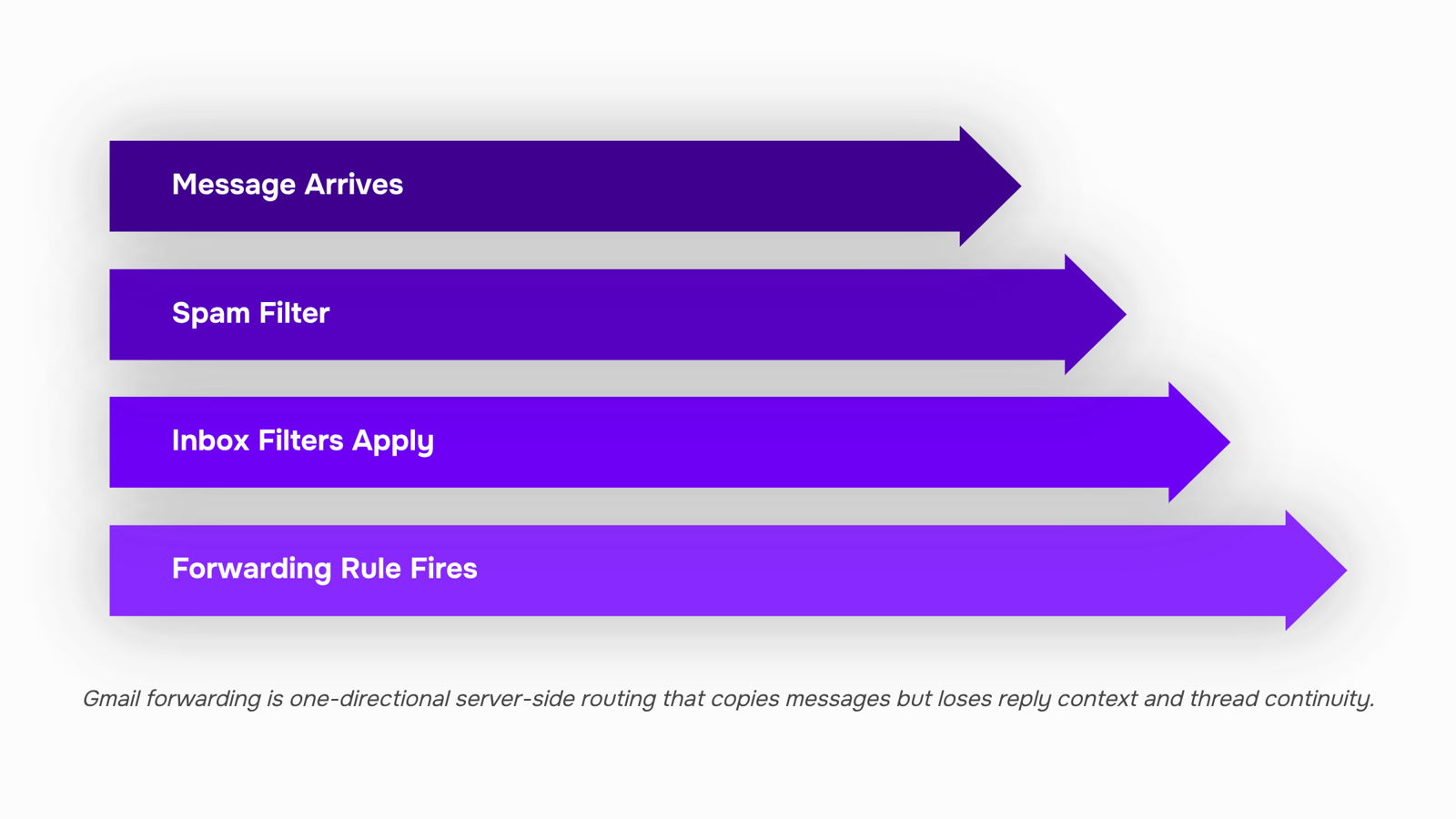
Gmail processes that rule in a specific order. When a message arrives, Gmail runs spam filtering first. If the message passes, Gmail applies your inbox filters next. Forwarding happens after that filter pass, which means a filter-based rule can forward a message and simultaneously archive, label, or delete it from your primary inbox.
Two modes exist, and they behave differently. All-mail forwarding sends every incoming message to the destination address, regardless of sender or subject. Filter-based forwarding is selective: you define criteria (sender domain, subject keyword, recipient address), and only matching messages trigger the forward. The rest of your mail stays put.
In both cases, Gmail sends a copy to the destination. The original message remains in your account unless a filter explicitly archives or deletes it. That copy travels over TLS in transit when the receiving mail server supports it, but Gmail does not guarantee TLS end-to-end if the destination server does not advertise it.
One constraint worth knowing: Gmail allows only one forwarding destination per account in the all-mail mode. Filter-based rules can route to different addresses per filter, which is where Gmail filter rules that control which messages get forwarded become genuinely useful for routing client emails, support tickets, or billing queries to separate inboxes.
What this pipeline does not do: it does not sync replies, thread context, or read status back to the original account. For that, you need two-way Gmail inbox sync that captures replies and maintains thread context, which is a different mechanism entirely.
How to set up auto forwarding in Gmail
Setting up auto forwarding in Gmail takes two different paths depending on whether you want every message forwarded or only specific ones.
All-mail forwarding
Open Gmail Settings (the gear icon, top right) and select "See all settings."
Go to the "Forwarding and POP/IMAP" tab.
Click "Add a forwarding address" and enter the destination email.
Gmail sends a verification code to that address. The recipient must click the confirmation link before forwarding activates — skipping this step is the most common reason forwarding silently fails.
Once verified, select "Forward a copy of incoming mail to" and choose what happens to the original: keep it, mark it read, archive it, or delete it.
Save changes.
Filter-based forwarding
If you only want certain messages forwarded — by sender, subject line, or label — use Gmail filter rules that control which messages get forwarded instead of the blanket setting.
In Gmail, click the search bar dropdown to open advanced search.
Set your criteria (from, subject, has words, etc.) and click "Create filter."
On the next screen, check "Forward it to" and select a verified address from the dropdown. If the address isn't verified yet, go back to the Forwarding tab first.
Click "Create filter" to save.
A few things to keep in mind before you finish:
Gmail forwards to one destination address per rule. Sending the same message to two addresses requires duplicating the filter — covered in the next section.
Forwarding only applies to incoming mail. Sent messages don't forward automatically.
If you need forwarding to work across Gmail and Outlook simultaneously, automatically forward emails across Gmail, Outlook, and other platforms covers the cross-platform setup in detail.
For teams that need replies to stay connected to the original thread, basic forwarding breaks that context. Two-way Gmail inbox sync that captures replies and maintains thread context is worth reviewing before you commit to a one-way setup.
How to forward Gmail emails to multiple accounts
Gmail only lets you forward all incoming mail to one destination address per account. There is no native "forward to multiple addresses" toggle. To forward Gmail to multiple accounts, you duplicate Gmail forwarding filter rules — one filter per destination.
Here is how to do it:
Open Gmail Settings, go to Filters and Blocked Addresses, and click Create a new filter.
Set your matching criteria (sender, subject, or leave blank to catch everything).
On the next screen, select Forward it to and choose your first verified destination address.
Save that filter, then repeat the entire process for each additional address.
Each filter fires independently, so a message matching all three filters gets forwarded to all three addresses. The catch: every destination must be verified through Gmail's confirmation email before the filter will fire. Skip verification and the rule sits there silently doing nothing.
A few practical limits to keep in mind:
Gmail caps total filters at 1,000 per account, which is rarely a problem in practice
Filters match on arrival, not on read status, so forwarding happens even if you never open the message
Changes to filter criteria apply only to new mail, not messages already in your inbox
This workaround covers the forwarding side. It does not solve reply tracking or thread continuity — those gaps come next.
Where auto forwarding in Gmail breaks down
Four specific problems surface once you run Gmail auto forward emails through real production traffic.
Unverified address blocks: Gmail requires the destination address to confirm forwarding before any message moves. If that confirmation email lands in spam or the recipient never clicks it, the rule sits silently inactive. No error surfaces in your Settings panel. Messages stop forwarding and you find out when someone asks why they never received anything.
Spam reclassification on the receiving server: The receiving mail server sees a message that originated from a third-party domain but arrived via Gmail's forwarder. SPF checks often fail at this hop because the sending IP is Gmail's, not the original sender's. The result: legitimate client emails get flagged as spam on the destination side, and you never see them unless you check the junk folder manually.
No reply tracking: When someone replies to a forwarded message, that reply goes to the original sender, not to the inbox that received the forward. Your team has no visibility into whether a response was sent, what it said, or whether the thread is still open. For client-facing accounts, that gap creates real accountability problems.
No thread continuity: Forwarded messages arrive as standalone copies. The original thread context, prior replies, and subject-line history do not travel with them. Anyone picking up a forwarded email starts cold.
These four failure modes share a root cause: Gmail's native forwarding is one-directional and stateless. It moves a copy of a message; it does not connect two inboxes.
That distinction matters if your team needs Gmail two-way inbox sync that captures replies and maintains thread context across accounts. It also matters when you need to automatically forward emails across Gmail, Outlook, and other platforms without losing the conversation layer that native forwarding drops.
Is auto forwarding in Gmail secure
Gmail protects messages in transit using TLS encryption, and the verification step you complete when you set up forwarding in Gmail confirms the destination address exists. Those two controls are real, and they matter.
What Gmail does not provide is end-to-end encryption for forwarded messages. Once a message leaves Google's servers, its security depends entirely on the receiving mail server. If that server does not enforce TLS, the message travels unencrypted. You have no visibility into that.
The audit gap is the bigger operational risk for IT owners. Gmail logs that a message was forwarded, but the receiving end creates no record tied back to your account. If a forwarded message is read, replied to, or deleted on the other side, your Gmail shows nothing. There is no reply tracking and no thread continuity.
Gmail filter rules can narrow which messages get forwarded, which reduces exposure, but they do not close the audit gap. For teams where reply context matters, two-way inbox sync captures what one-way forwarding cannot.
How to stop auto forwarding in Gmail
Turn off all-mail forwarding first, then clean up any filters still routing specific messages.
Open Settings > See all settings > Forwarding and POP/IMAP. Under "Forwarding," select "Disable forwarding" and save.
Go to Settings > Filters and Blocked Addresses. Delete any filter with a "Forward to" action — disabling forwarding in step one does not remove these.
Skipping step two is the most common mistake. Active filters keep forwarding targeted messages even after the main toggle is off.
If your goal is automatically forwarding emails across Gmail, Outlook, and other platforms, a filter-based setup gives you more control than the global switch.
Closing
Gmail's native forwarding works well for simple routing: all-mail copies or filter-based rules that send specific messages to a second inbox. But it stops short when your team needs replies tracked back to the original thread, leads captured the moment they arrive, or a unified view across Gmail and Outlook. That's where two-way Gmail inbox sync fills the gap — it preserves thread context, captures replies automatically, and keeps your team's conversations connected without the manual overhead of one-directional forwarding. If your team is juggling multiple inboxes and losing context on replies, it's worth testing whether a connected inbox layer would save more time than managing forwarding rules alone.
FAQ
Q. How does auto forwarding work in Gmail?
A. Gmail forwards run at the server level after spam filtering and inbox filters fire. A copy of the matching message travels to your destination address while the original stays in your account unless you configure it to archive or delete.Q. What are the steps to set up auto forwarding in Gmail?
A. For all-mail forwarding: Settings > Forwarding and POP/IMAP > Add a forwarding address > verify the destination > choose what happens to the original. For selective forwarding: create a Gmail filter with your criteria, check 'Forward it to,' and save.Q. Can I auto forward Gmail emails to multiple accounts?
A. Gmail allows only one destination per account in all-mail mode. To forward to multiple addresses, create separate filter rules for each destination — each filter fires independently on matching messages.Q. Is auto forwarding in Gmail secure?
A. Gmail forwards over TLS in transit when the receiving server supports it, but does not guarantee end-to-end encryption if the destination doesn't advertise TLS. Forwarding to unverified addresses is blocked by default.Q. How do I stop auto forwarding emails in Gmail?
A. For all-mail forwarding: Settings > Forwarding and POP/IMAP > select 'Do not forward' and save. For filter-based forwarding: go to Filters and Blocked Addresses, click the edit icon next to the rule, and delete it.


 Elena Petrova15 September 2026


