TL;DR: TL;DR: Most invoice automation guides stop at "set it and forget it." This one shows you how to wire recurring invoices to the business events already happening, like project completions, deal closures, and contract renewals, so invoices generate and send without anyone remembering to trigger them.
What automating invoices actually means
Invoice automation isn't a button you press — it's a trigger-based workflow. Something happens (a project closes, a contract is signed, a billing date arrives), and the system generates and sends an invoice without anyone manually building it.
That distinction matters because most teams set up "automation" that's really just a template. They still open the tool, fill in the client, adjust the amount, and hit send. That's faster than starting from scratch, but it's not invoice workflow automation.
True automated invoice generation works on conditions: if a retainer renews on the 1st, then send invoice; if a project milestone is marked complete, then generate and deliver. The trigger does the work.
This also means the setup decision comes before the tool. You need to know whether your invoices should fire on a fixed schedule, a project event, or a deal stage — because each maps to a different workflow. Picking software before answering that question is why most automation setups stall.
The advantages of automatic invoicing become real only when the trigger logic is right. Get that right first, then configure the tool around it.
Why IT businesses automate recurring invoices
Manual invoicing has a compounding cost most IT businesses underestimate. Every invoice you build by hand is a chance to enter the wrong rate, forget a line item, or send it three days late because someone was heads-down on a project.
Four outcomes make recurring billing automation worth the setup time:
Fewer errors. A scheduled trigger pulls the same approved template every cycle. There's no re-keying, so there's no drift between what you quoted and what you billed.
Faster payment. Automated invoice reminders go out at fixed intervals — net-7 follow-up, net-14 escalation — without anyone tracking a spreadsheet. Most teams find payment cycles shorten noticeably once reminders run without human intervention.
Less admin time. IT service businesses typically spend several hours per month on manual invoicing tasks alone. That time compounds across retainer clients, project milestones, and subscription renewals simultaneously.
Cleaner cash flow visibility. When invoices go out on a predictable schedule, your receivables data reflects reality. You can see what's outstanding, what's overdue, and what's expected next month without reconciling manually.
The advantages of automatic invoicing extend beyond time savings — predictable billing cycles also reduce client disputes because the invoice matches the agreed scope exactly.
If you want to see how these outcomes connect to a full workflow, the 6-step invoice workflow automation guide covers the end-to-end build.
Choose the right trigger for your billing model
The trigger you choose shapes your entire invoice automation setup — get it wrong and you'll either send invoices at the wrong time or build a workflow that breaks every edge case.
Three trigger types cover most IT billing models:
Schedule-based triggers fire on a fixed cadence — weekly, monthly, quarterly. Use this if your clients pay a flat retainer or subscription fee. It's the simplest recurring billing automation to configure, and it works without any input from your team once it's running.
Project completion triggers fire when a defined milestone closes. Use this for fixed-scope engagements where billing is tied to deliverables, not dates. Inzo's integration with Taro lets you generate an invoice automatically when a project status updates to complete — no manual handoff required.
CRM deal triggers fire when a deal stage changes (signed, renewed, upsold). Use this if your sales and billing cycles are tightly linked and you want invoices to follow contract events rather than a calendar.
The decision is mostly structural. Ask: does the client owe money on a date, on delivery, or on a contract event? That answer maps directly to your trigger type.
If you're unsure which fits your model, the invoice workflow automation guide walks through how each trigger type connects to a full billing sequence. For a broader look at what automate invoicing actually changes day-to-day, the advantages of automatic invoicing covers the operational case.
Pick your trigger before you touch any configuration. Everything downstream depends on it.
Set up automated invoicing in 5 steps
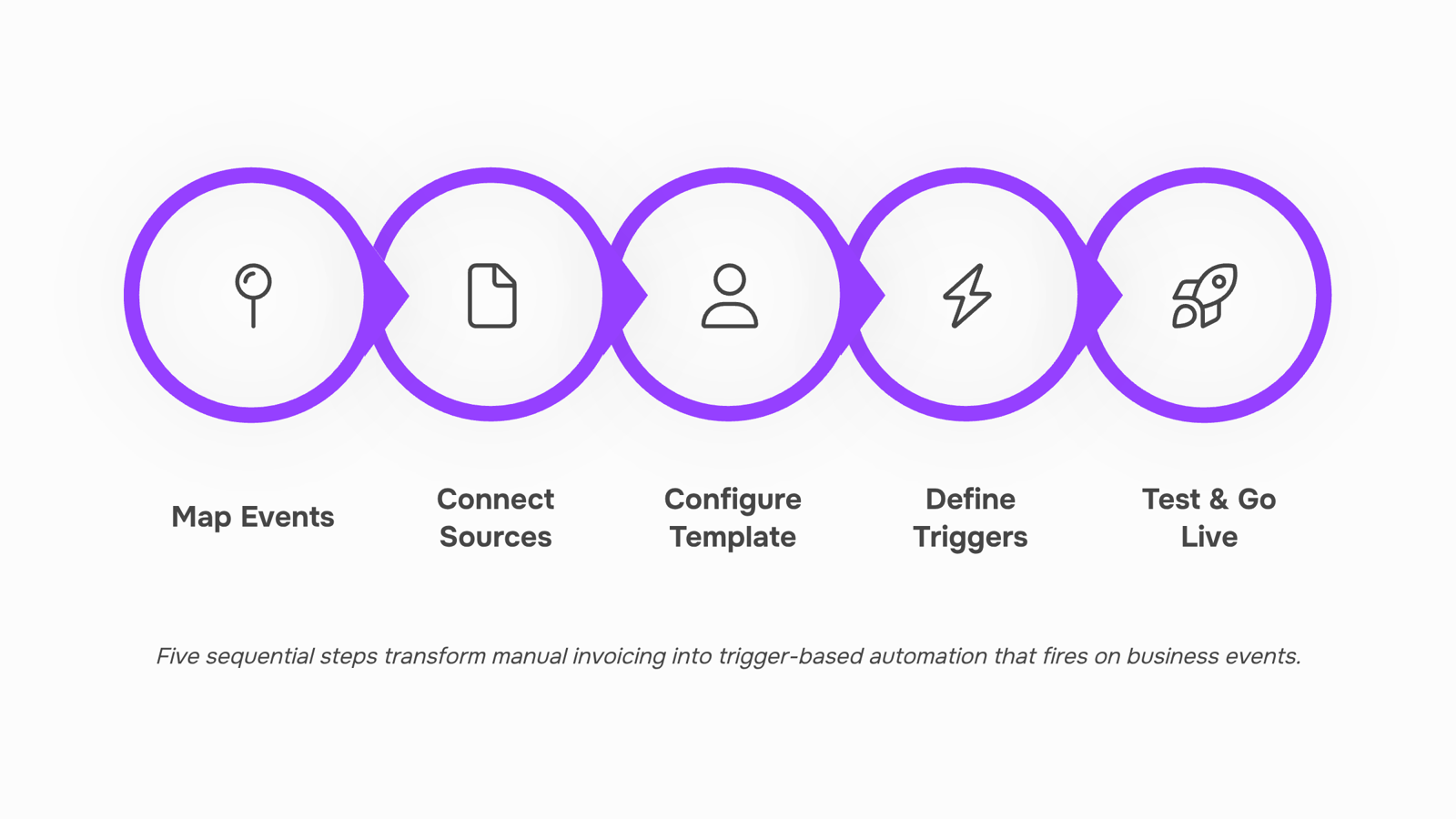
Once you've picked your trigger type, the configuration follows a predictable sequence regardless of which path you chose. Here's how to move from decision to working system.
Step 1: Map your billing events
Before touching any settings, list every billable event your business generates — monthly retainers, project completions, contract signings, deal closures. Categorize each one by trigger type: schedule, project milestone, or CRM event. This takes 20–30 minutes and prevents you from building automation around the wrong signal. If a client pays a flat monthly fee, that's a schedule trigger. If billing fires when a project closes in your PM tool, that's a milestone trigger.
Step 2: Connect your data sources
Your invoice automation setup is only as clean as the data feeding it. Connect the systems that hold your billing events — your CRM, project management tool, or contract platform — before configuring any invoice rules. In Inzo, this means wiring up integrations with Lio (for CRM deal closures), Taro (for project completions), or Revo (for document signings), depending on which triggers you identified in Step 1. Get the connection live and verify that test records flow through correctly.
Step 3: Configure your invoice template
Set up a default template that covers your standard line items, tax rules, payment terms, and branding. The goal here is a template that handles 80% of invoices without manual edits. For the remaining 20% — custom scopes, variable hours, multi-currency clients — build a second template or use conditional fields if your tool supports them. Doing this upfront means automated invoice generation produces send-ready documents, not drafts that need cleanup.
Step 4: Define trigger conditions and rules
This is where the automation logic lives. For schedule-based billing, set the recurrence interval, start date, and any end conditions. For event-based triggers, define exactly what constitutes a qualifying event — "deal stage = Closed Won" or "project status = Complete" — and add filters to exclude edge cases like internal projects or pilot clients. Sloppy conditions here are the most common cause of duplicate or misdirected invoices, so be specific.
Step 5: Run a test send before going live
Create a test client record and trigger the automation manually. Confirm the invoice pulls the right line items, applies the correct tax rate, addresses the right recipient, and hits your inbox (or theirs, if you're using a sandbox email). Check the PDF rendering, not just the data fields. Once the test invoice looks right, flip the automation to active.
A few things to watch after launch: invoices generating for paused contracts, timezone mismatches causing off-schedule sends, and template changes that break existing automations. Build a short review into your monthly close — 10 minutes to scan the sent log catches most issues before clients notice.
For a deeper look at structuring the workflow around these steps, the guide on automating your invoice workflow in six steps covers the broader process logic in detail.
Automate invoicing vs. manual invoicing: what actually changes
Manual invoicing has a predictable cost: time, errors, and delayed cash flow. When you automate invoicing, each of those dimensions shifts in a measurable way.
Dimension | Manual | Automated (INZO) |
|---|
Time per invoice | 15–20 minutes (data entry, formatting, sending) | Under 2 minutes once the template and trigger are configured |
Error rate | High — wrong amounts, missing line items, stale payment terms | Near-zero — data pulls from the source record every time |
Payment speed | Invoices sent late, reminders forgotten | Invoices go out on schedule; reminders fire automatically |
Team effort | Finance or ops staff manually track every billing cycle | Staff review exceptions, not routine sends |
The error rate gap matters most for IT service businesses. A misquoted line item or wrong billing period doesn't just delay payment — it creates a dispute that can push collection back by weeks.
Invoice workflow automation also changes when your team finds out about problems. With manual processes, a failed send goes unnoticed until a client asks why they haven't received an invoice. With INZO, failed-send alerts surface immediately.
For context on how these improvements fit into a broader billing operation, the invoicing best practices for B2B businesses guide covers the surrounding process decisions worth getting right alongside automation.
Common mistakes that break invoice automation
Three setup errors account for most invoice automation failures — and all three are avoidable.
Skipping payment terms on the invoice template. If your template doesn't include Net 15 or Net 30 terms before you activate the schedule, every invoice that goes out is missing legally enforceable language. Clients delay. You chase. Fix this in the template before you touch the trigger.
Not testing the trigger end-to-end. Most IT owners configure the schedule, assume it works, and find out it didn't when a client asks why no invoice arrived. Run one test send to an internal address before going live. Confirm the date logic, the line items, and the PDF attachment all fire correctly.
Ignoring failed-send alerts. Automated invoice reminders only work if the system tells you when delivery fails. A bounced email address or an expired payment link can silently kill a billing cycle.
For a deeper look at how the underlying mechanics work, see how invoice automation handles delivery and error recovery before finalizing your invoice automation setup.
Run your billing from one place with Inzo
Once a project closes in WorksBuddy, Inzo generates the invoice automatically — no manual handoff, no copy-pasting hours from a timesheet. The trigger is project completion via the Taro integration, so the billing cycle starts the moment the work ends.
That connection matters because most delays happen between delivery and invoice creation, not in the payment itself. If you want to understand the full advantages of automatic invoicing before configuring your setup, that's worth reading first.
For a deeper walkthrough of each automation step, the 6-step invoice workflow guide covers the full build.
Closing
The difference between invoice automation that works and automation that stalls comes down to one choice: wiring your invoices to the business events already happening in your systems. When a project closes in Taro, a deal moves to Closed Won in Lio, or a contract renews on schedule, that trigger should fire an invoice automatically — no manual step, no remembered task, no delay. Inzo connects those dots. It sits between your CRM, project management tool, and billing data so invoices generate and send the moment the trigger fires, turning your billing cycle from a weekly admin task into a background process that runs itself.
Start with a free trial and map one billing event — your most common recurring invoice type — through the full five-step system. Once you see invoices landing in client inboxes without anyone touching them, you'll understand why this approach scales so much faster than templates or reminders. What's your most frequent billable event — a retainer renewal, project completion, or deal closure?
FAQ
How can I automate my invoicing process?
Connect your CRM, project management tool, or contract platform to your invoicing system, then define trigger conditions — schedule-based (monthly retainer), project-based (milestone complete), or deal-based (contract signed). The system generates and sends invoices automatically when the trigger fires.
What is the best way to automate recurring invoices?
Map your billing events first, choose the right trigger type (schedule, project completion, or CRM deal), then configure a clean template and test it end-to-end before going live. The trigger logic matters more than the tool.
What are the benefits of automating invoicing?
Fewer billing errors, faster payment cycles, less admin time, and cleaner cash flow visibility. IT service businesses typically save several hours per month on manual invoicing tasks alone.
How do I set up automated invoicing for my small business?
Follow the five-step system: map billing events, connect data sources, configure your template, define trigger conditions, and run a test send. Start with one recurring invoice type before expanding.
Can I automate invoicing with my existing accounting software?
Yes, if it integrates with your CRM, project management tool, or contract platform. Most modern accounting tools support API connections or native integrations that enable trigger-based invoice generation.
What happens if an automated invoice fails to send?
A properly configured system logs the failure and alerts you so you can investigate. Common causes are invalid email addresses, data sync delays, or misconfigured trigger conditions — all preventable with thorough testing before launch.
How do I automate invoice reminders for overdue payments?
Set up a schedule-based reminder workflow separate from invoice generation — net-7 follow-up, net-14 escalation. Most invoicing platforms let you define reminder intervals that trigger automatically based on invoice date or payment status.


 Elena Petrova15 September 2026


