TL;DR: Most monday.com integration guides dump a feature list and move on. This one groups integrations by IT workflow category, flags which are native versus connector-dependent, and names the automation ceiling where monday.com stops being enough. IT company owners get a decision framework, not a directory.
monday.com integrations are connections between monday.com and external tools that let data move between systems without manual copying.
There are two types, and the distinction matters for how far you can push your workflows.
Native integrations are built directly into monday.com's integration center. As of Q1 2026, monday.com lists over 200 apps in its marketplace, covering tools like Slack, Jira, HubSpot, and GitHub. These connect through monday.com's own automation engine, which becomes available on the Standard plan and above. You configure triggers and actions inside the platform, no third-party account required.
Connector-based integrations run through middleware tools like Zapier or Make. They expand what's possible when a native connection doesn't exist or when the native logic isn't flexible enough. The tradeoff: you're adding a third system, a separate subscription, and another failure point. If you're already evaluating that layer, the alternatives to connector-based tools like Make are worth reviewing before committing.
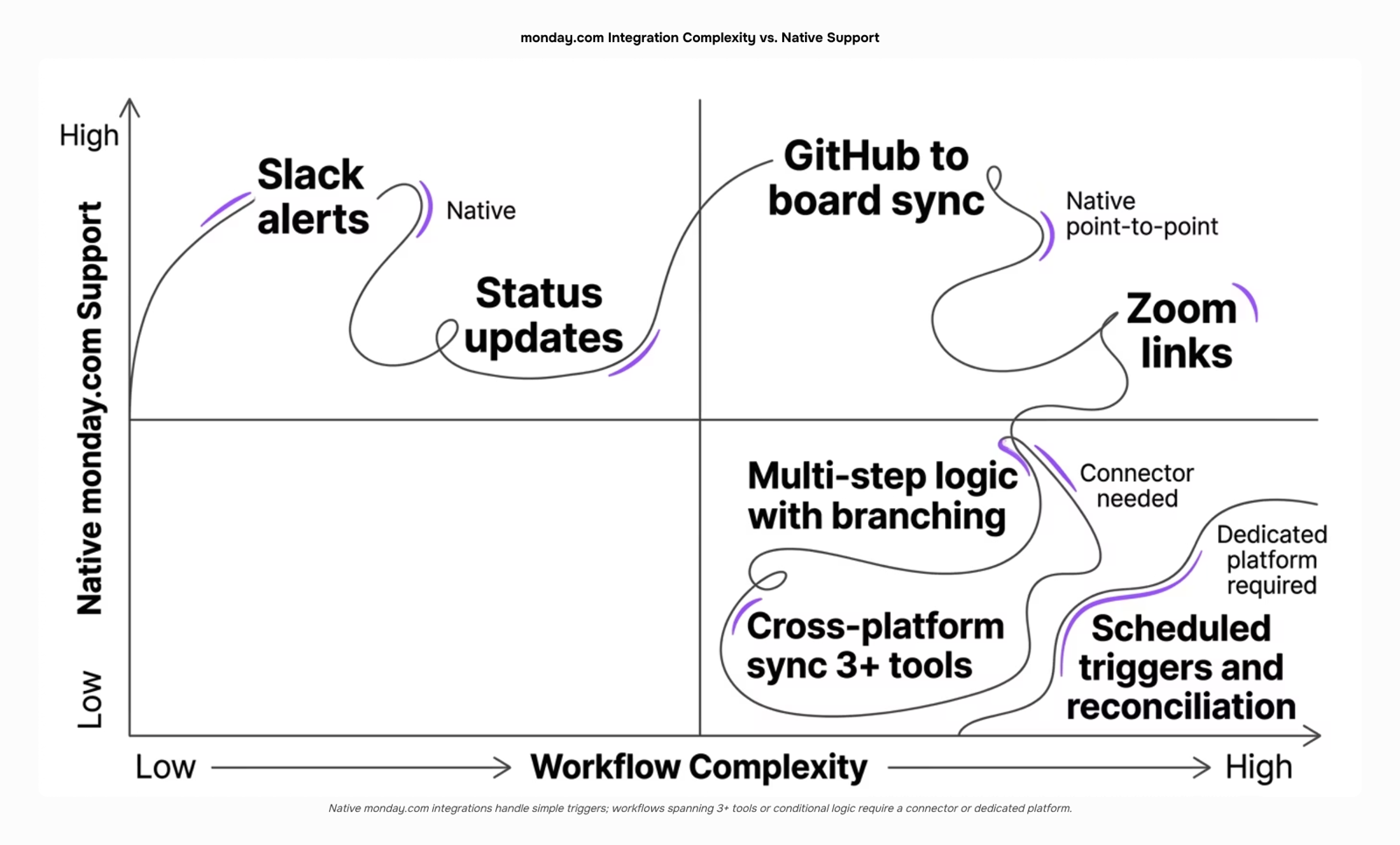
The automation ceiling is real. Native monday.com automation integrations handle straightforward triggers well. Multi-step logic, conditional branching, or cross-platform data syncs often need either a connector or a purpose-built tool. Knowing how to choose a B2B integration platform helps you decide which layer actually belongs in your stack.
Connecting monday.com to the tools your team already uses removes several friction points that slow IT operations down. Here is what the best integrations for monday.com actually deliver in practice:
Fewer manual updates: When your ticketing system or CRM pushes data directly into monday.com boards, engineers stop copying status fields by hand. That alone cuts a category of errors that compounds across a 20-person team.
Faster incident response: Trigger-based automations can create a board item, assign an owner, and notify a Slack channel the moment a monitoring alert fires, without anyone touching a keyboard.
Centralized project visibility: monday.com project management integrations pull commit data, deployment status, and client communication into one view, so leads stop hunting across four tabs to answer a status question.
Fewer context switches. Engineers stay in their primary tool. The data moves; they don't.
One caveat: these outcomes depend on which plan tier you're on. Automations and integrations are locked behind Standard and above, so Basic plan users get none of this.
When native integration logic runs out, teams typically reach for connector-based tools. Before that, it's worth reviewing how to choose a B2B integration platform to avoid over-engineering the stack.
Most monday.com integrations guides list tool names and move on. This section goes one level deeper: what each integration actually fixes in your day-to-day workflow, and where native support ends and connector tools begin.
Communication
Slack pushes monday.com item updates, status changes, and due-date alerts directly into a channel or DM. The workflow problem it solves: your team stops checking two tabs to know whether a task moved.
Microsoft Teams does the same for organizations running the Microsoft 365 stack. Notifications, @mentions, and board updates surface inside Teams without anyone leaving the conversation.
Gmail connects incoming emails to monday.com items, so a client request or support ticket becomes a trackable task in one click rather than a copy-paste job.
File management
Google Drive lets you attach Drive files directly to monday.com items and trigger folder creation when a new project board is set up. One clarification worth making: the monday.com Google Drive integration is native on Standard plans and above, so you do not need a third-party connector to use it. Files stay linked to the item, not buried in a shared folder no one bookmarks.
Dropbox works similarly for teams that store assets outside the Google ecosystem. Attach files, sync updates, and keep deliverables tied to the task that produced them.
OneDrive covers the same ground for Microsoft-heavy IT shops, keeping SharePoint and OneDrive assets connected to the board without manual linking.
Meetings
Zoom creates meeting links directly from a monday.com item and logs recordings back to the same item when the call ends. The monday.com Zoom integration is native on Pro and Enterprise plans. For teams running client discovery calls or sprint reviews, this removes the step of hunting through your calendar for a recording link three days later.
Google Calendar syncs item due dates and timeline entries to calendar events, so deadlines show up where your team already plans their day. Changes on the board update the calendar automatically.
Calendly connects scheduling to project intake. When a prospect books a call, a new item can be created on your board automatically, which matters most for IT service teams managing a steady flow of onboarding requests.
Dev and IT ops
GitHub links pull requests, commits, and issues to monday.com items. Developers update their work in GitHub; project leads see progress on the board without asking for a status update.
Jira is the integration that matters most for teams running engineering sprints alongside client-facing project boards. Jira issues sync to monday.com items so nothing lives in a silo.
PagerDuty routes incident alerts into monday.com, creating items automatically when an on-call engineer is paged. Incident response stays visible to the whole team, not just the person holding the pager.
Zendesk pulls support tickets into monday.com so IT teams can track resolution alongside the broader project work. One board, full context.
Most of these are native monday.com project management integrations available in the integration marketplace. Where native logic runs out — custom triggers, multi-step automations across more than two tools — you will need a connector or a visual workflow builder that connects tools without per-task limits. Knowing that ceiling before you hit it saves a rebuild later.
Setting up any native monday.com integration follows the same path, whether you're connecting Google Drive or Zoom.
Open your board and go to Integrations: Click the puzzle-piece icon in the top-right of any board. This takes you to the Integration Center, where monday.com lists its available native connectors.
Search for your tool: Type "Google Drive" or "Zoom" in the search bar. If it appears without a "Powered by Zapier" badge, it's a native integration, meaning no third-party connector account is required.
Choose a recipe: Monday.com calls its pre-built trigger-action pairs "recipes." For the monday.com Google Drive integration, a common recipe is: "When a file column changes, create a new folder in Google Drive." For the monday.com Zoom integration, the most-used recipe is: "When a meeting column is updated, create a Zoom meeting and populate the link."
Authenticate your account: You'll be prompted to sign in to the external tool and grant permissions. This is a one-time step per integration.
Map your columns: Tell monday.com which board columns feed into which fields in the connected tool. Specificity here prevents broken automations later.
Test with a real item: Trigger the condition manually on one item before rolling it out to the full board.
One important constraint: automation and integrations are only available on Standard plans and above. Basic plan users can view the Integration Center but cannot activate recipes.
If you're deciding whether native integrations are enough for your stack, the guide on how to choose a B2B integration platform covers the criteria worth checking before you commit.
Native monday.com automation integrations follow a simple pattern: one trigger, one action, one tool. That works well for straightforward notifications or status updates. It breaks down fast once your workflow crosses two or three platforms.
The specific failure modes show up in predictable places:
Multi-step conditional logic: Monday.com's native automations don't support branching. You can't say "if deal value exceeds $10K, route to senior account manager; otherwise, assign to SDR queue." You get one path.
Cross-platform data syncing: Keeping a CRM record, a monday.com item, and a billing system in sync requires either manual reconciliation or a third-party connector like Zapier or Make, which adds per-task pricing on top of your monday.com subscription.
Workflows spanning more than two tools: Monday.com project management integrations handle point-to-point connections cleanly. Chain three or more tools together and you're stitching automations across separate platforms, each with its own failure point.
Automation access also depends on your plan tier. Basic plans exclude automations entirely; Standard unlocks 250 automation actions per month, which a mid-size IT team can exhaust in days.
Understanding what software integration actually delivers makes the ceiling clearer: the value comes from connected data flow, not just connected tools. When monday.com's native logic runs out, the question is whether you patch it with connectors or replace the middle layer entirely.
Native monday.com automation integrations work well for straightforward triggers: status changes, due date reminders, item creation. The logic breaks when your workflow spans three or more tools, requires conditional branching ("if client is enterprise tier, route to Slack; otherwise, log to HubSpot"), or needs scheduled triggers that monday.com's recipe-based system doesn't support natively.
At that point, you're either stacking Zapier or Make on top of monday.com, paying per task, and debugging connector failures when an API update breaks the chain.
A dedicated platform handles this differently. Revo's visual workflow builder that connects tools without per-task limits lets you map multi-step conditional logic across platforms in one place, without connector fees eating into your margin as volume scales.
The practical decision rule: if your workflow touches more than two tools, branches on a condition, or runs on a schedule, native monday.com automation integrations aren't the right layer for it. If you're already evaluating alternatives to connector-based tools like Make, that's the signal to move the logic outside monday.com entirely.
Closing
The real power of monday.com integrations isn't the connections themselves—it's the automation ceiling they reveal. Native integrations handle straightforward data moves and single-trigger workflows well. But the moment your IT operations span more than 2-3 tools, or you need conditional logic and multi-step automations, native monday.com automation hits a wall.
For teams whose workflows demand that next level of flexibility without connector fees or per-action limits, a visual workflow builder bridges the gap. It connects your full toolstack—monday.com, GitHub, Slack, Zendesk, and beyond—in one place, with the automation logic native monday.com can't reach. Ready to see what's possible? Explore Revo's visual workflow builder and watch how multi-tool automation actually works.
FAQ
What are the best integrations for monday.com?
The best integrations depend on your workflow. Slack, GitHub, and Jira rank highest for IT teams; Google Drive and Zoom for project coordination; PagerDuty and Zendesk for incident and support ops. Native integrations are available on Standard plans and above.
How do I integrate monday.com with other project management tools?
Jira connects natively through the Integration Center, syncing issues to monday.com items automatically. For tools without native support, use a connector like Zapier or Make, or deploy a visual workflow builder for multi-step logic.
What are the benefits of using monday.com integrations?
Integrations eliminate manual data entry, speed incident response through trigger-based automations, centralize project visibility across tools, and let engineers stay in their primary tool while data moves between systems.
Can I integrate monday.com with Google Drive?
Yes. The monday.com Google Drive integration is native on Standard plans and above. Attach Drive files directly to items and trigger folder creation when new projects are set up—no third-party connector needed.
How do I set up a monday.com integration with Zoom?
Go to Integrations in your board, search for Zoom, select a recipe like 'Create Zoom meeting when column updates,' authenticate your Zoom account, and map the trigger fields. The Zoom integration is native on Pro and Enterprise plans.


 Elena Petrova15 September 2026


