TL;DR: Most guides on how to create an email template in Outlook stop at saving a .oft file. This one covers all three methods, where each one breaks down under real team volume, and what to do when Outlook's built-in limits start eating into response time. You'll leave knowing which approach fits your workflow and when to move beyond it.
What an Outlook email template actually is
An Outlook email template is a pre-built message you save once and reuse whenever you need it. Unlike a draft, which holds a single unsent message, a template is a reusable starting point you can open, edit, and send as many times as you want without touching the original.
Outlook gives you three ways to build one. The My Templates add-in works inside the compose window and suits quick, personal snippets. .oft files save a full message (formatting, attachments, subject line) to a local folder on your machine. Quick Parts stores reusable text blocks you can drop into any message mid-compose.
One thing worth knowing before you start: all three methods store templates locally, per user. Your colleague cannot access what you save. If your team needs shared template libraries with personalization tokens, that requires a separate tool.
This guide covers all three methods, so you can pick the one that fits your actual workflow.
Benefits of using email templates in Outlook
The case for building templates before you need them comes down to four outcomes.
Time : Composing a recurring message from scratch takes 5 to 15 minutes. A saved template cuts that to under 60 seconds. Across a sales team sending 20 similar emails a day, that adds up fast.
Consistency : Every rep sends the same structure, the same disclaimers, the same brand-aligned language. No one accidentally drops the legal footer or misspells the company tagline under deadline pressure.
Fewer errors :Templates remove the copy-paste cycle where formatting breaks, old client names survive, and wrong attachments get sent. You fill in the variables; the boilerplate is already correct.
Faster onboarding : A new hire using a tested template library can send professional outreach on day one, without a senior rep reviewing every draft.
One honest caveat: the benefits of using email templates in Outlook apply per user. Templates are stored locally, so your team doesn't automatically share them. If shared libraries matter to your workflow, a dedicated email template builder with shared libraries and personalization tokens handles that gap. For a comparison of how the same workflow behaves in another platform, see how the same workflow compares in Gmail.
How to create a custom email template in Outlook: 5 steps
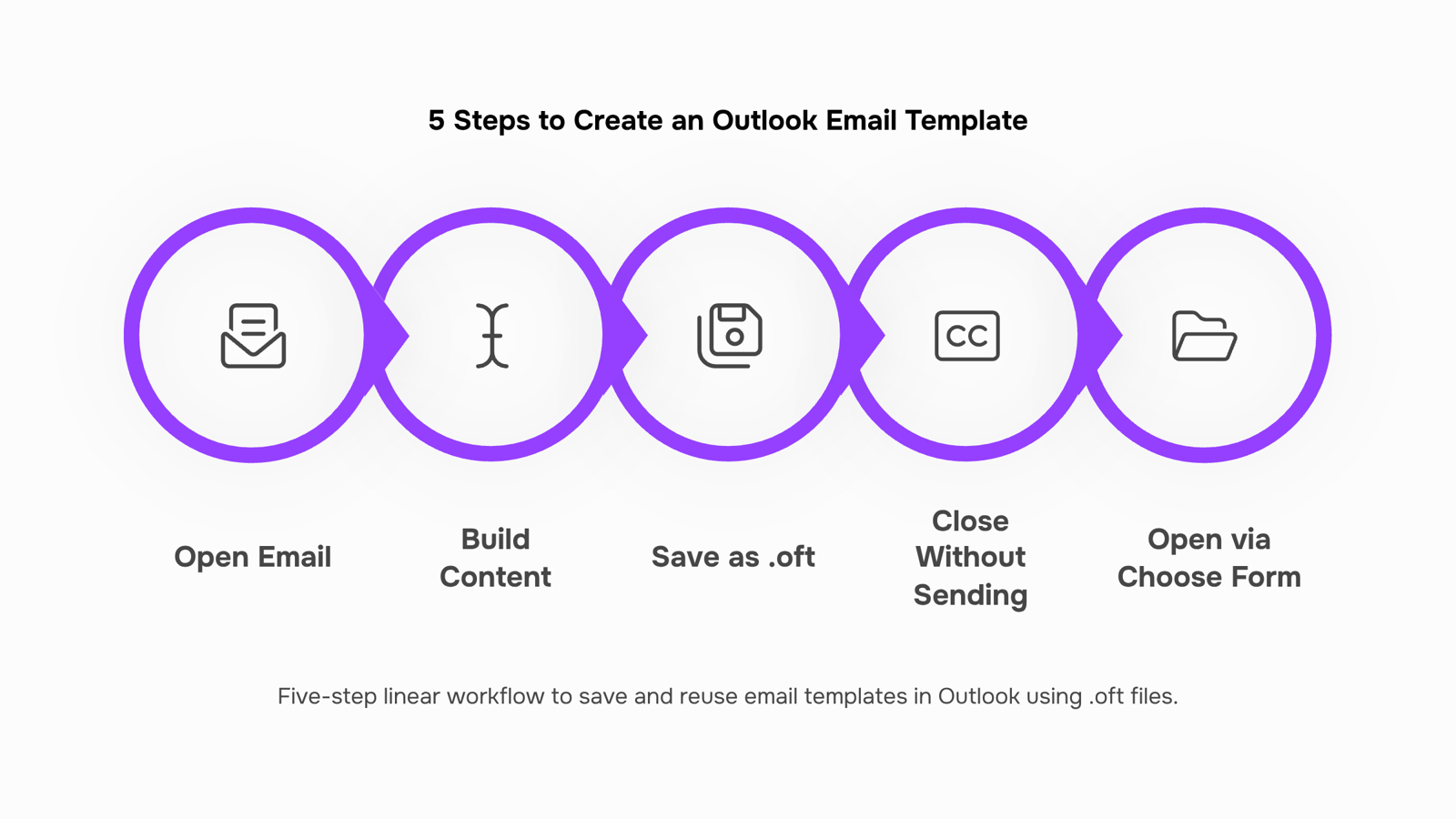
The .oft file method is the most reliable way to save email as template in Outlook, and it works across Outlook 365 on Windows. Here are the five steps.
1. Open a new email
Go to Home, then select New Email. This opens a blank compose window. Do not use Reply or Forward as your starting point — those carry thread context that will bleed into your template.
2. Build your content
Write the subject line, body copy, and any formatting you want to reuse. Add your logo, signature block, or table structure now. Anything you skip here, you will have to add manually every time you use the template. If you are setting up outreach messages, cold email templates worth loading into Outlook can give you a starting structure.
3. Save as an Outlook template
With the compose window open, go to File, then Save As. In the "Save as type" dropdown, select Outlook Template (.oft). Outlook will default to saving the file in C:\Users\[YourName]\AppData\Roaming\Microsoft\Templates. Leave that path as-is. Name the file something specific ("Q2 Proposal Follow-Up" beats "Template 1") so you can find it later.
4. Close the compose window without sending
Once the file is saved, close the window. If Outlook asks whether you want to save changes, select No — the .oft file is already written. Selecting Yes here creates a draft, not a second copy of the template.
5. Open and use the template
To reuse it, go to New Items, then More Items, then Choose Form. In the "Look In" dropdown, select User Templates in File System. Your saved .oft file will appear there. Select it, and Outlook opens a pre-filled compose window you can edit before sending.
One thing to know before you build out a library: .oft files are stored locally per user and are not synced across devices or shared with teammates. If your team needs a shared template library with personalization tokens and version control, a dedicated email template builder with shared libraries handles that without the file-path friction.
For a full picture of where these files live and how to access them again after saving, where to find and reuse saved templates in Outlook covers the retrieval workflow in detail. The next section picks up from here and walks through how to edit a template you have already saved without overwriting the original.
How to edit and update an existing Outlook template
Outlook does not have an "edit template" button. To edit an Outlook email template, you reopen the file, make your changes, and save it again under the same name.
Here is the exact workflow:
Go to File > New > Choose Form, select "User Templates in File System," and open your .oft file. Alternatively, navigate directly to C:\Users\[YourName]\AppData\Roaming\Microsoft\Templates and double-click the file.
A new compose window opens pre-filled with the template content. Make your edits — update the subject line, body copy, or formatting.
Go to File > Save As, choose "Outlook Template (*.oft)" from the format dropdown, and save using the exact same filename. Outlook will ask if you want to overwrite. Confirm yes.
That last step is where most people lose work. If you save as a regular .msg file or forget to match the filename, you end up with a duplicate instead of an updated template.
One thing worth knowing: because .oft files are stored locally per user, any edits you make stay on your machine. Your teammates do not see the updated version automatically. If your team shares templates, where to find and reuse saved templates in Outlook covers how others can access the same files.
For teams sending high-volume outreach, a dedicated email template builder with shared libraries and personalization tokens removes the manual sync problem entirely.
Two other ways to create templates in Outlook
The .oft file method works well for formal templates, but Outlook gives you two faster options worth knowing.
Outlook My Templates : is a compose-window add-in that lets you save short snippets and insert them without leaving the email you're writing. Open a new message, go to the Insert tab, and select "My Templates" from the add-ins panel. Type your snippet, name it, and save. Next time you need it, one click drops it into the body. The add-in is available in Outlook on the web and Outlook for Mac as of 2025, which makes it the most portable of the three methods. It's the right tool for short, repeatable blocks like pricing disclaimers or meeting request closers.
Quick Parts : Handles slightly longer reusable content. Write the text you want to save, select it, then go to Insert > Quick Parts > Save Selection to Quick Part Gallery. Give it a name and a category, and it's available from that same menu in any future message. It stores richer formatting than My Templates and works well for boilerplate paragraphs you drop into proposals or support replies.
Neither method handles dynamic personalization or team sharing. If you're building a custom email template in Outlook for a sales sequence, both options hit the same wall: the templates live on your machine, not a shared library. That limitation matters more than most guides acknowledge, and it's covered in the next section. For teams that have already outgrown native Outlook, cold email templates worth loading into Outlook or a dedicated email template builder with shared libraries are worth a look.
Where Outlook templates stop working for teams
Native Outlook templates have three limits that surface fast once more than one person needs to use them.
Local storage : When you save a .oft file, it lands in C:\Users\[name]\AppData\Roaming\Microsoft\Templates on that machine only. There is no sync to OneDrive, no shared network path by default, and no way to push an update to every user at once. If you want to share email templates with your team in Outlook, you are manually emailing .oft files and hoping everyone saves them correctly.
No personalization tokens : When you edit an Outlook email template, you replace placeholder text by hand every time. There is no {{first_name}} or {{company}} field that pulls from a contact record. For a single rep sending five emails a day, that is friction. For a team sending hundreds, it is a consistency problem.
No usage tracking : Outlook has no native way to tell you which templates get used, which get ignored, or whether the version in circulation is current.
These limits are fine for personal, low-volume use. They are not fine for team-wide rollout. If your team needs shared libraries, dynamic fields, and version control, a dedicated email template builder with shared libraries and personalization tokens handles all three gaps. You can also see how the same workflow compares in Gmail if your team uses both clients.
Closing
Creating an Outlook email template takes five minutes and pays back every time you reuse it. The .oft file method gives you the most control—subject line, formatting, attachments, all locked in place. But here's where Outlook hits its ceiling: templates stay local to your machine, and your team can't access them without manual file-sharing. If your team sends templated outreach at scale, a shared template library with personalization tokens and send tracking built in removes that friction entirely. Check out how Evox's email template builder works—it's built for teams that need consistency without the file-path overhead.
FAQ
What are the steps to create a custom email template in Outlook?
Open a new email, build your content with subject line and formatting, go to File > Save As, select Outlook Template (.oft), name it clearly, close without sending, then reopen it via File > New > Choose Form to use it.
How do I save an email as a template in Outlook?
Compose your message, click File > Save As, select Outlook Template (.oft) from the dropdown, give it a specific name, and save. Outlook stores it locally in your Templates folder for reuse.
How do I edit and update existing email templates in Outlook?
Reopen the .oft file via File > New > Choose Form, make your edits, then File > Save As with the exact same filename and confirm overwrite. If you change the name or format, you'll create a duplicate instead of updating the original.
Can I share email templates with my team in Outlook?
No. Outlook templates are stored locally per user and not synced across devices or shared with teammates. For shared template libraries with personalization tokens, you need a dedicated email template builder.
What are the benefits of using email templates in Outlook?
Templates cut compose time from 5–15 minutes to under 60 seconds, enforce consistent messaging and branding, eliminate copy-paste errors, and let new hires send professional outreach on day one without senior review.


 Elena Petrova15 September 2026


