TL;DR: Most Gmail guides stop at "use filters." This one connects inbox clutter to lost sales response time, walks through the bulk-delete and filter sequences that actually stick, and shows where inbox sync tools close the gap Gmail's native spam controls leave open.
Why a Cluttered Gmail Inbox Costs More Than Time
Modern 3D render of organized Gmail inbox with spam filtering folders on desktop monitor in professional workspace
A cluttered inbox isn't just annoying. For IT company owners, it's a direct drag on revenue.
When you fail to manage spam emails in Gmail effectively, legitimate client messages get buried. A prospect's reply sits unseen for six hours because it landed between 40 newsletter blasts and phishing attempts. That delay compounds. Research on sales response times consistently shows that replying within five minutes versus thirty can multiply conversion rates by an order of magnitude.
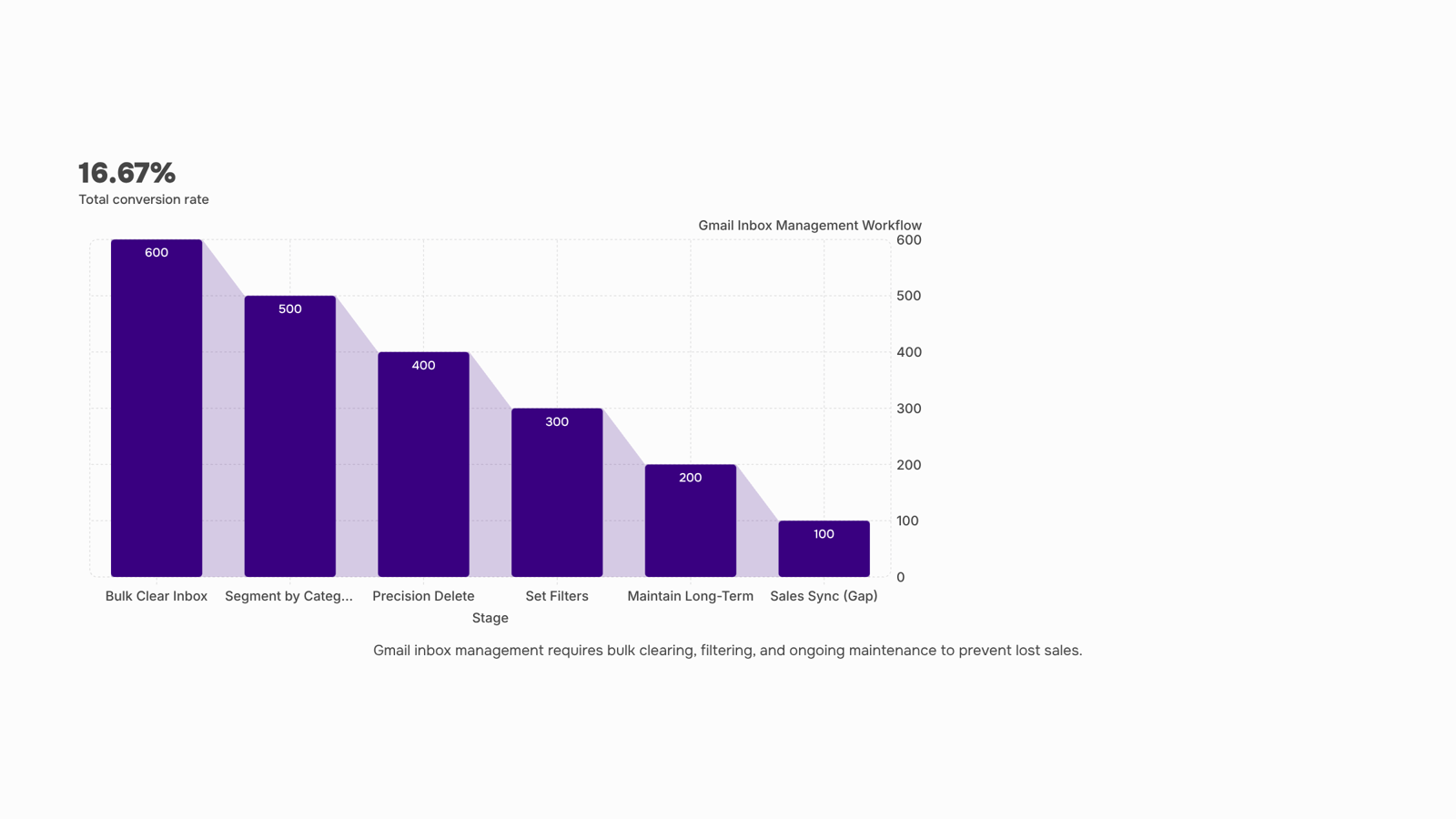
Google claims its spam filter catches 99.9% of spam, but even that remaining 0.1% adds up at volume. And the real problem isn't just spam that arrives. It's the promotional mail, automated notifications, and CC chains you never unsubscribed from. Those fill your inbox until Gmail spam management becomes a daily chore instead of a background process.
The business costs stack up:
Missed leads buried under bulk mail you never asked for
Slower client response because scanning 200 unread messages takes real minutes
Broken delegation when you can't tell which emails need forwarding to your team (you can automatically forward emails to the right team member once you fix the underlying clutter)
Gmail how to clear inbox isn't a productivity hack. It's operational hygiene. The next section walks you through the fastest bulk-deletion method so you can reclaim that time today.
How to Quickly Clear Out Your Gmail Inbox Right Now
Gmail caps bulk selection at 50 conversations per page by default. To mass delete emails in Gmail when you have thousands (or hundreds of thousands), you need to trigger the hidden "select all conversations" banner. Here's the fastest workflow.
Step 1: Expand your page size. Go to Settings > General > Maximum page size and set it to 100 conversations per page. This doubles the batch you work with each click.
Step 2: Use the select-all checkbox trick. Click the checkbox above your message list (top-left). Gmail selects the visible 100 conversations. A yellow banner appears: "All 100 conversations on this page are selected. Select all X conversations in Inbox." Click that link. Now every message in your inbox is selected, not just the visible page. One user on Google Support reported selecting 350,000 emails this way before hitting delete.
Step 3: Choose delete or archive. Delete sends everything to Trash (auto-purged after 30 days). Archive removes messages from your inbox but keeps them searchable. For spam and promotional junk, delete. For client threads you might need later, archive.
Step 4: Use category tabs to segment first. If you have Promotions, Social, and Updates tabs enabled, click into Promotions first, then repeat the select-all process. This lets you nuke marketing emails without touching your Primary tab where actual client replies live.
This gets your gmail inbox clear fast, but it is blunt. You are selecting everything in a category or everything in your inbox. The next section covers search operators that let you target specific senders, date ranges, or attachment sizes, so you keep what matters and delete only what does not.
Once your inbox is under control, set up Gmail rules and filters to prevent the pile from rebuilding. Filters route future spam and low-priority mail automatically, so you never need another bulk purge.
How to Mass Delete Emails in Gmail by Sender, Date, or Label
Gmail's "select all" trick works for broad sweeps, but when you need to mass delete emails in Gmail without nuking messages you actually need, search operators give you surgical precision.
Target by sender. Type from:newsletter@example.com in the search bar. Gmail returns every message from that address. Select the checkbox, click "Select all conversations that match this search," then delete. This is the fastest way to wipe out a single sender's history, whether it's a vendor you stopped using or a notification service flooding your inbox.
Target by date. Use before:2024/01/01 to surface everything older than a cutoff. Combine it with a sender or label for tighter results: from:noreply@someapp.com before:2024/06/01 deletes only that sender's old messages. You can also use older_than:1y for relative dates.
Target by label. If you've been tagging messages (or Gmail's auto-categorization did it for you), search label:promotions or label:updates to isolate entire categories. This is especially useful when you want to clear inbox clutter from a specific tab without touching Primary.
Target by attachment size. has:attachment larger:10M finds bulky files eating your storage. Delete or archive these first when you're approaching Gmail's 15 GB limit.
Combine operators for precision. The real power comes from stacking: from:billing@saas-tool.com before:2023/01/01 has:attachment targets only old invoices with attachments from one vendor. You can build filters from these same search terms to prevent future buildup.
One limit to know: Gmail processes deletions in batches. If your search returns thousands of results, you'll need to confirm "Select all conversations" each time, as Gmail requires you to explicitly select beyond the visible page. For accounts where inbox clutter directly slows sales response time, consider syncing your Gmail into a unified sales view so critical messages never compete with bulk noise.
Using Gmail Filters to Stop Spam Before It Hits Your Inbox
Gmail filters are your first line of defense for intercepting predictable junk before it ever touches your primary tab. The concept is simple: you define criteria, and Gmail automatically routes matching messages away from your inbox. The execution is where most guides fall short.
To build a filter, open Gmail Settings, go to "Filters and Blocked Addresses," and click "Create a new filter." Here's where filter logic matters:
Sender domain filtering catches bulk offenders. Enter from:@promotions.somevendor.com to trap everything from a specific sending subdomain, not just a single address. Domains rotate less often than individual sender addresses.
Subject keyword filtering works for recurring patterns. If you get daily "Your weekly digest" emails you never read, filter on that exact subject line.
Has the words: "list-unsubscribe" targets bulk-sent email that includes an unsubscribe header. Most promotional and newsletter mail carries this header, making it a useful catch-all criterion when you want to sweep a category rather than individual senders.
When you set the action to "Skip the Inbox," the message arrives in Gmail but bypasses your primary view entirely. Pair this with "Apply the label" so filtered mail lands somewhere reviewable (a "Filtered Out" label works) rather than vanishing into the archive where you can't audit what's being caught.
Where filters fall short: they match only the criteria you define. A new sender domain, a slightly different subject line, or a spoofed address slips right through. Google notes that you can't turn off Gmail's built-in spam scanning, and filters layer on top of that detection rather than replacing it. Filters also don't retroactively process old mail unless you check "Also apply filter to matching conversations."
For a deeper walkthrough on building these rules step by step, see how to create a rule in Gmail to filter out spam.
Using Gmail filters to clear inbox clutter works best for predictable, recurring senders. For novel spam or constantly shifting domains, you still need Gmail's native detection plus periodic filter reviews to manage spam emails in Gmail effectively over time.
Tips for Keeping Your Gmail Inbox Organized Long-Term
A one-time cleanup fades within weeks if you don't build a maintenance loop. Here's what keeps your Gmail inbox organized over months, not hours.
Labels over folders. Gmail labels let a single message live in multiple categories. Create four or five top-level labels (Clients, Receipts, Internal, Newsletters) and nest sub-labels only when volume justifies it. More than ten top-level labels creates the same clutter you're trying to fix.
Multiple inboxes view. Switch your inbox type to split emails into sections using multiple inboxes, so starred messages, waiting-on-reply threads, and new leads each get their own pane. This surfaces what matters without manual sorting every morning.
Unsubscribe before you filter. Filters hide noise. Unsubscribing removes it. If you haven't opened a newsletter in three sends, unsubscribe. Reserve filters for mail you can't stop at the source, like automated system alerts or partner notifications. If you need a refresher on filter logic, see how to create Gmail rules and filters.
Quarterly filter audit. Senders change domains. Promotions shift subject lines. A filter built six months ago may now be catching legitimate client replies or missing new spam patterns entirely. Block 15 minutes each quarter to review your active filters under Settings > Filters and Blocked Addresses. Delete any that no longer match real traffic.
For sales inboxes where response time drives revenue, you can sync your Gmail inbox into a unified sales view so Gmail spam management doesn't compete with lead follow-up for your attention.
Gmail filters work well enough for personal accounts. They break down the moment a sales inbox starts pulling double duty as both a lead pipeline and a spam magnet.
Here's the core problem: Gmail's filter logic operates on static rules (sender address, subject line keywords, has attachment). A filter can't distinguish between a cold prospect replying for the first time and a marketing blast using similar language. When you manage spam emails in Gmail using filters alone, you're betting that every legitimate lead will match a pattern you already anticipated. New leads, by definition, don't match existing patterns.
The scale issue compounds this. Google claims 99.9% spam detection accuracy, but for a sales rep receiving 150+ messages daily, that 0.1% miss rate still means real spam slipping through. More critically, aggressive filtering sometimes catches genuine replies from prospects whose domains look unfamiliar or whose subject lines trigger spam heuristics.
Manual triage doesn't scale either. Spending 15 minutes each morning sorting real conversations from noise directly delays response time. For sales teams, that delay costs deals. Research consistently shows that first-response speed correlates with close rates.
Filters also can't keep your Gmail inbox organized across the full lifecycle of a deal. A prospect who emails from a personal address, then switches to their work domain, then CCs a colleague from a third domain creates three separate filter conditions you'd need to maintain manually.
The gap isn't spam detection. It's context-aware inbox routing, something Gmail was never designed to do for outbound sequences that rely on templates and multi-touch follow-ups.
Closing
A clean Gmail inbox isn't just about deleting old emails—it's about making sure your sales team sees leads before they get buried. Bulk deletion clears the backlog fast, filters prevent future clutter, and search operators let you target exactly what needs to go. The real win comes when you pair these tactics with a tool that surfaces every customer conversation in one place, so your team responds to prospects, not noise. Start with one bulk delete today using the select-all trick, then build three filters for your top spam sources this week. Which sender floods your inbox most often?
FAQ
How do I quickly clear out my Gmail inbox?
Increase your page size to 100 conversations, click the checkbox to select all visible emails, then click the banner to select all inbox conversations at once. Choose delete for spam or archive for messages you might need later.
How do I mass delete emails in Gmail?
Use search operators like from:sender@example.com or before:2024/01/01 to target specific senders or dates, select all matching conversations, then delete. Combine operators for precision: from:billing@tool.com before:2023/01/01 has:attachment isolates old invoices.
Can I use Gmail filters to clear out my inbox?
Filters prevent future clutter by routing predictable spam away from your inbox automatically, but they don't clear existing mail. Build filters on sender domains, subject keywords, or the list-unsubscribe header, then set the action to skip your inbox or apply a label.
What is the best way to manage spam emails in Gmail?
Combine bulk deletion for existing clutter, Gmail filters for future prevention, and search operators for surgical targeting. For sales teams where missed leads cost revenue, add inbox sync so critical messages surface in one place instead of competing with noise.
What are some tips for keeping my Gmail inbox organized?
Enable category tabs to segment promotions and updates, use labels to tag client threads by project or status, set up filters to auto-route low-priority mail, and audit your subscriptions monthly. Archive instead of delete for messages you might need later.


 Elena Petrova15 September 2026


