TL;DR: Most guides stop at "save as .oft." This one covers all three Outlook templating methods, shows exactly where each breaks (no dynamic fields, no tracking, no sequencing), and maps the practical ceiling IT company owners hit before outgrowing native templates entirely.
Two ways to create an Outlook email template
Modern desk with Outlook email template interface displayed on monitor, professional lighting
Outlook gives you two distinct methods to create an email template, and each suits a different use case.
My Templates is a built-in add-in available across Outlook desktop (Windows and Mac) and Outlook on the web. It stores short, reusable text snippets directly in your mailbox. Best for: quick replies, meeting confirmations, or any message under a few paragraphs that you send repeatedly without attachments. If you need to create an email template in Outlook without touching the file system, this is your path.
OFT files are Outlook's native template format, saved locally on your machine (typically under C:\Users\[username]\AppData\Roaming\Microsoft\Templates). They preserve formatting, attachments, subject lines, and even pre-filled recipients. Best for: longer, more complex messages you send from desktop Outlook only. The Outlook OFT template approach gives you more control but limits portability since the file lives on one device.
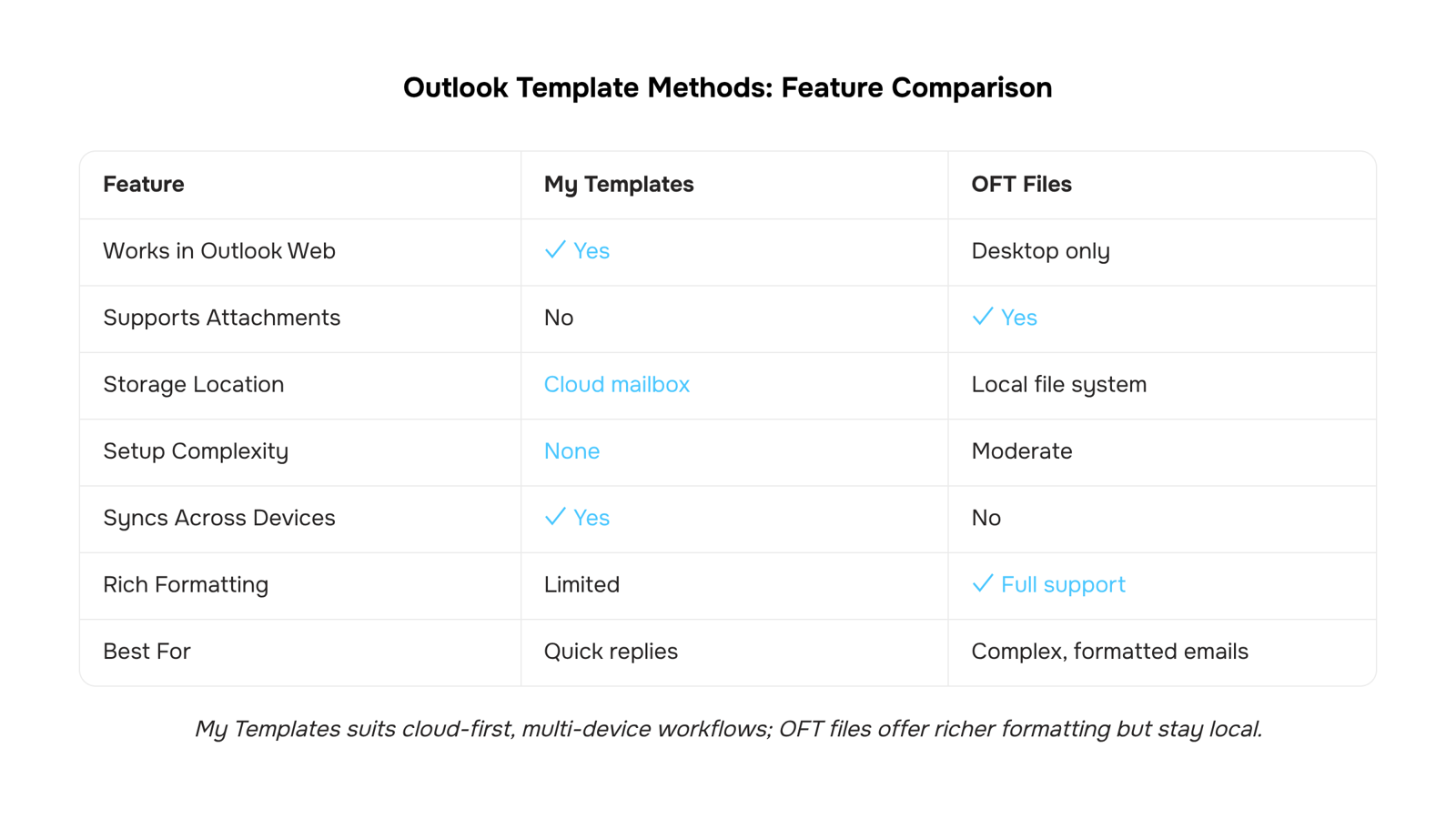
Not sure which method your current setup supports? Start by checking where your existing templates live before building new ones.
How to create a template using My Templates in Outlook
My Templates is a lightweight add-in built into Outlook for Microsoft 365. It stores short, reusable text snippets you can insert into any new message with two clicks. Think canned replies, meeting confirmations, or intro paragraphs you send weekly.
The add-in is available on both Outlook desktop (Windows) and Outlook on the web, though the access point differs slightly.
In Outlook on the web:
Open a new message.
Click the three-dot menu (More actions) in the compose toolbar.
Select My Templates.
In the panel that opens, click + Template.
Give it a title and paste or type your reusable content.
Click Save.
In Outlook desktop (Windows, Microsoft 365):
Open a new email.
On the Message tab, click the three-dot overflow menu in the ribbon.
Choose My Templates (it loads as a side panel, same as the web version).
Click + Template, add your title and body, then save.
To reuse an email template in Outlook, open My Templates from any compose window and click the template name. The text drops into your message body at the cursor position. You can edit it before sending.
A few things worth knowing:
Templates sync across devices because they're stored in your mailbox, not locally. Create one on desktop, use it on web.
Each template maxes out at roughly 32 KB of text. No images, no attachments, no formatting beyond basic HTML. For anything richer, the OFT method (covered next) is the better fit.
The add-in ships with all Microsoft 365 commercial plans. If you don't see it, your admin may have disabled add-ins at the org level.
My Templates works well for short, repetitive messages. But if you send high volumes of similar emails with personalized fields (prospect name, company, pain point), you'll hit its limits fast. A drag-and-drop email template builder with personalization tokens handles that scenario without manual find-and-replace on every send.
How to save and reuse an email template as an OFT file
The OFT method gives you a full-format template, complete with formatting, images, and attachments, that lives as a standalone file on your machine. It works in desktop Outlook for Windows (Microsoft 365 and earlier versions). Here is the exact sequence.
Open Outlook and click New Email to compose a blank message.
Add your subject line, body text, formatting, and any attachments you want included every time you reuse this template.
Go to File > Save As.
In the "Save as type" dropdown, select Outlook Template (*.oft).
Name the file something descriptive. By default, Outlook saves OFT files to C:\Users\[YourUsername]\AppData\Roaming\Microsoft\Templates. Keep this path unless you have a reason to move it.
Click Save, then close the compose window without sending.
To reuse the template later, go to Home > New Items > More Items > Choose Form. In the "Look In" dropdown, select User Templates in File System. Your saved OFT file appears in the list. Select it and click Open. A new message populates with everything you saved.
If you access templates often, pin a shortcut to the Templates folder in File Explorer or add the Choose Form button to your Quick Access Toolbar. That cuts the click path from five steps to two.
A few things to know about the Outlook OFT template approach:
OFT files are local. They do not sync across devices or to Outlook on the web. If you work from multiple machines, you will need to copy the file manually or store it on a shared drive.
The "To" field is saved inside the OFT. Leave it blank unless you always send to the same recipient.
Attachments inflate the file size. A template with a 5 MB PDF means a 5 MB OFT file on disk.
For teams that need templates accessible from any device, synced across inboxes, and shared without file management, a drag-and-drop email template builder with personalization tokens removes the local-file limitation entirely. But for solo use on a single Windows machine, OFT files remain the most flexible native option to save and reuse an email template in Outlook.
Can you add placeholders to an Outlook email template
Outlook has no native merge-field or dynamic token support inside email templates. When you create an email template in Outlook using the OFT method, what you save is static text. There is no built-in way to auto-populate a recipient's name, company, or any other variable at send time.
The standard workaround is manual bracketed placeholders. You type markers like [First Name], [Company], or [Meeting Date] directly into your template body. When you open the template to send, you search-and-replace each bracket with the real value before hitting send.
This works for one-off emails. It breaks down fast when you're sending to more than a handful of contacts per day. The risks:
Unsent placeholders reach the recipient. A message reading "Hi [First Name], thanks for your time at [Event]" signals carelessness instantly. For IT company owners sending proposals or follow-ups, that one slip can cost a deal.
No validation layer. Outlook won't flag unreplaced brackets. You're relying entirely on manual review.
Scale ceiling. At 10+ sends per day, the find-and-replace ritual eats time and multiplies error risk.
If your email template with placeholders Outlook workflow involves more than a few recipients, you need actual personalization tokens that auto-fill from contact data. Tools like Evox handle this natively, inserting real values from your CRM at send time so nothing ships with brackets intact.
For a deeper look at where Outlook templates live and how to access them quickly, see how to find and use Outlook email templates.
Limitations of Outlook email templates you should know
Outlook templates hit three hard ceilings that matter once you're sending more than a handful of emails per week.
No dynamic personalization tokens. When you outlook create email template files (.oft or My Templates snippets), the content is static text. There is no merge-field system that pulls a recipient's name, company, or deal stage into the message at send time. You can type bracketed placeholders like [First Name] or [Company], but Outlook will not replace them automatically. Every send requires you to manually swap each placeholder, and if you miss one, your prospect receives a message that reads "Hi [First Name]." That is the core Outlook template limitation for anyone sending at volume.
No open or click tracking. Outlook does not report whether a recipient opened your template-based email or clicked a link inside it. You have no signal telling you which leads are engaged and which ignored you. For an IT company owner running outbound, this means flying blind on pipeline activity.
No automated follow-up triggers. Even if you find and reuse your saved Outlook templates, you cannot wire them into a sequence. There is no way to say "if no reply in 3 days, send template B." Every follow-up is a manual calendar reminder and a manual send.
These three gaps compound. Without personalization tokens, your emails feel generic. Without tracking, you cannot prioritize. Without automation, your follow-up cadence depends entirely on your memory. For a solo founder sending 20 emails a week, that is manageable. For a team running outbound campaigns across dozens of accounts, the email template with placeholders Outlook provides is a starting point, not a system. The next section covers exactly when that threshold hits and what to do about it.
When Outlook templates stop being enough
Outlook templates work fine when you're sending the same message to five or ten people a week. The cracks show when three things happen at once: volume climbs, each recipient needs a different detail, and you need a second or third touch if they don't reply.
Volume. Once you're sending 30+ templated emails a day, manually opening an OFT file, editing the recipient line, and hitting send becomes a time tax. Outlook has no built-in send queue or batch capability for template-based messages.
Personalization beyond find-and-replace. You can reuse an email template in Outlook, but every variable (name, company, pain point) requires manual editing. There's no native email template with placeholders Outlook fills automatically. You're the merge engine, and you will eventually paste the wrong company name into the wrong email.
Multi-step follow-up. Outlook can remind you to follow up. It cannot send a different message three days later if the first one went unopened, because it doesn't track opens in the first place.
If any of these describe your current week, you've outgrown the tool. The question becomes what replaces the manual layer without adding complexity.
Evox handles this with personalization tokens (first name, company, custom fields) that populate automatically across a drag-and-drop template builder, and a multi-step campaign builder that sequences your follow-ups based on recipient behavior. Your Outlook inbox stays connected through two-way sync, so replies land where you already work.
You don't need to abandon Outlook. You need a layer on top that removes the manual repetition Outlook was never designed to automate. If you're still deciding whether you've hit that wall, review the template basics first.
Closing
Outlook's native templating works fine for occasional, static messages. But if you're sending more than a handful of templated emails per week—especially ones that need personalization, follow-up sequences, or tracking—you're doing manual work that should be automated. Evox's email template builder lets you build once, personalize dynamically, and send sequences without touching Outlook again. See how it works in practice with the Evox template builder.
FAQ
How do I create a new email template in Outlook?
Use My Templates (built-in add-in) for quick snippets: open a new message, click More Actions, select My Templates, click + Template, add your title and content, then save. For richer templates with attachments, use OFT files: compose your message, go to File > Save As, select Outlook Template (*.oft), name it, and save.
What are the steps to design an email template in Outlook?
My Templates: New message > More Actions > My Templates > + Template > enter title and body > Save. OFT files: New Email > add subject, body, formatting, attachments > File > Save As > select Outlook Template (*.oft) > name and save to the Templates folder.
Can I create an email template with placeholders in Outlook?
Outlook has no native merge fields or dynamic tokens. You can type manual bracketed placeholders like [First Name] or [Company], then find-and-replace them before sending. This works for a few emails but breaks at scale—unreplaced brackets slip through, and manual replacement eats time.
How do I save and reuse an email template in Outlook?
My Templates: save once, then open any compose window, click My Templates, and select the template name to insert it. OFT files: go to Home > New Items > More Items > Choose Form, select User Templates in File System, pick your OFT file, and click Open.
Are there any limitations to creating email templates in Outlook?
My Templates has no attachments, no images, and maxes out at 32 KB. OFT files don't sync across devices or to Outlook web. Neither supports dynamic personalization tokens, so you must manually replace placeholders before sending. At high volume, these gaps compound fast.
What is the difference between My Templates and an OFT file in Outlook?
My Templates stores snippets in your mailbox, syncs across devices, and works on web and desktop—but no attachments or rich formatting. OFT files are local files with full formatting and attachments, but don't sync across devices and only work in desktop Outlook.
Where are Outlook email templates stored on my computer?
OFT files save locally to C:\Users[YourUsername]\AppData\Roaming\Microsoft\Templates by default. My Templates are stored in your mailbox (cloud), not on your machine, so they sync across devices.


 Elena Petrova15 September 2026


