TL;DR: Most Gmail forwarding guides cover the basics and stop at a single recipient. This one walks IT company owners through forwarding to multiple recipients, what happens to attachments, how to control original sender visibility, and where manual forwarding breaks down when volume increases. You'll also get a clear path to automating the process when doing it by hand stops making sense.
How Gmail Forwarding Actually Works
Professional 3D render of Gmail forward email interface on desktop monitor in modern office setting
When you forward an email in Gmail, the platform creates a new outbound message that carries the original content as quoted text in the body. It is not a reply to the existing thread. The original sender's address appears in that quoted block, and Gmail also preserves it in the message headers, so recipients can see exactly where the email originated.
Attachments behave differently from inline images. File attachments from the original email are automatically re-attached to your forwarded message. Inline images embedded in the body, however, may not carry over reliably, depending on how the sender's email client encoded them. If the forwarded message looks incomplete, check for missing inline images before you send.
Understanding the forward vs reply Gmail distinction matters here. Reply keeps you inside the existing thread and addresses only the original participants. Forward opens a blank recipient field, so you decide who receives it, making it the right choice when you need to bring someone new into a conversation.
For teams addressing multiple recipients correctly when you forward, this distinction affects how threads are tracked. If you want to know how to forward an email in Gmail automatically rather than manually, Gmail filter rules can trigger forwarding without you touching each message.
Forward vs Reply: Which One to Use and When
Reply keeps the conversation in the existing thread and sends your response only to people already on it. Forward creates a new outbound message you can send to anyone, with the original content, headers, and (in most cases) attachments included.
The practical split comes down to one question: is the person you need to reach already on the thread?
If yes, Reply (or Reply All) is the right move. The thread stays intact, context is preserved, and no one gets a duplicate email chain.
If no, Forward is correct. Gmail copies the original message body and re-attaches most file attachments automatically. Inline images behave less predictably — they sometimes carry over as embedded content and sometimes drop out entirely, so verify before you send anything visual.
One thing most guides skip: when you forward, Gmail includes the original sender's address in the message headers. The recipient can see who sent the original email. If that matters for your use case — client confidentiality, internal escalations — be deliberate about what you forward and to whom. For addressing multiple recipients correctly when you forward, the To, CC, and BCC distinction becomes especially important.
If you find yourself forwarding the same threads repeatedly to the same people, Gmail filter rules that trigger forwarding automatically remove that manual step entirely.
How to Forward an Email to Multiple Recipients in Gmail
Forwarding a single email to multiple people in Gmail takes about 30 seconds once you know where each field fits.
Open the email you want to forward. At the bottom of the message, click Forward (not Reply). Gmail opens a new compose window with the original message quoted below and the subject line prefixed with "Fwd:".
From there, add recipients across three fields:
To — the primary recipients. Everyone in this field can see each other's addresses.
CC (carbon copy) — people who need the information but aren't the main audience. All recipients can see who's CC'd.
BCC (blind carbon copy) — recipients whose addresses stay hidden from everyone else on the thread. Use this when forwarding to a large group or when the recipient list itself is sensitive.
To add CC or BCC, click the "CC" or "BCC" links that appear in the top-right corner of the compose window. Both fields accept multiple addresses — just separate them with commas or press Tab after each one.
A practical example: you receive a vendor quote and need to loop in your finance lead (To), copy your ops manager for visibility (CC), and quietly forward to your legal contact without the vendor knowing (BCC). All three go out in one forward action.
One thing to keep in mind: Gmail's native forward is a one-time manual action. If you need to automatically route incoming emails to multiple addresses on an ongoing basis, that requires a different setup entirely. The Gmail forwarding configuration in Settings covers how auto-forwarding works and where its limits are — including the fact that Gmail's built-in auto-forward only supports a single destination address per filter rule.
Before you hit Send, check the subject line and edit the quoted message if needed. Forwarding the full thread is fine for context, but trimming irrelevant back-and-forth saves your recipients time.
Forwarding Emails with Attachments in Gmail
When you forward an email in Gmail, file attachments carry over automatically. Gmail re-attaches any files from the original message, so the recipient gets them without you doing anything extra.
Inline images behave differently. Images embedded directly in the email body — not attached as files — often don't survive the forward. Gmail may drop them entirely or render them as broken placeholders. If the original message had a logo, a screenshot, or a diagram pasted inline, check your forward preview before sending. If it's missing, download the image from the original and re-attach it manually.
For a Gmail forward with attachments that includes multiple files, scan the attachment row before you hit Send. Gmail shows attached files just below the subject line in the compose window. If a file is missing, open the original email in a separate tab, download the attachment, then drag it into the compose window.
One edge case worth knowing: if the original sender used a Google Drive link instead of a direct attachment, Gmail forwards the link text but does not grant the recipient access to the file. You'll need to share the Drive file separately or download and re-attach it.
If you're regularly forwarding emails with attachments to the same group, automatically forward emails across Gmail, Outlook, and third-party tools covers filter-based rules that handle this without manual steps each time. You can also manage recipient groups instead of re-entering addresses every time to cut down on repetitive setup.
How to Forward an Email Without Showing the Original Sender
Gmail's native Forward function always includes the original sender's name and email address in the forwarded message header. There is no built-in toggle to strip that information before sending.
If Gmail forwarding without showing the original sender is what you need, the workaround is straightforward: open a new compose window, copy the body text from the original email, and paste it in. You control exactly what carries over. The recipient sees your name in the From field and nothing from the original sender unless you paste it yourself.
A few things to keep in mind with this approach:
File attachments do not transfer automatically. Download them from the original email and re-attach manually in the new compose window.
Inline images embedded in the original message body will not paste across. You will need to re-insert them as attachments or hosted image links.
The original email's timestamp and thread metadata stay invisible to the recipient, which is often the point.
This method works well for one-off situations. If you are addressing multiple recipients correctly when you forward sensitive client communications, the new compose approach gives you full control over what context each recipient sees.
For recurring scenarios where you need to forward to a consistent group, managing recipient groups saves you from re-entering addresses every time.
How to Set Up Automatic Email Forwarding in Gmail
Gmail's built-in auto-forwarding lives at Settings → See all settings → Forwarding and POP/IMAP. From there, you add a forwarding address, confirm ownership via a verification email, and set Gmail to forward all incoming mail automatically. Straightforward for a single destination. The hard limit: Gmail's native setting forwards to one address only. You cannot add a second address in that same panel.
To route mail to more than one address automatically, you need filter-based rules. Go to Settings → Filters and Blocked Addresses → Create a new filter, define your criteria (sender, subject line, keyword), then select "Forward it to" in the action step. Each filter can point to one address, so forwarding to three recipients means building three separate filters targeting the same criteria. It works, but it gets unwieldy fast. For a deeper look at Gmail filter rules that trigger forwarding automatically, the setup logic is covered in full there.
A few things to know before you build these rules:
File attachments forward automatically. Gmail re-attaches the original files without any extra steps.
Inline images embedded in HTML emails sometimes strip out, depending on how the original sender's mail client encoded them.
The forwarded message headers include the original sender's email address, so recipients can see who sent it first.
Once you need to automatically forward emails across Gmail, Outlook, and third-party tools, native filters stop scaling. Three filters for three recipients is manageable. Thirty filters across a shared inbox is a maintenance problem, not a workflow.
When Manual Forwarding Stops Being Practical
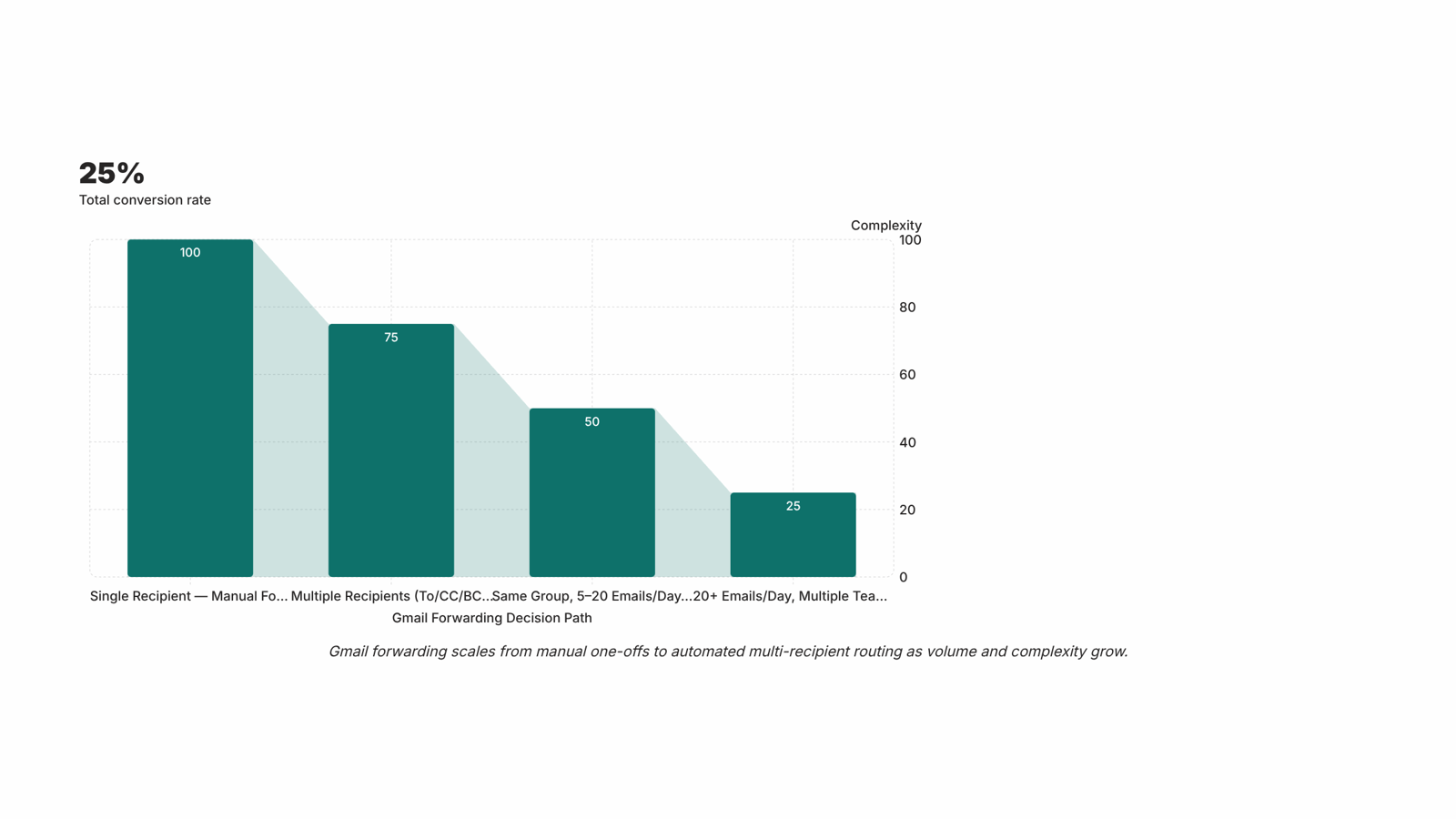
Gmail's native auto-forwarding sends to exactly one address. That's fine for a single notification inbox, but the moment you need to forward email to multiple recipients in Gmail — a client, an account manager, and a billing contact, say — you're back to doing it manually every time.
For low volume, that's manageable. At 20-plus emails a day, it becomes a real time drain, and the risk of missing someone compounds quickly.
The structural fix has two parts. First, Gmail filter rules that trigger forwarding automatically reduce repetitive manual steps for predictable email types. Second, recipient group management means you stop re-entering the same four addresses on every forward.
If your team handles volume across accounts, syncing your Gmail inbox so forwarded conversations stay tracked in one place prevents the follow-up gaps that manual forwarding routinely creates. For broader cross-platform needs, see automatically forward emails across Gmail, Outlook, and third-party tools.
Closing
Forwarding to multiple recipients in Gmail is straightforward when you use To, CC, and BCC correctly, and attachments follow along automatically. The real friction appears when you're doing this dozens of times a day to the same group of people — that's when the manual process stops scaling. If your team forwards emails to the same recipients repeatedly, automating that routing removes the repetition and the risk of someone getting left off by accident.
FAQ
How do I forward an email in Gmail to multiple recipients?
Open the email, click Forward, then add recipients in the To, CC, or BCC fields. To field is primary; CC is visible to all; BCC hides addresses from other recipients. Separate multiple addresses with commas.
What are the steps to forward an email with attachments in Gmail?
File attachments carry over automatically when you forward. Check the attachment row below the subject line before sending. Inline images may not survive the forward, so verify the preview and re-attach manually if needed.
Can I forward an email in Gmail without showing the original sender?
Gmail's native Forward always includes the original sender's address. To hide it, open a new compose window, copy the body text, and paste it in. You control what carries over.
How do I automatically forward emails in Gmail?
Gmail's built-in auto-forward in Settings supports only a single destination address per rule. For routing to multiple recipients automatically, use filter-based rules or a connected automation tool that integrates with Gmail.
What is the difference between forwarding and replying to an email in Gmail?
Reply keeps you in the existing thread and addresses only current participants. Forward creates a new message you send to anyone, with the original content quoted below and the subject prefixed with 'Fwd:'.


 Elena Petrova11 September 2026


