TL;DR: Most project dashboard articles show you screenshots without explaining who they're built for or why the layout works. This one organizes examples by role and use case, so IT company owners and project leads can match the right design to their team's actual workflow. You'll finish with a clear pattern to build from, not just a gallery to browse.
What makes a project dashboard actually useful
A project dashboard is useful when it answers a specific question in under ten seconds. If someone has to click through three layers to find out whether a milestone is on track, the dashboard is a data dump with a better interface.
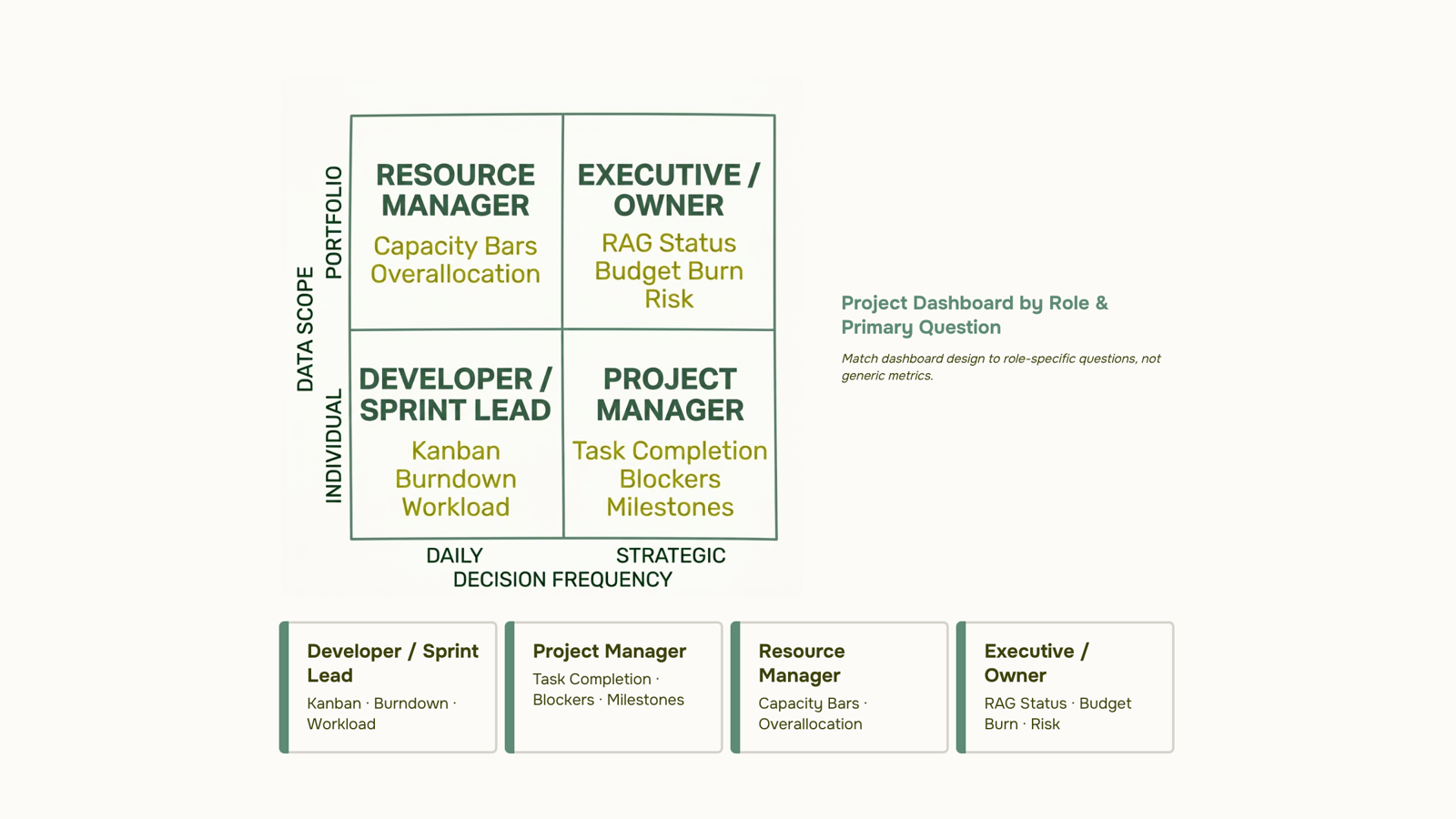
The design principle behind every good project management dashboard design is role-based filtering. An exec needs budget burn, milestone status, and risk flags. A developer needs their assigned tasks, blockers, and sprint progress. Showing both audiences the same view guarantees neither gets what they need.
Three things separate a functional dashboard from noise:
One primary question per role: Every widget should serve that question or be cut.
Status at a glance: Consistent project status labels across your dashboard mean anyone can read the board in seconds, not minutes.
Actionable signals, not raw data: A red milestone flag is useful. A table of 200 task rows is not.
Project visibility and tracking only improves when the dashboard matches the decision the viewer needs to make. If you're setting up a project tracking dashboard from scratch, start by writing down the one question each role asks every Monday morning, then build backward from there.
Executive dashboard: one view for portfolio-level decisions
For an IT company owner running three or more active projects, the worst dashboard design is one that forces you to open each project individually to answer a single question: are we on track?
An executive-level dashboard solves that by surfacing portfolio-wide signals in one view. The widgets that actually earn their place here:
Budget vs. actual spend across all active projects, not per task
Milestone status showing which deliverables are on time, at risk, or overdue
RAG indicators (Red/Amber/Green) for each project, so risk reads in under five seconds
Resource allocation flagging which teams are over-capacity this sprint
Upcoming deadlines in the next 14 days, sorted by project priority
What you're not looking for at this level: task lists, comment threads, or individual assignee workloads. Those belong one level down, in the PM view covered in the next section.
Consistent project status labels across your dashboard matter more here than anywhere else, because a RAG system only works if "at risk" means the same thing across every project in the portfolio.
Taro's custom dashboards let you configure exactly this widget combination without rebuilding it per project. If you're starting from zero, the guide on how to set up a project tracking dashboard from scratch covers the sequencing. This is the project dashboard example most executives need first.
Project manager dashboard: track progress, blockers, and deadlines
A project manager dashboard is built around one question: what needs my attention right now?
The core widget combination for this role is task completion rate, overdue items, and upcoming milestones, all visible on a single screen. When those three are in place, you can run a standup from the dashboard itself without pinging anyone for a status update.
Here is how to structure it:
Task completion rate (current sprint or week). A percentage bar showing done vs. total tasks tells you immediately whether the team is on pace.
Overdue items list sorted by days late, not alphabetically. The oldest blockers surface first, which is where your attention belongs.
Milestone timeline showing the next three to five milestones with their due dates and owners. A Gantt or timeline view works well here. Taro supports both in the same workspace, which removes the need to switch tools mid-review.
Blocker flag widget that pulls any task tagged as blocked into a single row. This is the one panel that earns its space every single day.
If you want to go deeper on setup, this walkthrough covers building a project tracking dashboard from scratch. For consistent status labels across every widget, see common project statuses project managers actually use.
These four widgets represent the most practical project dashboard examples at the PM level: no noise, clear ownership, and blockers front and center.
Developer or sprint team dashboard: workload and velocity in one place
An engineering team dashboard earns its place when it answers three questions at a glance: what's in progress, who's overloaded, and whether the sprint is on track to close on time.
The core layout combines three views:
Kanban board showing cards by status (To Do, In Progress, In Review, Done) so the lead sees where work is stacking up without asking anyone
Sprint burndown chart plotting remaining story points against the sprint timeline, which surfaces scope creep or underestimation within the first two days
Individual workload view showing each engineer's open task count, so a lead can rebalance before one person becomes the bottleneck
Most project dashboard examples for dev teams stop at the Kanban board and miss the workload layer entirely. That's where releases slip. A developer sitting on six open tickets while the rest of the team has two is a signal the board alone won't show you.
Choosing the right board type for your sprint team matters here because a Scrum board and a Kanban board surface different signals, even for the same codebase.
A custom project dashboard in Taro lets you layer all three views using drag-and-drop widgets across 17 widget types, so you're not switching between tools to get the full picture before a standup.
Multi-view dashboard: Gantt, timeline, and board in one screen
Most project dashboards force a choice: Gantt or board, timeline or list. The teams that actually reduce missed deadlines don't pick one view — they layer them deliberately.
Here's how each view earns its place on a single screen:
Gantt chart: shows task dependencies and phase sequencing across weeks or months. Use it when you need to answer "does this delay cascade?" A Gantt chart dashboard is the right anchor for any project with hard external deadlines.
Timeline view: shows the same date-bound work, but stripped of dependency lines. Cleaner for communicating delivery windows to stakeholders who don't need to see the dependency logic.
Board view: shows work by status (To Do, In Progress, Done). Use it for daily operational decisions, not scheduling.
The design mistake most teams make is showing all three at equal visual weight. The Gantt should dominate the top of the screen. The board sits below it as a status check. The timeline lives in a collapsible panel or a separate tab you open before a client call.
Taro supports all five views — List, Board, Calendar, Timeline, and Gantt — inside a single workspace, so switching between them doesn't mean switching tools. You can also drag-and-drop widgets across 17 widget types to build a custom project dashboard that surfaces each view only when a specific role needs it.
For a full walkthrough, see how to set up a project tracking dashboard from scratch.
Resource manager dashboard: who is over capacity right now
A resource manager's core question is simple: who has room to take on more work, and who is already at the edge? The dashboard design that answers it maps assigned task hours against each person's available capacity for the current sprint or week, displayed as a horizontal bar per team member.
The widgets that belong here are specific:
Capacity bar per person (assigned hours vs. available hours)
Tasks by assignee, filtered to the active period
Overallocation flags, set to trigger when anyone exceeds 85-90% of available hours
Upcoming deadlines in the next 5-7 days, sorted by assignee
When someone's bar turns red, you act before the deadline slips, not after. That's the measurable outcome a static screenshot can't show you.
For project visibility and tracking across a larger team, this view pairs well with consistent project status labels so the capacity data and task progress data speak the same language.
A custom project dashboard built around these widgets gives resource managers a single screen to rebalance workloads without running a status meeting.
How to build your own dashboard using these patterns
Start with your role, not a blank canvas. The project dashboard examples above each map to a specific job function, and that mapping is your starting point.
Pick your role first: Are you a dev lead tracking sprint velocity, a resource manager balancing hours, or an exec watching budget burn? Your role determines which three to five widgets actually matter. Everything else is noise.
Choose your widgets next: A dev lead needs a burndown chart, a blocker list, and a PR status feed. A resource manager needs a workload heatmap and a capacity bar. An exec needs a RAG status summary and a cost-to-date tracker. If you're unsure which widget fits which role, drag-and-drop widgets across 17 widget types in Taro's dashboard builder, then remove what doesn't answer a question you ask daily.
Set your refresh logic last: Sprint dashboards should pull live data. Executive summaries can refresh every 24 hours. Resource views need near-real-time updates, especially if your team runs parallel workstreams.
If you want a walkthrough before you build from scratch, the guide on how to set up a project tracking dashboard from scratch covers the full sequence. For teams deciding between board layouts, choosing the right board type for your sprint team is worth reading first.
Common mistakes that make dashboards harder to use
Three mistakes account for most abandoned dashboards.
Too many widgets is the first. When a dashboard tries to serve every role at once, no one finds what they need. A developer and a CFO do not share the same definition of project visibility and tracking. Mixing their metrics on one screen dilutes both.
Inconsistent status labels come next. If one project says "In Review" and another says "QA," your team stops trusting the data and falls back on status meetings.
No role filtering is the one that kills adoption quietly. Without it, every layout change affects everyone, so no one touches it.
Before you set up a project tracking dashboard, decide who owns each view. That single decision prevents most project management dashboard design rebuilds.
Closing
The right project dashboard isn't about having the most widgets or the fanciest design. It's about matching the layout to the question each role needs answered every single day. An exec needs portfolio risk in under ten seconds. A PM needs blockers and overdue items front and center. A dev lead needs workload visibility to prevent bottlenecks. Once you know which role's visibility gap is hurting you most right now, you can build that view first and layer in the others as your team scales.
Start by identifying which role on your team is making decisions blind today. Then build their dashboard first using drag-and-drop widgets that pull live data from your projects. That one view will pay for itself in the first week.
FAQ
What are the best examples of project dashboards for task management?
The best examples match the viewer's role: execs need budget and milestone status, PMs need task completion rate and blockers, dev teams need Kanban boards and sprint burndown. Each dashboard answers one primary question in under ten seconds.
How can custom dashboards improve project visibility and tracking?
Custom dashboards eliminate tool-switching by layering role-specific widgets in one view. When status labels stay consistent and actionable signals replace raw data, teams spot risks and blockers faster, reducing missed deadlines.
Can I create multiple project views like Gantt charts and timelines in one dashboard?
Yes. Layer them deliberately with Gantt dominating the top for dependencies, timeline below for stakeholder communication, and board view for daily status. Switching between views in one workspace beats switching tools entirely.
What project management tools have the best dashboard features?
Tools that support multiple view types (Gantt, Kanban, Timeline, List, Calendar) and drag-and-drop widget customization let you build role-specific dashboards without rebuilding per project. Flexibility and consistency across widgets matter most.
Does Taro offer customizable dashboards with drag-and-drop widgets?
Taro's analytics dashboard feature includes drag-and-drop widgets across 17 types, letting you build all seven role-based patterns in this article without coding or switching tools.
How many widgets should a project dashboard have?
Include only widgets that serve the primary question for that role. An exec dashboard needs five to six widgets; a PM dashboard needs four core ones. More widgets create noise, not clarity.
What is the difference between a project dashboard and a project report?
A dashboard shows live status signals you check daily to make decisions now. A report is a snapshot you generate weekly or monthly to document what happened. Dashboards are operational; reports are historical.


 Natalie Brooks14 September 2026


