TL;DR: Most scope of work template guides hand you a download and call it done. This one walks IT company owners through every section a Word-based SOW must contain, why each clause prevents scope creep before the contract is signed, and how to move the finished document into a live project without losing what you agreed to.
What a scope of work document actually is
A scope of work (SOW) is a formal document that defines exactly what will be delivered, by whom, and under what conditions. It sits between a project brief and a contract: a brief captures intent, a contract handles legal enforcement, and the SOW fills the gap with operational specifics. When you define the scope of work for your project, you're answering three questions in writing: what work is included, what is explicitly excluded, and how completion gets measured. Without that precision, you get scope creep, payment disputes, and missed deadlines, not because the team was careless, but because the agreement was ambiguous. A scope of work template Word document gives you a repeatable structure so every engagement starts from the same baseline. The next section covers what should be included in a scope of work template and why each field exists.
What to include in a scope of work template
Seven sections appear in every SOW that holds up under pressure. Miss one and you create the exact gap that causes a missed deliverable, a payment dispute, or a timeline slip.
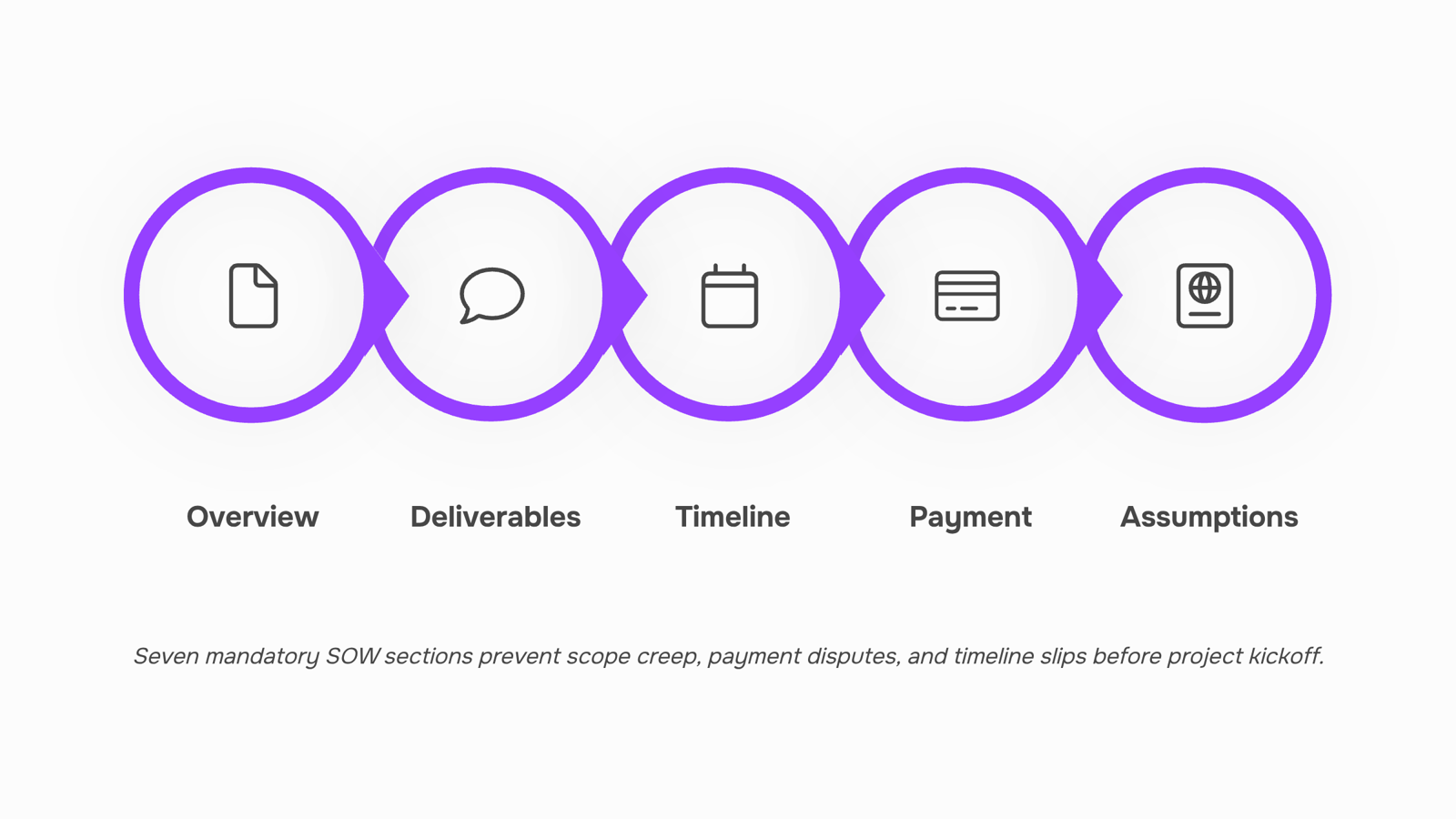
Project overview. One paragraph describing what you are building and for whom. This anchors every other section and prevents the "that's not what I thought we agreed to" conversation at kickoff.
Deliverables. A numbered list of specific outputs, not activities. "Deliver a tested API integration" is a deliverable. "Work on the API" is not. Vague deliverables are the primary driver of scope creep, which PMI research consistently links to unclear requirements at the outset.
Timeline and milestones. Dates tied to specific deliverables, not just a final deadline. Without milestone dates, payment disputes almost always follow because there is no agreed checkpoint to trigger an invoice.
Payment terms. Amount, schedule, and the condition that triggers each payment. Tie payment to milestone acceptance, not calendar dates, so both sides have a shared trigger.
Assumptions and exclusions. What you are assuming is true (client provides server access by day 3) and what is explicitly out of scope. This section prevents the "I thought that was included" argument more reliably than any contract clause.
Change control process. How either party requests a change, who approves it, and how it affects price and timeline. Without this, every small addition chips away at your margin silently.
Acceptance criteria. The specific conditions under which the client signs off on a deliverable. Pair this with your work breakdown structure so each deliverable maps to a defined task.
For the full picture of how these sections fit into a broader project document, the key components of a project programme template covers how timelines and milestones connect across documents.
How to create a scope of work in Word: 6 steps
Building a scope of work template Word document from scratch takes less than an hour if you follow a fixed sequence. Here are the six steps.
1. Open a blank document and set your page structure. Use 1-inch margins, a 11pt or 12pt body font (Calibri or Times New Roman both hold up in client-facing documents), and enable the ruler so your tab stops stay consistent. Save the file immediately with a naming convention like ClientName_SOW_v1_YYYY-MM-DD. Version control in the filename saves you from the "final_FINAL_v3" problem later.
2. Insert a header block at the top. This block captures project name, client name, vendor name, document version, and effective date. Use a two-column table for this, not manual spacing. Tables hold alignment when the document is printed or converted to PDF.
3. Build your seven-section skeleton using Word's built-in Heading styles. Apply Heading 1 to each major section: Project Overview, Scope of Work, Deliverables, Timeline, Payment Terms, Change Management, and Acceptance Criteria. Using real heading styles (not bold text formatted to look like headings) lets you auto-generate a table of contents in under 30 seconds via References > Table of Contents. It also makes the document navigable when clients review it on screen.
4. Format deliverables as a numbered list, not prose. Inside the Deliverables section, each output gets its own numbered line with three sub-fields: description, acceptance criteria, and due date. Prose deliverables like "we will build the reporting module" are the single biggest source of scope disputes. A numbered list forces specificity and gives both sides a clear checklist at sign-off. For a software project, that might look like: "1. Reporting module (v1.0) / Criteria: exports CSV and PDF / Due: 2026-03-14."
5. Add a Change Management table. Insert a three-column table (Change Description / Impact on Timeline / Impact on Cost) below the Change Management heading. Leave the rows blank for now. Having the table in the document signals to clients that changes are a formal process, not a casual conversation, before the project starts.
6. Lock the template with placeholder text using Word's content controls. Go to Developer > Rich Text Content Control and drop placeholders into every variable field: [INSERT PROJECT NAME], [INSERT PAYMENT SCHEDULE], and so on. Content controls prevent accidental edits to the structure while letting you tab through fields quickly when filling out a new engagement.
Once the structure is in place, the document doubles as a reusable scope of work template Word document you can copy for every new client. If your deliverables section maps to a work breakdown structure, the WBS guide for IT teams shows how to carry that structure into execution. The next section covers how to adapt this base template for software development and infrastructure projects specifically.
How to customize the template for your project type
Yes, you can customize a scope of work template in Microsoft Word, and you should, because a software development SOW and a construction or infrastructure SOW have almost nothing in common structurally.
For software development projects, swap the generic "deliverables" section for a sprint-based breakdown. List each release milestone, acceptance criteria per feature, and the specific testing environment the client must provide. Add a section for API dependencies and third-party integrations, since those are the exact items that generate change orders when left undefined.
For construction or infrastructure projects, the template needs a different spine entirely. Under US contracting norms, a construction scope of work template word document typically requires site access conditions, material specifications, inspection checkpoints, and a clear statement of which party holds permitting responsibility. AIA document conventions also expect a phased completion schedule tied to payment milestones.
In both cases, the base template stays the same through section three (parties, background, objectives). Everything from section four onward should be project-type specific.
If your team runs the same project type repeatedly, save each customized version as a named template in Word. Or use a tool like Taro to store project-type templates with pre-filled fields, so the next SOW starts from a finished structure rather than a blank page.
Three common mistakes that make a SOW useless
The most common failure isn't a missing section — it's a section that exists but says nothing useful.
Vague deliverables are the biggest offender. "Deliver a working application" tells no one what done looks like. Write deliverables as acceptance criteria: what the client receives, in what format, by what date, and how it gets approved.
Missing exclusions come second. If your scope of work template in Word doesn't list what you're not doing, clients assume you're doing everything. A two-line exclusions block — "server procurement is out of scope; third-party API licensing is client's responsibility" — prevents the conversation you don't want at week six.
No change-order clause is the third gap, and the most expensive. Without it, every verbal "can you just add..." becomes unpaid work. A single paragraph defining how scope changes get requested, priced, and approved is what separates a professional SOW from a liability.
Before you send any document, run a quick self-audit: does each deliverable have an acceptance condition? Does the exclusions list cover adjacent work clients typically assume? Is there a written path for change requests?
If any answer is no, the document isn't ready.
Move your finished SOW into a live project
A finished scope of work template Word document is a snapshot, not a system. The moment a client signs off, that Word file becomes a liability: tasks live in one place, owners live in another, and progress lives nowhere.
Converting your SOW into a structured project in Taro closes that gap without manual re-entry. Paste your deliverables directly into Taro as tasks, assign owners, set due dates, and link your original Word file as a reference attachment. Scope, accountability, and status stay in one view.
This matters because most scope creep doesn't start with a bad SOW. It starts when someone can't find the approved version and works from memory.
A work breakdown structure maps naturally onto Taro's task hierarchy, so the translation from document to live project takes under 30 minutes for a typical IT engagement.
Closing
A well-built scope of work template Word document prevents scope creep, payment disputes, and timeline slips before they start. The six-step structure above takes an hour to set up once and saves you from rebuilding it for every client. But here's the catch: the moment your finished SOW sits in a folder while the actual project runs in Slack, email, or a separate tool, it becomes a historical artifact instead of a living agreement. Your deliverables, owners, and milestones drift out of sync with reality. The real protection comes when you move those SOW sections—deliverables, timeline, acceptance criteria, owners—into a project management system where the team executes against them daily. That's where Taro comes in: it lets you wire your SOW's structure directly into active tasks, keeping the agreement and the work in one place. Start with the template above, then move it into Taro so your team and client stay aligned as the project runs.
FAQ
Where can I find a free scope of work template for Word?
Build one using the six-step structure in this guide, or download a pre-built template from Microsoft Office or Taro's template library. The DIY approach takes an hour and gives you full control over sections specific to your project type.
How do I create a scope of work document in Word?
Set margins and fonts, add a header block with project details, build seven sections using Heading styles, format deliverables as a numbered list, add a change management table, and lock the template with content controls. Save with a version-dated filename.
What should be included in a scope of work template?
Project overview, deliverables (numbered, specific outputs), timeline with milestone dates, payment terms tied to acceptance, assumptions and exclusions, change control process, and acceptance criteria. Each section prevents a specific type of dispute or scope creep.
Can I customize a scope of work template in Microsoft Word?
Yes. Keep the first three sections generic, then customize sections four onward for your project type: software development needs sprint-based breakdowns and API dependencies; construction needs site access, material specs, and permitting responsibility.
What is the best way to outline a project scope in a Word document?
Use Heading 1 styles for the seven main sections, numbered lists for deliverables (not prose), and a two-column table for the header block. This structure keeps the document navigable, printable, and auto-generates a table of contents.


 Elena Petrova15 September 2026


