TL;DR: Most workload planner guides stop at task lists and owner assignments. This one shows IT team leads how to build a planner that accounts for real capacity, sprint cycles, and ongoing rebalancing — so it holds up when priorities shift mid-week. You'll leave with a framework you can put into practice immediately.
What Is a Workload Planner and Why IT Teams Need One
A workload planner is a live view of who on your team is working on what, how much capacity they have left, and where the next bottleneck is forming. It's not a task list. A task list tells you what exists; a workload planner tells you whether the people assigned to those tasks can actually finish them.
For IT teams, that distinction matters more than most. Sprints carry hard deadlines, incidents arrive without warning, and a single engineer pulled into an escalation can collapse three parallel workstreams. Without structured team workload planning, managers redistribute work manually, which typically means reacting after the damage is done.
The core function of resource allocation in a workload planner is visibility before the problem, not after. You see who is at 120% capacity on Tuesday before you assign the Thursday deployment.
Before you build one, it helps to create a work plan that maps tasks to owners before the sprint starts. That foundation is what a workload planner runs on.
What Are the Real Benefits of Using a Workload Planner?
The clearest benefit isn't productivity — it's predictability. When your workload balancing process runs on real data instead of gut feel, sprint failures drop because you stop committing to more than your team can actually deliver.
Three outcomes matter most for IT teams specifically:
Fewer sprint overcommitments: A workload planner shows available hours before tasks are assigned, not after the sprint collapses. Knowing which tasks enter the sprint before capacity is confirmed is what separates teams that ship from teams that reschedule.
Earlier burnout signals: Unbalanced workloads are invisible until someone misses a deadline or goes quiet. A live capacity view surfaces the imbalance while there's still time to redistribute.
Faster escalation response: When an incident pulls a senior engineer off planned work, resource allocation decisions happen in minutes, not the next standup.
The difference between a workload planner and a task list is that the planner answers "can we take this on?" before the commitment is made. That question is where most IT teams lose time — and where a solid work plan built before task assignment pays off most.
Capacity planning done this way also gives you a defensible record when stakeholders push for scope additions mid-sprint.
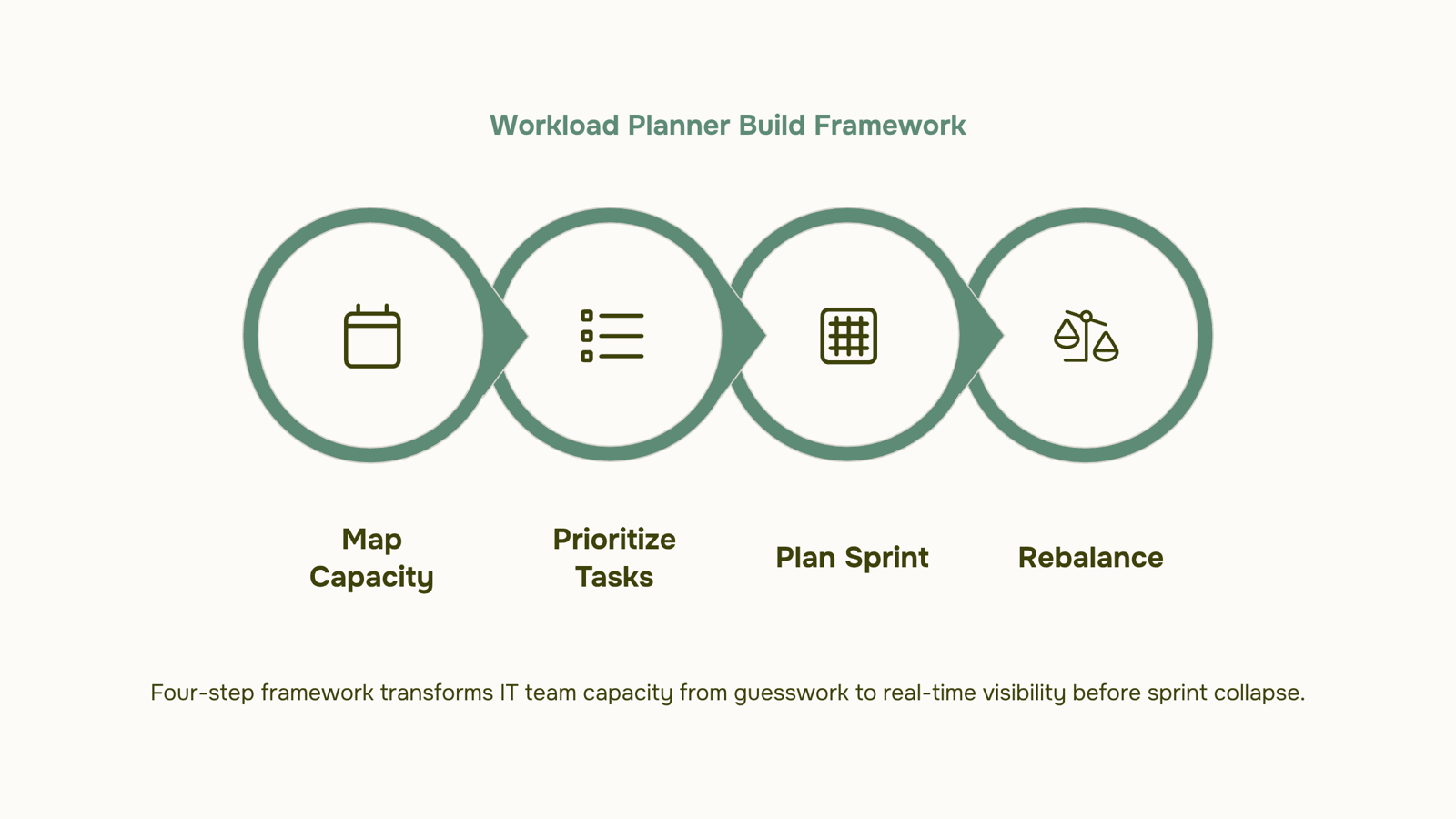
Step 1: Map Your Team's Actual Capacity Before Assigning Anything
Before you assign a single task, you need to know how many hours each person actually has available — not their calendar capacity, but their working capacity after meetings, on-call rotations, and planned leave are subtracted.
Here's a simple formula most teams skip:
Available hours = total work hours − (recurring meetings + on-call blocks + approved leave)
For a typical 40-hour week, a developer carrying six hours of daily standups, backlog grooming, and on-call shifts might have 18 to 22 productive hours left. Assign against 40 and you've already overcommitted the sprint before it starts.
To run this accurately for team workload planning, pull three inputs per person:
Recurring meeting load (calendar export, last two weeks)
On-call or support rotation hours for the sprint period
Confirmed leave, including partial days
Do this for every team member, not just the ones you suspect are stretched. Capacity planning surprises usually come from the people you assumed had room.
Once you have real numbers, you have a defensible ceiling for each person. That ceiling is what you assign against in the next step. If you want a structured starting point, building a work plan before task assignment covers how to set that foundation before anything enters the sprint.
Step 2: Prioritize and Assign Tasks Against That Capacity
Once you know each person's real available hours, the next move is matching tasks to that capacity — not just assigning by instinct or seniority.
Start by scoring every task on two dimensions: priority and estimated effort. Priority tells you what must ship this sprint. Effort (in hours) tells you whether it actually fits. A task ranked P1 that takes 12 hours belongs in a 20-hour capacity slot, not a 6-hour one. If you're unsure how to prioritize tasks before they enter your workload plan, that step is worth doing before any task assignment happens.
Then assign sequentially. Fill each person's available hours with their highest-priority tasks first. Stop when you hit their capacity ceiling. Anything that doesn't fit moves to the backlog — not to someone who's already full.
The common failure here is treating task assignment as a formality. A developer with 18 available hours gets 26 hours of work because the list looks manageable on paper. That gap is where missed deadlines start.
AI backlog prioritization can flag this automatically, surfacing overcommitment before the sprint kicks off rather than after day three. Taro's workload management layer does exactly this: it maps estimated task effort against each person's confirmed capacity and raises a conflict before you finalize the plan.
The output of this step feeds directly into your sprint structure, which the next section covers.
Step 3: Build Your Sprint Plan Around the Workload View
Once you have capacity data mapped to each person, the sprint plan writes itself — or it should.
The mistake most teams make is treating sprint planning as a backlog management exercise: pull tickets by priority, fill the two-week window, ship. That approach ignores the workload view entirely. You end up with one engineer carrying 60 hours of work while another has 20, and the sprint "committed" to work that was never realistic.
The better sequence is:
Set sprint capacity first: Pull each person's available hours from your workload planner, accounting for meetings, PTO, and carry-over tasks.
Size tickets against real capacity: Assign story points or hour estimates, then match them to who actually has room — not just who owns that area of the codebase.
Flag overload before the sprint starts: If someone's allocation exceeds 80% of their available hours, that's a signal to defer or reassign before the sprint kicks off, not during it.
For sprint planning best practices in agile development, the workload view is the prerequisite, not an afterthought. Taro connects backlog management and team capacity planning in one view, so you're not cross-referencing a spreadsheet to confirm someone has bandwidth before assigning them a ticket.
Step 4: Rebalance When Capacity Changes Mid-Sprint
Mid-sprint disruptions are the failure mode most workload planning guides skip entirely. Someone goes out sick, a P1 incident lands at 2pm Tuesday, or your estimates were off by 40%. The sprint doesn't pause — so your workload planner has to adapt.
Manual reshuffling at this point is slow and error-prone. A team lead typically spends 30-60 minutes reassigning tasks, checking who has capacity, and updating the board — only to repeat the process when the next disruption hits. That time compounds across a quarter.
The better approach is a defined rebalancing trigger. When capacity drops or a high-priority item enters the queue, run three checks before touching a single task assignment:
Who has actual slack? Look at committed hours versus remaining sprint hours, not just task count.
What can defer? Use AI backlog prioritization to decide which tasks enter the sprint and which ones slide to the next cycle without breaking dependencies.
What's the blast radius? Identify which downstream tasks break if a blocked item moves.
Taro handles this with AI-assisted workload balancing that flags overloaded team members in real time and suggests redistribution options based on current capacity. You confirm; it updates assignments across the board.
For teams that want to get ahead of this, how to build a work plan before you start assigning tasks covers the upstream resource allocation decisions that reduce mid-sprint surprises in the first place.
Not every feature a vendor lists actually matters for an IT team. These four do.
Real-time capacity view: You need to see available hours per person, not just task counts. A workload planner that shows "Alice has 6 tasks" tells you nothing. One that shows "Alice has 34 hours assigned against a 40-hour week" lets you make a real decision before sprint planning starts.
Sprint integration: The tool should pull directly from your backlog, not require manual entry. AI backlog prioritization that feeds into sprint planning removes the copy-paste step where assignments quietly go wrong.
AI-assisted rebalancing: When a P1 ticket lands mid-sprint or someone goes out sick, you need redistribution suggestions in seconds, not a 20-minute reshuffling session. This is the feature most generic tools skip entirely.
Time tracking tied to estimates: If actuals never feed back into future estimates, you're planning on fiction. Look for a tool where logged hours update capacity in real time.
Task assignment controls: Managers need to assign, reassign, and delegate without leaving the planning view. Context-switching between a planner and a task tool costs more time than it saves.
For a broader comparison of team planning tools built for IT workflows, that list covers the tradeoffs worth knowing before you commit.
Common Workload Planning Mistakes IT Teams Make
Three mistakes show up in nearly every team workload planning audit.
Planning by headcount instead of hours: A five-person sprint looks balanced on paper until you account for one engineer on support rotation and another mid-way through a two-week onboarding. Capacity is hours available, not seats filled.
Ignoring recurring overhead: Standups, code reviews, incident response, and on-call shifts consume 20-30% of an engineer's week before a single ticket is assigned. Skip those in your workload planner and you're starting every sprint already behind.
Never reviewing mid-sprint: Workload balancing isn't a Monday morning task. A blocker on day three shifts the whole distribution. Teams that check capacity only at sprint kickoff absorb that drift silently, which is how burnout builds without anyone noticing.
All three errors share the same root: treating workload planning as a one-time setup rather than a recurring loop. For a broader view of where planning breaks down, project management planning best practices covers the upstream decisions that shape sprint health.
Closing
Building a workload planner forces you to stop guessing about capacity and start planning against reality. Once you have real available hours mapped to each person, sprint overcommitments drop, burnout signals surface earlier, and incident response happens in minutes instead of meetings. The framework above works on a spreadsheet, but the manual rebalancing in step four is where most teams lose time — especially when priorities shift mid-sprint and you're recalculating allocations by hand. Try running your next sprint with Taro, which handles capacity mapping, sprint assignment, and mid-sprint rebalancing in one place. No long setup, no commitment required. What's your team's biggest capacity blind spot right now — recurring meetings, on-call rotations, or something else?
FAQ
How do I create a workload planner for my team?
Start by mapping each person's actual available hours (total work hours minus meetings, on-call, and leave), then assign tasks sequentially against that ceiling, stopping when capacity is full. Build your sprint plan around that workload view, not the other way around.
What are the benefits of using a workload planner for productivity?
Fewer sprint overcommitments, earlier burnout signals, and faster incident response. The real win is predictability — you stop committing to more than your team can deliver.
Can a workload planner help with resource allocation and scheduling?
Yes. It shows available capacity before tasks are assigned, surfaces imbalances while there's time to redistribute, and gives you a defensible record when stakeholders push for scope mid-sprint.
What features should I look for in a workload planner tool?
Real-time capacity visibility, automatic conflict flagging when someone exceeds 80% allocation, and mid-sprint rebalancing so you can respond to incidents without manual recalculation.
How is a workload planner different from a project plan?
A project plan maps tasks and timelines. A workload planner maps tasks to people's actual available hours, so you know whether the plan is realistic before the sprint starts.


 Megan Foster15 September 2026


