TL;DR: Most S-curve articles stop at the definition and a generic graph. This one shows IT project managers how to build one from scratch, read the variance signals it produces, and act on those signals before a deadline or budget slips — with a five-step process tied to real project phases you can apply to your next sprint or milestone review.
What an s-curve actually is in project management
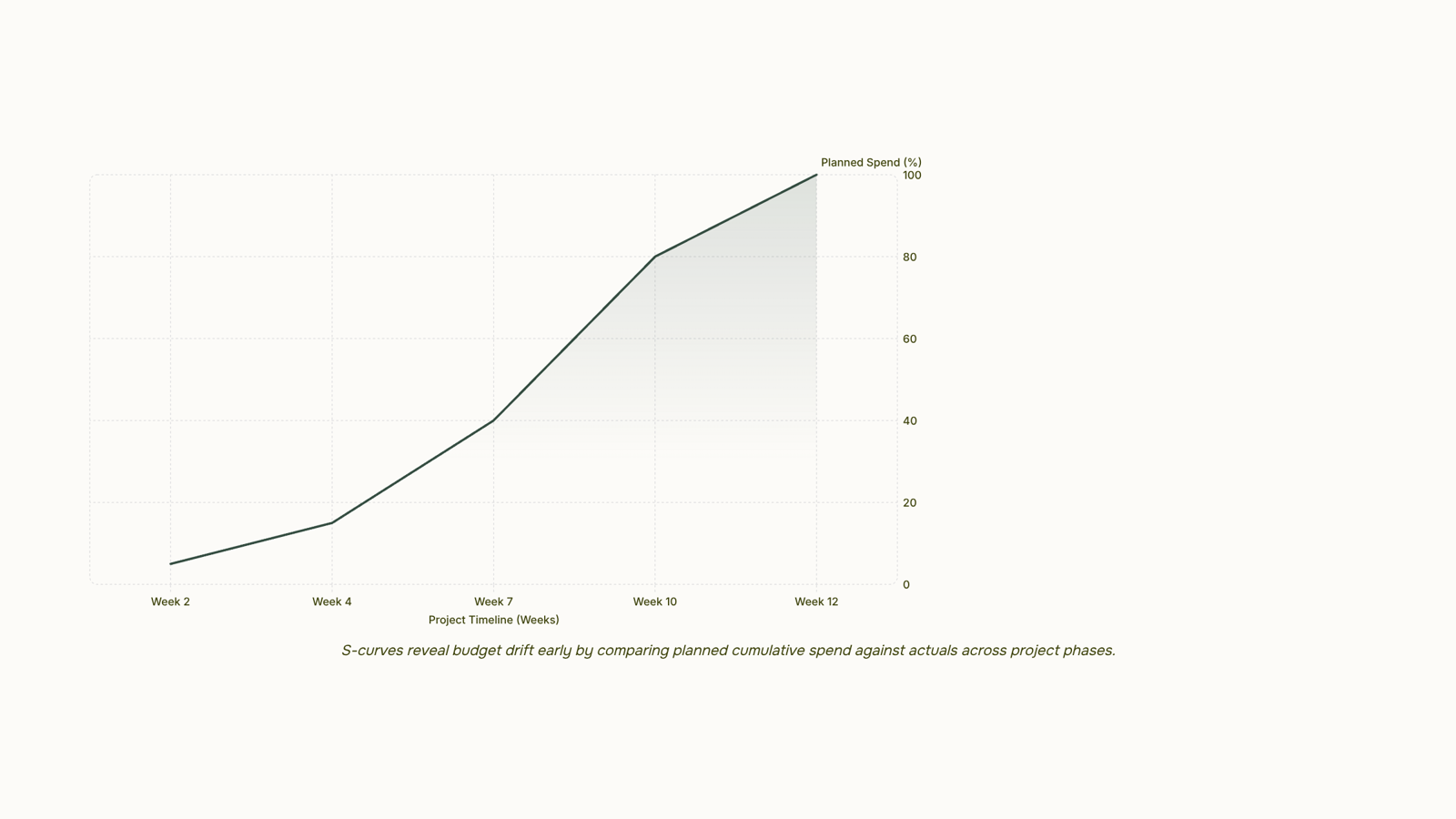
An s-curve in project management is a cumulative cost curve that plots total work, spend, or resources against time. When you graph it, the line starts flat, steepens through the middle, then flattens again near project close. That shape is not a design choice. It reflects how projects actually run.
Early phases move slowly. Planning, scoping, and procurement consume calendar time before they consume significant budget. Then execution kicks in: teams are fully staffed, materials are flowing, and costs accumulate fast. That middle stretch produces the steep climb. As the project approaches completion, activity winds down, punch-list items replace major deliverables, and the curve flattens back out.
The result is a predictable S-shape that holds across industries, from construction to software delivery. According to PMI research, most IT projects that exceed budget do so because variance goes undetected until it is too late to correct. The cumulative cost curve solves that by giving you a baseline to compare against actual spend at any point in the timeline.
If your actual curve climbs faster than the baseline, you are burning budget ahead of schedule. If it lags, resources may be underutilized or milestones are slipping. Either deviation is a signal, not just a data point, and catching it early is the entire point of tracking the s-curve in project management.
Why your project needs an s-curve
Most IT projects don't fail because the plan was wrong on day one. They fail because no one caught the drift early enough to correct it. According to PMI's research, a significant share of IT projects exceed their original budget, and the pattern is almost always the same: small variances accumulate quietly until a course correction becomes expensive.
An s-curve gives you a visual contract for the project. You set a baseline at the start, covering your expected cumulative spend, hours, or progress across the timeline. Then you overlay actuals as the work moves. The gap between those two lines tells you something specific: whether you're burning budget faster than planned, whether your team is front-loading effort that should come later, or whether a phase is stalling.
For project budget tracking, the curve makes variance visible before it compounds. A cost line running above the baseline in week three is a signal, not a crisis, if you catch it then.
For s-curve resource allocation, the shape of the baseline itself is useful. A steep early slope means your team is heavily loaded at the start. A flat middle means capacity is underused. You can rebalance before the schedule slips.
The curve also connects directly to setting up your project with a defined budget, timeline, and milestones from the start, which is what makes the baseline meaningful. Without that foundation, you're comparing actuals against guesswork, and the s-curve loses its diagnostic value entirely.
How to build an s-curve for your project in 5 steps
Building an s-curve starts before you open any charting tool. The inputs matter more than the visualization.
Step 1: Define your cumulative metric
Decide what you are tracking: cumulative cost, cumulative hours, or cumulative tasks completed. Cost is the most common choice for budget-heavy IT projects. Hours works better when resources are the constraint. Pick one and stay consistent — mixing metrics mid-project produces a curve that tells you nothing useful. This is the foundation of any cumulative cost curve worth reading.
Step 2: Set up your project baseline
Before work starts, set a defined budget, timeline, and milestones for each phase. Break the project into time periods (weeks or two-week sprints work well for most IT projects). For each period, estimate how much of the cumulative metric you expect to consume by that point. A 12-week software project might look like: 5% spent by week 2, 15% by week 4, 40% by week 7, 80% by week 10, 100% by week 12. That slow-fast-slow distribution is what produces the characteristic S shape on your s-curve project timeline.
Step 3: Plot the baseline curve
Enter your cumulative planned values into a spreadsheet — Excel or Google Sheets both work. X-axis is time. Y-axis is your cumulative metric. Connect the data points. If the shape looks roughly like an S, your phasing is realistic. If it looks like a straight diagonal line, your estimates are probably too uniform and worth revisiting before the project kicks off.
Step 4: Collect and overlay actuals
As work progresses, record the actual cumulative spend (or hours, or tasks) at the end of each period. Plot these on the same chart as a second line. This is where the s-curve in project management stops being a planning artifact and starts being a control tool. The gap between your planned line and your actual line is the signal. Earned value management (EVM) formalizes this gap into two specific measures: Schedule Variance (SV) and Cost Variance (CV). You do not need a full EVM system to benefit from this — even a simple two-line chart will show you whether actuals are tracking ahead, behind, or on plan.
Step 5: Review the curve at each milestone
A curve you check once at project end is a post-mortem tool. A curve you review every sprint is a steering tool. At each milestone, compare where the actual line sits against the baseline. If the gap is widening, that is your trigger to act — either replanning the next sprint or diagnosing which phase is causing the curve to flatten ahead of schedule.
One practical note: automated risk signals that flag stalled work and velocity drops can surface these gaps between your formal review points, which matters on projects where two weeks of drift becomes four weeks of recovery. The curve gives you the picture; the signal tells you when to look.
The whole process takes about two to three hours to set up for a typical 12-week project. The ongoing effort is one data entry session per sprint and a 15-minute review.
How to read your s-curve and act on what it tells you
Your s-curve tells you one of three things: you're ahead, behind, or on track. Each scenario calls for a different response.
Actuals above the baseline means you're spending or consuming resources faster than planned. That's not always bad — sometimes early acceleration reflects a productive sprint. But if cost is outpacing earned value, you have a real problem. Check whether scope crept in, whether a resource bottleneck forced overtime, or whether the original estimate was simply wrong. Then replan the next sprint once the curve shows you are behind before the gap compounds into a missed deadline.
Actuals below the baseline looks safe but often isn't. Work is moving slower than planned. Your project completion prediction shifts right. If the curve is flat in a phase that should be ramping, you're likely looking at a blocked dependency, an under-resourced team, or a deliverable that's stuck in review. Diagnosing which stage is causing the curve to flatten ahead of schedule is faster than reviewing every task manually.
Actuals tracking the baseline means your s-curve project timeline is holding. Still worth a weekly check — a curve that looks aligned in aggregate can hide a phase that's running hot while another runs cold.
The practical problem with all three scenarios is timing. Most teams catch variance at the status meeting, by which point two weeks of drift have already happened. Automated risk signals that flag stalled work and velocity drops surface these gaps in real time, so you're responding to a two-day slip instead of a two-week one.
Setting up your project with a defined budget, timeline, and milestones from the start is what makes this kind of reading possible — without a clean baseline, the curve has nothing meaningful to diverge from.
S-curve vs. Gantt chart: which one do you need
A Gantt chart answers "what happens when." An s-curve in project management answers "how much has happened so far." They measure different things, which means replacing one with the other leaves a gap.
Dimension | Gantt chart | S-curve |
|---|
What it shows | Task sequence and dependencies | Cumulative cost or work over time |
Best use | Scheduling and resource assignment | Project budget tracking and progress variance |
What it misses | Spend rate and earned value | Individual task ownership and sequencing |
How they combine | Sets the s-curve project timeline baseline | Tracks whether actuals follow that baseline |
Use a Gantt when you are setting up your project with a defined budget, timeline, and milestones and need to sequence work across teams. Switch to the s-curve once execution starts and you need to see whether cumulative spend and effort are tracking the plan.
The two charts work best together. A Gantt tells you a phase is scheduled to finish Friday. The s-curve tells you whether the work volume supports that. When the curve flattens early, you can use bottleneck analysis to diagnose which stage is causing the slowdown before the Gantt deadline passes.
Neither chart is optional on a complex IT project. They answer different questions, and both questions matter.
Common mistakes that make your s-curve useless
Four errors consistently make the s-curve in project management misleading rather than useful.
First, teams update the curve weekly but set the baseline once, at kickoff, before scope is fully defined. Second, they plot cumulative cost without separating planned value from earned value, so the curve looks healthy while work is actually behind. Third, they treat a smooth curve as confirmation everything is fine, rather than checking whether the underlying tasks have automated risk signals that flag stalled work and velocity drops. Fourth, they build the curve in a spreadsheet disconnected from the live schedule, meaning the chart and reality drift apart within two weeks.
Closing
An s-curve works because it turns abstract project health into a single visual signal: the gap between what you planned and what's actually happening. That signal matters most when you catch it early—week three, not week ten. The five-step process gives you the baseline and the discipline to compare actuals against it at every milestone. The real friction starts when you're managing multiple concurrent projects and updating curves manually across spreadsheets. That's where the underlying data—task progress, budget burn, sprint velocity—needs to live in one place so the picture updates itself rather than waiting for a status meeting. What's your next project milestone, and what metric would matter most to track: cost, hours, or task completion?
FAQ
What is an s-curve in project management?
A cumulative cost or resource curve that plots planned versus actual spend over time. It starts flat, steepens through execution, then flattens near completion—reflecting how projects naturally consume resources.
How do I apply the s-curve theory to my project timeline?
Break your project into time periods, estimate cumulative spend for each (5% by week 2, 15% by week 4, etc.), plot it as your baseline, then overlay actuals weekly. The gap between lines tells you whether you're ahead, behind, or on track.
Can I use an s-curve to predict project completion dates?
Yes. If actuals lag the baseline, your completion date shifts right. Compare the slope of your actual curve to the planned slope to forecast when you'll hit 100% spend or task completion.
How does an s-curve impact my project's budgeting and costing?
It makes budget variance visible before it compounds. A cost line running above baseline in week three is a signal to replan, not a crisis—if you catch it then instead of at project end.
How often should I update my s-curve during a project?
Update actuals at the end of each sprint or weekly. Review the full curve at every milestone—a curve checked only at project end is a post-mortem, not a steering tool.


 Elena Petrova15 September 2026


