Build workflows visually like sketching on paper

An interactive workflow canvas with zoom and pan. Drag nodes from the library, draw connections between them by hand, or let auto layout clean the whole diagram for you in one click. Multi select, copy and paste, undo and redo, and grid snapping for pixel perfect layouts every time. A visual workflow builder that turns business process automation into something you can sketch.

Build
How It Works

From blank canvas to running workflow in 4 steps

Open the canvas, drag the nodes you need from the library, draw the connections between them, and let auto layout tidy the whole thing up. Multi select, copy and paste, undo and redo, and grid snapping handle the editing work so the canvas keeps pace with how quickly you think.

1
2
3
4

Node Library

Drag nodes from the library

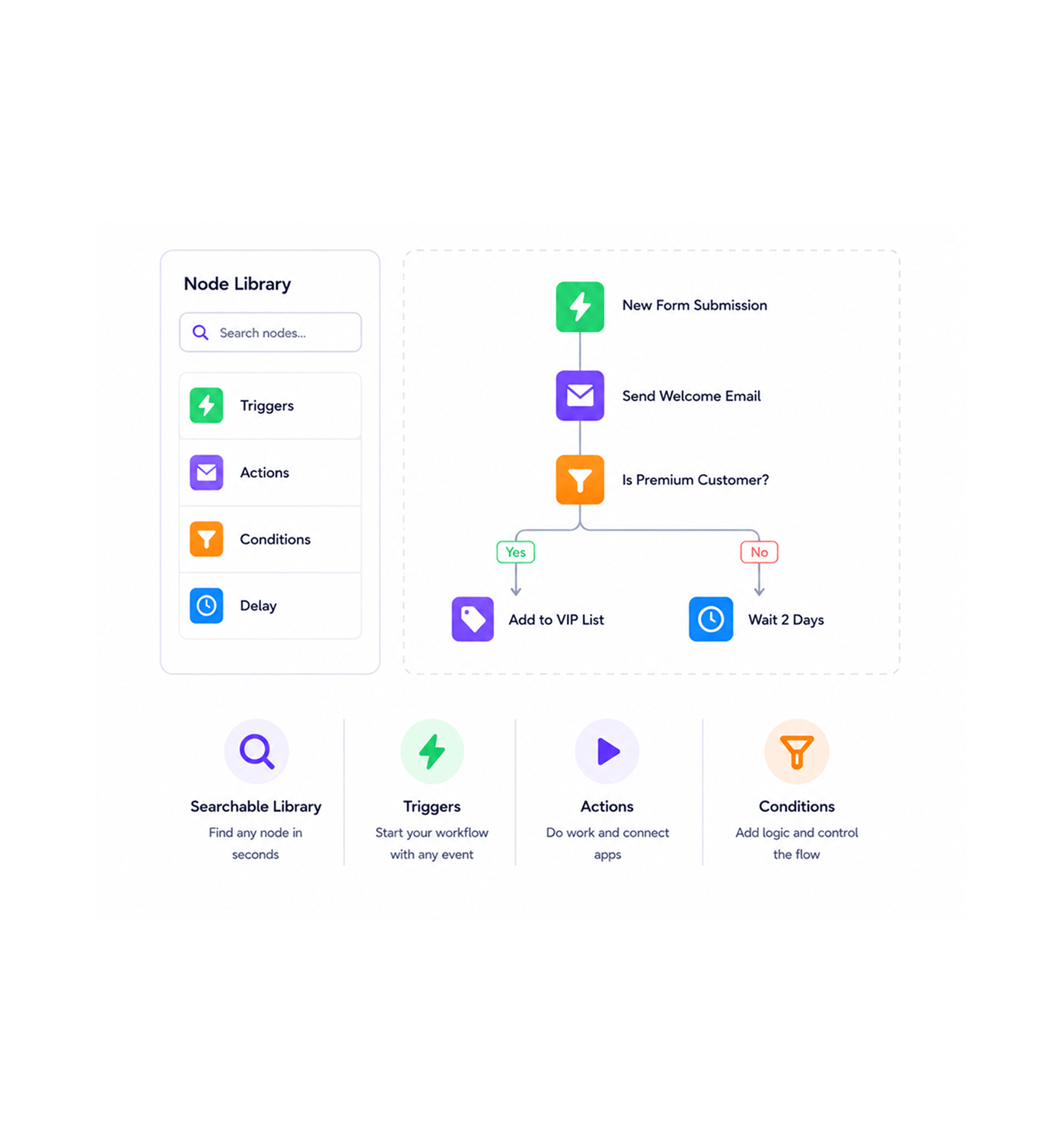
The node library sits on the side of the canvas with every trigger, action, condition, loop, and delay your workflow could need. Grab one, drop it on the canvas, and it lands exactly where you let go. The library is searchable, grouped by category, and shows the most used nodes at the top so the building blocks you reach for most are always one click away.

Searchable LibraryTriggersActionsConditions

Draw Connections

Draw the connections

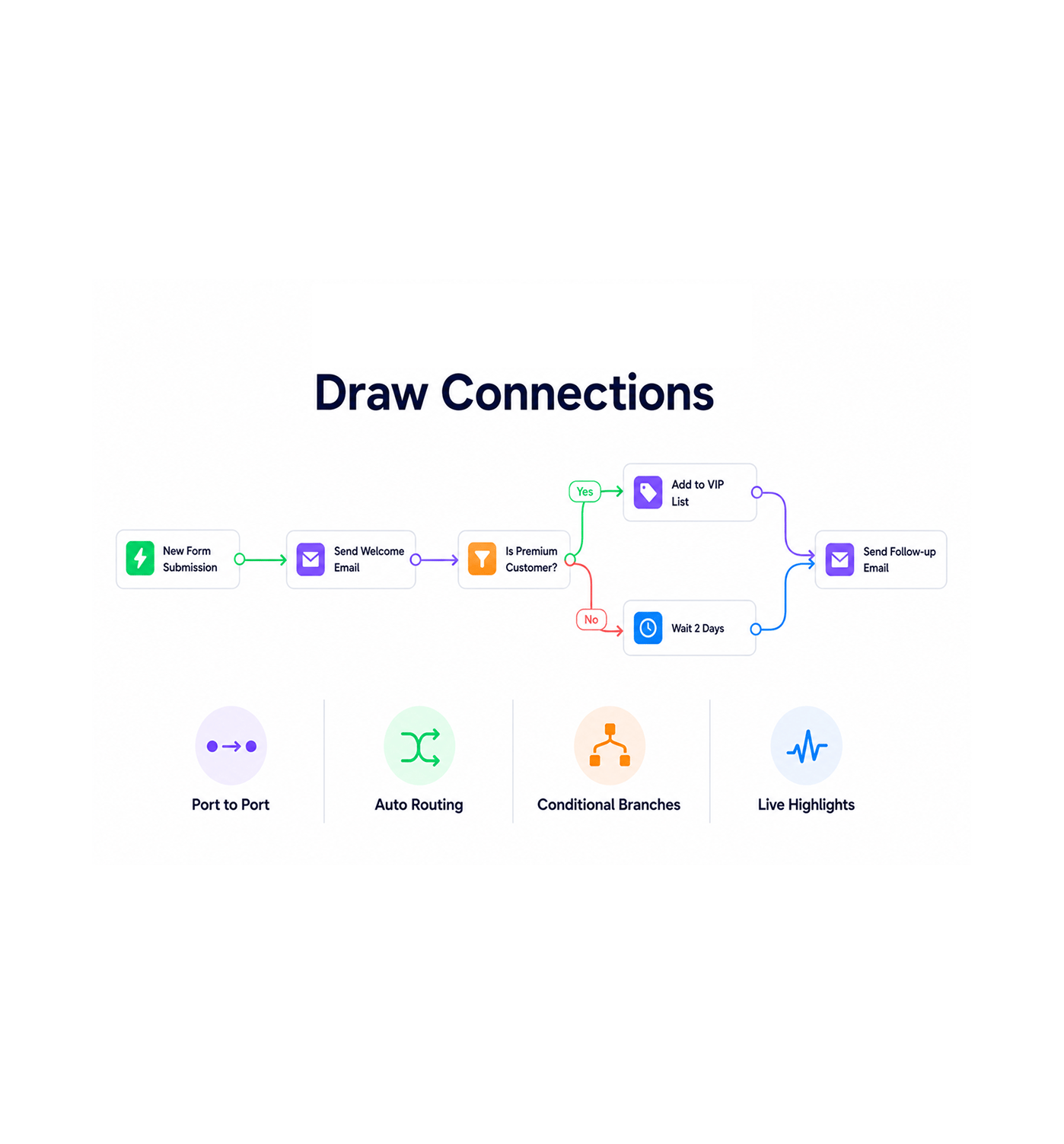
Click and drag from the output port of one node to the input port of the next, and the connection draws itself between them with a clean curve. The path adjusts as you move nodes around, branches handle conditional logic without extra setup, and the canvas highlights the active flow so the whole workflow reads like a story from the trigger on the left to the final action on the right.

Port to PortAuto RoutingConditional BranchesLive Highlights

Auto Layout

Auto layout cleans it up

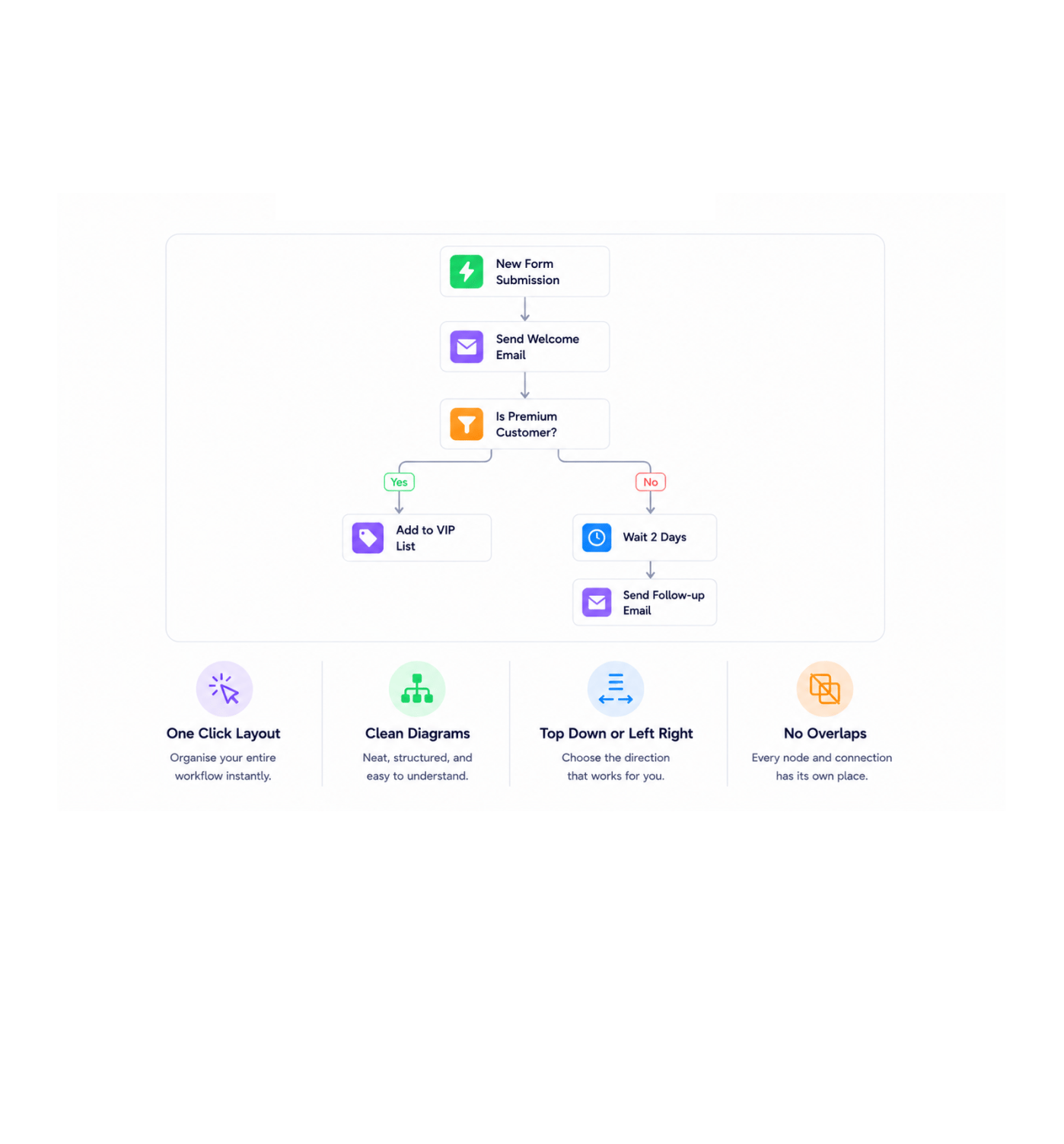
A workflow with twenty nodes can get messy fast. One click on auto layout and the canvas organises every node, every connection, every branch into a clean diagram you can hand to a teammate, a stakeholder, or your future self. Nothing overlaps, every connection takes the shortest sensible path, and the whole flow reads top to bottom or left to right depending on your preference.

One Click LayoutClean DiagramsTop Down or Left RightNo Overlaps

Power Editing

Edit at full speed

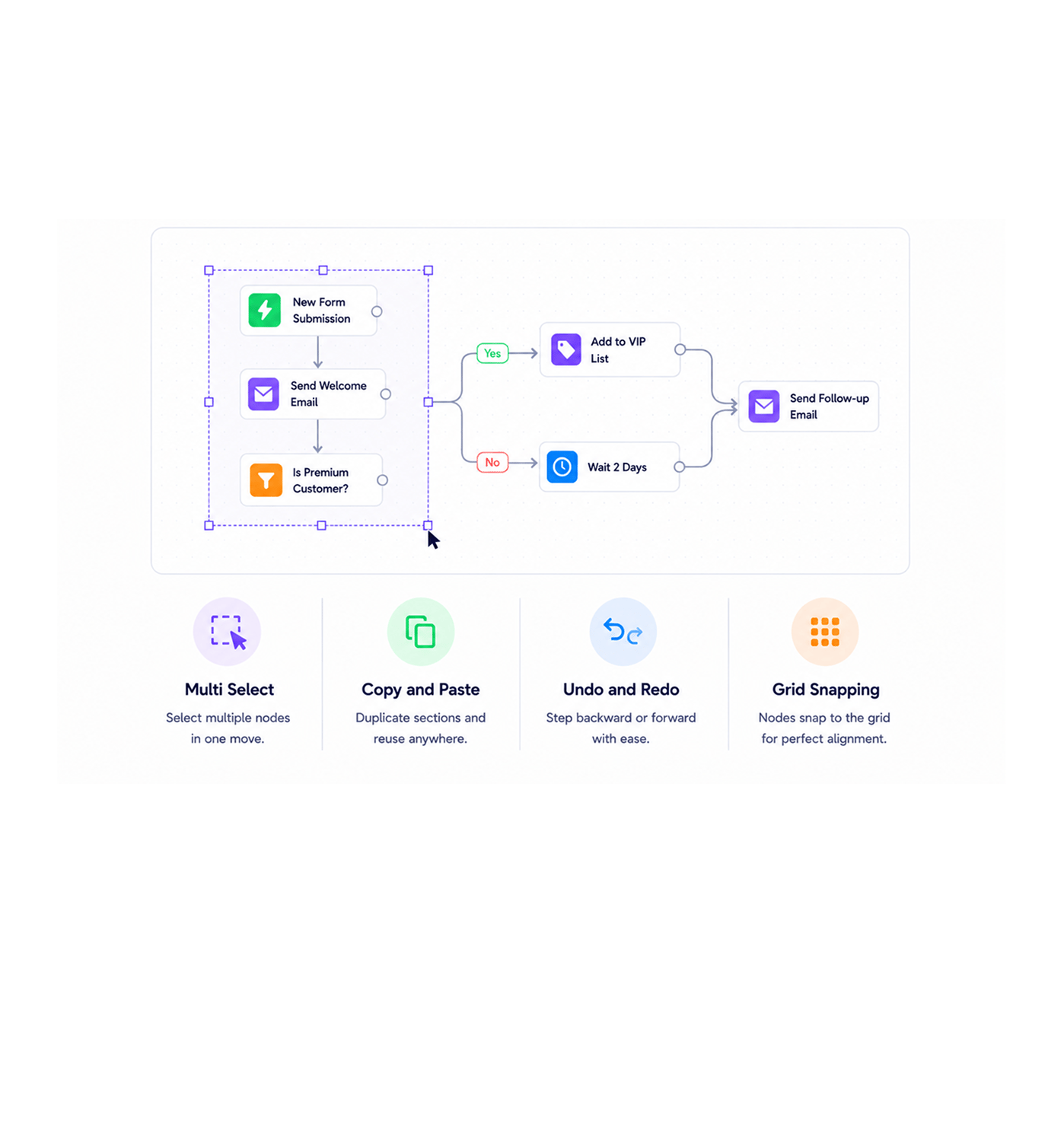
Multi select with a click and drag rectangle or hold the modifier key and click each node. Copy a working section and paste it elsewhere when you need a similar branch. Undo and redo through every change you have made in the session. Grid snapping locks every node into a clean alignment so the canvas always looks pixel perfect without anyone fussing over positioning.

Multi SelectCopy and PasteUndo and RedoGrid Snapping
Why Teams Choose REVO

Six reasons teams never go back

Once a team has worked on a canvas that actually keeps up with their thinking where the nodes snap into place, the layout cleans itself, and undo is one keystroke away going back to a stiff workflow editor feels like swapping a sketchbook for a typewriter. These are the changes that show up first.

Build the way you think visually

Build the way you think visually

People do not think in trigger nodes and action steps. They think in pictures boxes, arrows, branches. A drag and drop canvas lets the team draw the workflow the way they would on a whiteboard, which means the layout in the tool starts looking like the diagram on the whiteboard, instead of a translation of it that nobody quite recognises later.

Big workflows stop being a mess

Big workflows stop being a mess

A twenty node workflow that started simple grows tangled the moment new conditions get added. One click on auto layout untangles the entire diagram into a clean readable structure. The complex workflows that used to be everybody's least favourite tab to open become diagrams you can actually scan in a meeting without anyone squinting.

Mistakes are one click back

Mistakes are one click back

Accidentally deleted a connection? Undo. Dragged a node into the wrong branch? Undo. Pasted the same step three times by mistake? Undo, undo, undo. Full session history means experimenting on the canvas carries zero risk. The team tries things instead of planning every change three times before committing, which is the only environment where good workflows actually evolve.

Reuse what already works

Reuse what already works

A branch of nodes that handles error notification, a sequence that does customer welcome, a logic block that scores a lead all of it can be selected, copied, and pasted into the next workflow that needs it. The wheel stops getting reinvented every time. Patterns that work get propagated across the team's automations by the team itself, in seconds, without anyone building a separate template library.

Pixel perfect without trying

Pixel perfect without trying

Grid snapping handles alignment automatically. Drop a node anywhere near a grid line and it locks into place. The canvas always looks ordered, clean, and intentional, even when the person building it has not thought about positioning at all. Workflows that get presented to leadership or shared with a client end up looking like deliberate diagrams rather than rough sketches.

Zoom out, see the whole story

Zoom out, see the whole story

Smooth zoom and pan lets you fly out to see the entire workflow at a glance, then dive back in to a single step in a second. The big picture and the fine detail are never more than a scroll wheel apart. Long workflows finally feel navigable, and the conversation in a review meeting can shift between "is the overall shape right" and "is this one step right" without ever leaving the canvas.

Stop fighting the canvas. Start flowing on it.

Drag a node. Draw a connection. Auto layout. Undo. Snap to grid. The visual workflow builder your whiteboard sessions deserve.

Who uses REVO canvas
Deepak MehrotraDeepak MehrotraDeepak MehrotraDeepak Mehrotra

6900+

Teams sketching workflows instead
of writing them

Built for teams that think visually

Operations specialists, marketing leaders, customer success managers, product operators, and founders use the Revo canvas as the workspace where business process automation actually gets built. The node library is the toolbox. The drawn connections are the logic. The auto layout is the cleanup. The multi select and copy paste are the speed. Every team a small business owner sketching their first three workflows or a larger organisation running hundreds of automations gets the same visual workflow builder with the same level of polish and the same editing speed.

Drag

& Drop

Auto

Layout

Snap

To Grid

Undo Steps

Visual Builder

Drag, draw, done

The node library, the drawn connections, the auto layout, and the zoom and pan come together into a canvas that feels closer to a sketchbook than to a configuration tool. Build a workflow the way you would draw it on a whiteboard, then watch the canvas keep it clean and organised as it grows.

Drag, draw, done
Features

Everything the canvas ships with

A complete visual workflow builder built into the same workflow automation platform your team already uses. Node library, hand drawn connections, auto layout, multi select, copy and paste, undo and redo, and grid snapping all come together in one canvas so building a workflow feels less like configuring software and more like sketching a process.

Drag and Drop Node Library

Drag and Drop Node Library

Every trigger, action, condition, loop, and delay your workflow needs sits in a searchable library on the side of the canvas. Drag one onto the canvas and it lands exactly where you let go. Categories, search, and a most used section keep the building blocks you reach for most always one click away.

Hand Drawn Connections

Hand Drawn Connections

Click and drag from the output of one node to the input of the next, and the connection draws itself with a clean routed curve. The path adjusts as the nodes move, branches handle conditional logic without extra setup, and the active flow stays visible so the workflow reads like a story from the trigger onward.

Auto Layout for Clean Diagrams

Auto Layout for Clean Diagrams

One click on auto layout and the canvas organises every node, every connection, every branch into a clean readable diagram. Nothing overlaps, every connection takes the shortest sensible path, and the workflow reads top to bottom or left to right depending on your preference.

Multi Select, Copy, and Paste

Multi Select, Copy, and Paste

Select multiple nodes with a click and drag rectangle or by holding the modifier key. Copy a working sequence and paste it into another workflow that needs the same pattern. The branches and connections come along with the nodes, so reusable patterns travel cleanly across automations.

Undo and Redo History

Undo and Redo History

Full session undo and redo through every change made on the canvas. Deleted a connection by accident, dragged the wrong node, pasted a section in the wrong place one keystroke takes it back. Experimenting on the canvas carries zero risk, which is the only environment where good workflows actually evolve.

Grid Snapping for Pixel Perfect Layouts

Grid Snapping for Pixel Perfect Layouts

Drop a node anywhere near a grid line and it locks into place automatically. The canvas stays ordered, clean, and intentional without anyone thinking about positioning. Workflows shared with leadership or a client end up looking like deliberate diagrams rather than rough sketches.

Drag and Drop Node Library

Drag and Drop Node Library

Every trigger, action, condition, loop, and delay your workflow needs sits in a searchable library on the side of the canvas. Drag one onto the canvas and it lands exactly where you let go. Categories, search, and a most used section keep the building blocks you reach for most always one click away.

Hand Drawn Connections

Hand Drawn Connections

Click and drag from the output of one node to the input of the next, and the connection draws itself with a clean routed curve. The path adjusts as the nodes move, branches handle conditional logic without extra setup, and the active flow stays visible so the workflow reads like a story from the trigger onward.

Auto Layout for Clean Diagrams

Auto Layout for Clean Diagrams

One click on auto layout and the canvas organises every node, every connection, every branch into a clean readable diagram. Nothing overlaps, every connection takes the shortest sensible path, and the workflow reads top to bottom or left to right depending on your preference.

Multi Select, Copy, and Paste

Multi Select, Copy, and Paste

Select multiple nodes with a click and drag rectangle or by holding the modifier key. Copy a working sequence and paste it into another workflow that needs the same pattern. The branches and connections come along with the nodes, so reusable patterns travel cleanly across automations.

Undo and Redo History

Undo and Redo History

Full session undo and redo through every change made on the canvas. Deleted a connection by accident, dragged the wrong node, pasted a section in the wrong place one keystroke takes it back. Experimenting on the canvas carries zero risk, which is the only environment where good workflows actually evolve.

Grid Snapping for Pixel Perfect Layouts

Grid Snapping for Pixel Perfect Layouts

Drop a node anywhere near a grid line and it locks into place automatically. The canvas stays ordered, clean, and intentional without anyone thinking about positioning. Workflows shared with leadership or a client end up looking like deliberate diagrams rather than rough sketches.

Questions & Answers

Everything you need to know

Common questions about how the Revo canvas works, what the node library contains, how auto layout decides on a clean diagram, and what keyboard shortcuts speed up the editing experience.

The node library covers every building block a workflow can need triggers for incoming events from your stack, actions that talk to internal and third party applications, conditions for branching logic, loops for processing lists, delays for timed steps, and utility nodes for transforming variables between steps. The library is searchable, grouped by category, and surfaces the most used nodes at the top so the building blocks you reach for most are always one click away.

Network background
REVO · Drag and Drop Canvas

Stop dragging the same nodes. Start shipping the workflow.

Drag from the library. Draw the connections. Let auto layout clean it up. Multi select, copy, undo, snap. The canvas your visual thinking deserves.